Tuesday, January 26, 2016

FTT - Updates to Google Drive

Google On! New Google Drive Features You'll Want To Know About.


@LisaBerghoff / @joe_edtech


This is part two of a two-part series outlining some new features Google has cooked up for us. Last week's post outlined some of the new features of Google Classroom.  If you are a Google Classroom user and have feedback for the Classroom developers, please do not be shy about sending feedback.  Many of the changes have been the result of suggestions sent in by teachers.

Today is all about Google Drive and Docs and some of the changes that have been made in the past few months.  

Voice Typing

The new voice typing feature is built into docs and the technology has gotten amazingly good.  This tool allows you to speak into the microphone on your computer or Chromebook and it will type what you say.  Speech to text technology is not especially new, but it has gotten so much better and previously you needed to use an app.  When you are in a Google doc (not to be confused with a Word document stored in your Google drive), you will click on the Tools menu and there you will see voice typing as an option. 


An icon will open and prompt you to click to speak into the microphone. As you speak, the text will appear.  Give it a try, you will find that it is really pretty accurate as long as there is not a ton of background noise going on around you.


Research from Google Docs

The research tool has been around for a while in docs.  Now the tool enables you to search any topic and quickly insert the information into your document.  You can filter your search with images, academic articles, quotes, dictionary, or tables.  Without the filter, you can simply search "Everything".  The research tool will also automatically cite your source for you using MLA, APA, or Chicago format.  In addition, you have the ability to filter your results for images by usage rights so you won't be violating copyright laws.  This tool is a real time-saver and can have your students focusing more on analyzing the content of their research and less on formatting and citations.  


Templates

There are new, well-designed templates that help you create letters, essays, reports, class notes, to-do lists, calendars, and more.  Did you know that there are individual sites for docs, sheets, and slides?  If you go to docs.google.com, you will see templates right there all ready to go. The same holds true for sheets.google.com and slides.google.com.  In addition, you will also see all of your docs on that same page.  You can click the "more" button to see more options. They are organized by type, such as work or education.  

"Explore" In Sheets

Explore is a new feature added to Google Sheets. It automatically creates several different charts for you. This helps you get quick insights into your data, without any extra work on your part. Plus, those charts update automatically as you change the variable. You can also highlight specific fields to make quick charts out of that particular data. You will see the new Explore button appear at the lower right-hand corner of your screen when you are in sheets. 
Prevent A Doc From Being Copied, Downloaded, Printed, or Cut/Pasted
Have a doc you want to protect? When you click the blue "share" button, there is teeny tiny writing in the bottom right corner of the box that says "advanced". Don't worry! You qualify as being advanced. Whether you think you are or not.  When you click on advanced you will see a check box with the words "Disable options to download, print, and copy for commenters and viewers".  You can check that box and then go ahead and share your doc, giving commenting or "view only" privileges.  When the commenters and viewers look at the doc, they will not have the options to make a copy or download.  In addition, if they try to highlight text to copy and paste it, they will get a friendly message letting them know that the action is not allowed.  

-----------------------------------------------------------------------------------------
What are some of your favorite Google docs features?  Please share them in the comments below. We all have lots to learn from one another! 


Tuesday, January 19, 2016

FTT - Updates to Google Classroom

Keeping Up With The Google
A Summary of Recent Updates to Google Classroom

@joe_edtech / @LisaBerghoff

Last week at both DHS and HPHS, we had a chance to show several people some of the recent updates to Google Apps. However, we know that this is a busy time of year for a lot of you (in fact, we haven't really found a time of year when teachers and technologists aren't busy!) So, over the next two weeks, rather than introducing new Web 2.0 tools to you, we are going to summarize some of the major updates we've seen in Google Apps for Education this Fall. This week's blog will focus on Google Classroom and next week's post will look more closely at Drive, Docs, and Sheets.

Google Classroom

I've been saying it for some time now, but this tool is getting better and better every day. It isn't a full learning management system, but Google Classroom has become a great way to organize your class, share content with and from your students, and host classroom conversations! 

Share to Classroom:
Closing the gap quickly on Hapara as a classroom management tool, Google released a new extension called "Share to Classroom." It allows a teacher to take resource they found on the web and immediately share it with their students in Classroom. If the students are logged into Google Classroom, the resource will open in a new tab on their device, whether they are using one of the school's Chromebooks or not. Simply go to the Chrome Webstore and add the extension to your browser.
From Google For Education Blog

Integrate Zaption or EDpuzzle Assignments directly to Google Classroom:
A lot of teachers have been using tools like Zaption or EDpuzzle to flip lessons or provide extra opportunities for students to interact with and master content and skills. However, those tools have always existed "outside" of Google Apps. No longer, on many Web 2.0 tools, when you have a completed project to "share," you'll see a "Share to Google Classroom" icon. If you click the button, you can add your Zaption or EDpuzzle creation directly to your Google Classroom. Here's Zaption's quick video on Sharing to Classroom:


Sort Students for Grading:
When it is time to grade an assignment, you can now sort assignments based on whether or not they have been completed, or based on student first or last name. One cautionary tale is, and we learned this from Hapara sometime last year, some of our students names appear to be reversed (I think that has to do with the way we set up accounts in Google Apps, but I'm not sure. This is also a very sporadic problem.)

Google Calendar Integration:
The biggest complaint I had with Google Classroom when it was first introduced was that it didn't automatically add things to a Google Calendar for students. FINALLY, that problem has been solved. There is a calendar for every class you create in Calendar, and assignments automatically get added to the calendar and shared with all of the students. Here's a short video explanation from Google Certified Trainer Jenn Scheffer:


Post Short Answer Questions:
Earlier in the year, it became possible to add Google Form Quizzes to your Classroom Stream. But, what if you just want to ask one question to check for understanding or spur a deeper conversation? Now you can ask short answer questions in Classroom the same way you post assignments or announcements. On the lower right-hand side of your Classroom Stream, you'll see a "+" sign. Click that and select "Create question." You can ask your question live in class, or you can give it a due date and give the students time to think. As with assignments, it is easy to see who has completed the question and who has not. And you can decide whether or not you will allow students to see and respond to other answers posted in the class.

---------------------------------------------------------------------------------------------------
Have you tried Google Classroom yet? If not, why not?


Tuesday, January 5, 2016

FTT - Text 2 Mind Map

Text 2 Mind Map Home Screen
Support Both Linear & Non-Linear Thinkers With Text 2 Mind Map

@joe_edtech/@LisaBerghoff

You don't have to spend very much time trying to solve a problem or work through a set of directions with a group of people before you figure out that people think about things differently. I have two friends who love to put things together and are considerably better at that than I am. However, they go about it in very different ways. One is meticulous about reading every word of the directions provided or manuals included before he ever attempts construction. Then he will lay out all of the materials and tools and follow the directions line by line until he is finished. Friend number two is a tinkerer. He believes that directions and manuals represent the least possible creative way to complete the job. Since I've seen them both build some amazing and beautiful things, it is impossible for me to say which one of them is doing it "the right way."

The same kind of thing applies to the classroom. I've worked with teachers who insisted that their students take notes a certain way, sometimes using a certain color of pen, highlighting, and underlining, and numbering the items exactly as the teacher would have done it if the teacher were taking the notes. I even understand this method of teaching - some students really need some directions on taking notes. However, in my first year of teaching AP European history, I met a student that simply didn't think in a fashion that fits with structured note taking. Often times, when he was trying to understand relationships, he would draw pictures. Since he was easily the best, and most engaged student in the class, it would have been silly for me to require him to take notes in a manner that is awkward and foreign to him. That is why I believe it is important for us to offer students choices, and help them learn how they best learn.

In a previous blog post, I wrote about the importance of making Mind Mapping available to kids who don't necessarily think in a linear fashion. But what do you do if you have to accomodate both linear and non-linear thinkers in one group? Text 2 Mind Map is a pretty simple Web 2.0 solution that allows kids to create Mind Maps from outlines. They maps can be downloaded or shared via email. Here is a brief overview of using Text 2 Mind Map:


The downside to Text 2 Mind Map at the moment is that it isn't truly a collaborative Web 2.0 tool. In other words, your students can't create accounts (that is a premium feature) and share editing privileges with another student or with you. This is strictly for creating a mind map from an outline.

-----------------------------------------------------

What tools do you use to help kids think about their own thinking?


Tuesday, December 15, 2015

FTT - Quizziz


Quizizz: Fun, Engaging, Multiplayer Classroom Quiz Games and Yes, Students Can Play From Anywhere!

@LisaBerghoff / @joe_edtech


I'll admit that I can be a sucker for bells and whistles.  I love toys and games and fun in the classroom if they are used in a purposeful way.  When students come back and visit years after graduation, it's the funny, silly activities that they remember and connect with most.  Do any students come back and say "Remember that time when we sat in rows quietly and took notes?" I recently led a workshop and asked teachers from various schools to describe what their classroom looks like when their students are truly engaged.  Words like "active", "participation", "loud", and "excited" came up as the teachers thought about a time in their classroom when students were engaged.

Of course, the topic of Kahoot often comes up during these types of discussions.  Remember the first time you did a Kahoot?  You will absolutely not get that kind of response when you assign a worksheet.  That's because tools like Kahoot are engaging and fun by design.  They allow students to participate in a way that does not require them to push too far out of their comfort zone, but still makes you feel like you are playing a game and taking a risk.  One of the most common questions that comes up with Kahoot is whether or not students can participate in these fun quiz games on their own or from home.

That is why I am thrilled to share Quizizz with you. 

http://www.slideshare.net/Quizizz/quizizz-presentation-49737217

Quizizz is  a free, online tool that allows you to create classroom game show-like quizzes.  Similar to  Kahoot, the students have questions and  up to 4 options for responses.  You can create your own or use one that has already been created.  You can even create your own quiz but then steal collaboratively take advantage of individual questions that other teachers have made and put them into your own quiz.

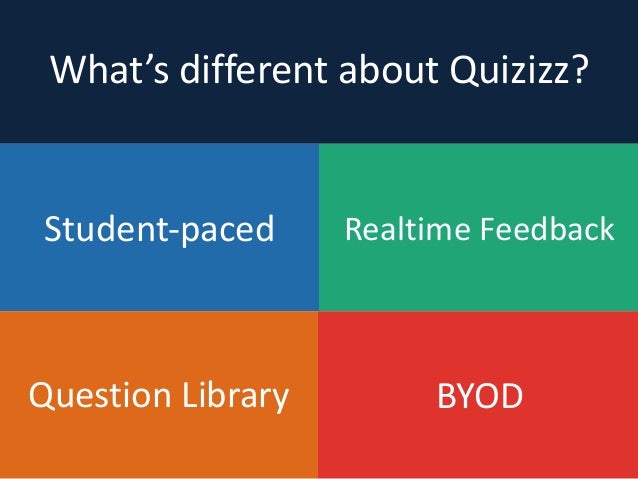
There are several key features that make Quizizz different from Kahoot.  First, you can adjust the timer from 5 seconds to 15 minutes of time allowed to answer a question, or you can adjust the settings so the question timer is off completely. You can play the games live during class but allow students to play at their own pace because the entire question shows up on the students' screens.  The way Quizizz works is such that you can play at your own pace but still feel like you're playing against your classmates.  Quizizz also has a feature that allows you to assign the quiz for homework. There is a  calendar feature to set the days that the quiz is open and give your students the Quizizz code to join your quiz. It also has a meme generator that will give the students instant feedback by way of funny kittens and silly graphics. Another feature of Quizizz is that when students finish playing, they get valuable data showing how they did on each question. 

When your students first log in at join.quizizz.com, they will enter the game code and their name.  In order to effectively grade the quiz, I suggest mandating a naming convention so that students must enter their first name and last initial or some other standard format so you will know who is participating.  The students are then assigned an avatar (mine was an adorable sheep with glasses) and then are prompted to proceed.  As students are answering the questions, they are given immediate feedback on how they did on each question.  Once they are done, they can see how they did on all of the questions and they can go back and review the questions.

https://twitter.com/quizizz/status/562659247066861568


As the teacher, you can pull up a "report" that shows the percentage of students who answered each question correctly.  You can also click on individual students to see how they did.  The reports page gives a very easy to read graphic so you can quickly see which of your students need more instruction. This type of formative assessment is quick and easy to put together, fun for the students, and very helpful you teachers as we make instructional decisions.


Quizizz can be used at any point during instruction.  You can then show the questions in slide show mode so you can explain and walk through the most missed questions.


Want to see more?  Here is a short video walk-through of Quizizz.
You're Welcome!


What are some of your favorite tips and tools for classroom engagement?  Share in the comments section below. 

Tuesday, December 8, 2015

FTT - Grammarly for Chrome


Using Grammarly To Improve Online Writing

@joe_edtech / @LisaBerghoff

I grew up watching Kelsey Grammer playing Frasier Crane on tv, a character who frequently corrected people's grammar. Kelsey and I have some traits in common and I have often quoted his Frasier when I've had to do something uncomfortable or hypercritical, "It's like correcting people's grammar. I don't do it to be popular." Apparently, we share quite a few traits.
"I don't do it to be popular."

I've found that there are two types of people in the world. Type 1 will post something on Facebook confusing "their" with "there" and "two" with "to," and Type 2 will post a comment correcting both misspellings. I am Type 2, usually. 

Back in the day, we all learned grammar and usage by endlessly diagramming sentences on the blackboard. Then the world changed and Bill Gates taught everyone to rely on Microsoft Word to correct their spelling and grammar mistakes. Then the world changed again and we all started writing online - where there is no reliable grammar check! The horror!

Grammarly is a Web 2.0 program and a browser extension that can help civilize Internet writing. Once the plugin is installed, Grammarly can help correct your grammar mistakes in Gmail, on Facebook posts, in LinkedIn, on WordPress, or literally anywhere you write online. I'm sure it would work in Blogger if I needed it.  (Insert sly smiley face here.)

After you've installed the extension and created a free account, there are two simple ways to use Grammarly. Anytime you are writing online, you can simply click the extension button on your browser, and Grammarly will launch a grammar and spelling checker. Just like in Microsoft Word, Grammarly will underline detected mistakes and make suggestions. You can choose to accept Grammarly's suggestions or not. 

If you need something more, you can create or upload writing drafts to your account on grammarly.com. Online, you can use Grammarly's plagiarism checker and benefit from tools like the sentence structure suggestion. If you are working on something really important, and you purchase a premium account, you can even consult with one of their professional proofreaders. However, most people will be just fine with the free service they provide online.

The best solutions to your grammar, spelling, and usage problems are careful composition and meticulous proofreading. However, when you are writing quickly for a public audience, Grammarly can be a pretty useful substitution for meticulousness. 

---------------------------------------------------------------------------------------------------
If you've got some time, here is Dottotech's Review of Grammarly:

Tuesday, December 1, 2015

FTT - Bee Line Reader


Easy On The Eyes! Read More In Less Time With Bee Line Reader

@Lisa Berghoff /@Joe_EdTech


In the past several years there has been a giant push for educators to have a better understanding of literacy skills.  We know that reading is imperative for learning and we know that comprehension plays a major role in multiple subject areas.  However, certain aspects of reading that often get overlooked are fluency,  decoding speed, and tracking ability, especially when dealing with reading digital text.  As more and more of our text is presented in digital format, it is necessary for educators to explore ways to help our students follow what they read with increased speed and decreased eye strain.  

Bee Line Reader makes reading faster and easier by making a color gradient that guides your eyes from the end of one line to the beginning of the next.  I have been using the Bee Line Reader for 2 weeks and this simple tweak does seem to be helping me with both focus and eye strain.  The Bee Line Reader is an extension that can be found in the chrome web store.   You can use it as much as you want for free for 30 days. After that, you can continue to use it 5 times per day for free or upgrade to the pro version.  

I believe that the Bee Line Reader can benefit all of our students, but it might be a game changer for our kids with dyslexia, ADD, or students  who struggle to decode. 

Here's the explanation of how it works, while using the Bee Line Reader:

Tuesday, November 24, 2015

FTT - Online Mind Mapping/Coggle

Reading Tragedies... Wait, Are We Talking About Shakespeare?

@joe_edtech / @LisaBerghoff

My daughter, 14 year old Princess in training, has an IEP because she struggles with reading comprehension. I am just not sure if her case manager hates it or loves it that Katherine's dad is a professional educator. I think she hates it because I ask questions that can sometimes be pointed (maybe snippy). For instance, this year I asked what "reading strategies" she had used in the classroom. The answer was, "I'm sorry, what are 'reading tragedies?'" - Yes, I actually felt my aorta pulse.

So, after the meeting, I went right to the source. I asked my daughter if she learned more from her reading teacher at school, or from the private reading tutor I hired. After I got past the initial discussion about, "Dad, I love all of my teachers equally," I finally got the answer I was looking for. "Well, the stuff that I read in school is all pretty much the same, and very boring. The stuff I read from the reading tutor is a lot more exciting, and I understand it and remember it a lot better." Of course, her comment speaks to the importance of reading selection, but she went further. "With [the private tutor] we make a lot of mind maps and it helps me remember things a lot better."

Mind Mapping! Concept Mapping! How often we forget to take such a simple step even when we know most of our kids are visual learners. In my district, we used to use a very expensive piece of software to do this; but in the era of budget cuts, we may or may not have access to expensive, limited use pieces of software. However, concept maps are important whether we are talking about reading strategies, note taking strategies, or simple brain storming activities. I know of three great Web 2.0 tools for creating concept maps collaboratively, without spending a single dime.

The first is relatively new to my repertoire, but it has come to be one of my favorites. Coggle is a web tool, also available as a Chrome App on the Chrome Web Store, that not only allows students to create colorful and dynamic mind maps, it also allows for easy interaction between groups of students and teachers. One of the newest features to Coggle is a chat window where collaborators and teachers can leave notes or engage in live chat, which means, like most good Web 2.0 tools, students can be working synchronously, asynchronously, independently, or with an instructor.

Rather than linked geometric shapes, Coggle mind maps look organic, mimicking connections in the brain. Furthermore, Coggle makes it extremely easy to use color and format text. When the mind map is complete, there is no need to print. You can share it with any user online, store them in folders on your Coggle account, and even organize them in Google Drive. If there is a negative to this tool it is that all mind maps are public - meaning anyone can view the Coggle's you make. That could be a positive, if you are working on a subject that is new to you, you can search through existing Coggles to see how others have mapped the concepts.

Here's a short video intro to get you started with Coggle:


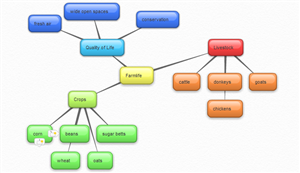
The map to the left, a more traditional mind map, was created in a Web 2.0 program called bubbl.us. For free, you can go to bubbl.us, create an account and start making concept maps. What's more, you can create teams and collaborate on concept maps with other users. With a simple click, you can download your mind map as a .jpg or .png and embed it in a document or on a website.


Google Draw Screen Capture
An often overlooked tool for mind mapping is Google Drive. In addition to docs, spreadsheets, and presentations, you can create Google Drawings. Once in the drawing, you can add, and add text to shapes and "call outs" (think the comics page in your Sunday Newspaper). As with all Google Drive products, it is simple to collaborate and share your work with other users. Drawings can be embedded on Google Sites, in Docs, and in Presentations, or you can simply download them as .pdfs.

If your class is BYOD, or uses iPads or iPhones, there is an excellent iOS App called iBrainstorm that allows users to create simple concept maps with sticky notes. Collaboration is possible, but trickier on the iPad App. But if you connect several iPhones to the same iPad, you can actually "flick" sticky notes from one device to another.

The Chrome Web Store offers several others that might be worth a try, including: ConnectedMind, MindMap, MindMeister, LucidChart, Mindomo, and Mind42.
----------------------------------------------------------------------------------------------------------------------
I'm aware of free software packages like Vue or FreeMind, but are there other Web 2.0 solutions out there like this? If you are using Mind Mapping Software in your class, please share your favorite in the comment section below.