Showing posts with label Formative Assessment. Show all posts

Tuesday, October 11, 2016

FTT - Seesaw

Student Driven Digital Journals and Portfolios? Yes Please!

@LisaBerghoff/@Joe_EdTech

This week's free tech tool comes to us from HPHS world language teacher Weifang Wang (@WangWeifang).


The sweet spot for teachers of any content is when you have students who are taking ownership for their work, reflecting on their learning, and articulating all of that both in and outside of the classroom. As a teacher, the joy is in guiding students towards learning and then getting out of their way so they can express their understanding of new ideas, concepts, and analysis of information, while connecting this new understanding in a way that is meaningful.

The Seesaw platform is designed for student-driven digital portfolios. It is so simple to use, it quickly became a favorite of elementary teachers because kids can truly do it on their own. What I love about Seesaw for high school students is that even though it is easy to use, the tools are powerful and robust. As we are searching for tools that help us to differentiate for all of our students, Seesaw allows for students to add photos and videos (uploaded OR recorded on Chromebooks), drawings, links, text, notes, or files to be uploaded. Once added, our students can write captions or leave voice recordings of their reflections. Seesaw also has the ability to set up a class blog for you. You can password protect it and decide if you want to allow comments. Once your blog is set up, both teachers and students can post to it. 

Here's how it works:
1. Students log in using their Google account and they input the class code that teachers get when they create a class.

2. As a teacher, you can post to an entire class or just to select students. You might post a prompt and ask your students to show their work, reflect, and respond.

3. If you just want your students to begin without a prompt from you, they can click on the green plus button to add an item. Students can easily use their Chromebook camera to take photos or videos and add them into their seesaw journal. 
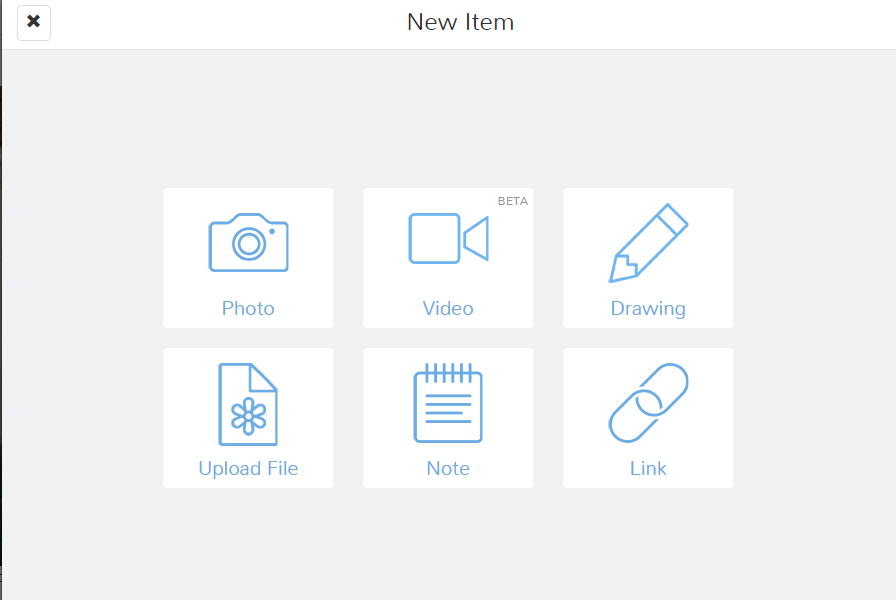
4. Once they have added an item, your students will add a caption OR leave a voice recording that talks about the work they are displaying. 

 5. Teachers must approve students' journal entries so we are able to help guide them towards habits that will help them create a positive digital footprint. While they are learning, Seesaw provides a safe environment. Seesaw has earned a very high rating on common sense education, which is a very respected reviewer of educational applications. 

From another perspective, as a parent, it is difficult for me to know what is going on with my kids schoolwork now that they are doing so much of their work digitally. I can't just go into their backpacks and look through their folders (thank goodness!). All of the digital work can be unnerving because I want to support my kids and have conversations about what they are doing in school. 
Seesaw makes it easy to connect parents to see their students' work and be able to have a "window into my child's school day", according to the seesaw website. This of seesaw as a communication platform between students, parents, and teachers.  

Seesaw can be used on any device and the free version has an outstanding platform with features that students will actually want to use. 


Here is a screenshot of my first photo journal entry to my Seesaw class!


Are you using Seesaw or digital portfolios and blogs in your classes? Post in the comments below and share your thoughts. 

Tuesday, August 30, 2016

FTT - Google Form Quizzes

Creating Quizzes Using Google Forms

by
@joe_edtech/@LisaBerghoff

Google forms has always been a great tool for formative assessment. In the past, though, we've had to use an add-on called Flubaroo for grading. However, over the summer, Google released a major update to Forms allowing you to turn any form into a self-grading quiz with the flip of a switch. Follow the directions below to get started.


Start by creating your quiz as you always would. By the way, even though you automatically collect your students' email addresses in the process, I think it is a good idea to create questions for their first and last names. I'd also create a question for the period of your class. These quick steps will make it easy for you to view and sort the responses in spreadsheets if you choose to do so.

I recommend using short text items for students to enter their
names and the class period.
You can then start asking questions. Google Forms will automatically multiple-choice, checkbox, dropdown, linear scale, and multiple-choice grid items. Type in the questions and answer choices like you always have. Then click the "gear," or settings icon, in the upper right-hand corner of the form screen. You'll get a pop-up window with three tabs.

On the "General" tab, you can restrict the quiz to district users, automatically collect their email addresses (which is very important if you want to automatically send their scores to them), and limit each user to only 1 response.
There's one other big change on this page. If you uncheck the box next to "Response receipts," your students will not have the option of having a copy of the quiz and their answers emailed to them.

On the "Quizzes" tab, you'll need to first click the slider next to "Make this a quiz." Then you can make some decisions on when students get results, and how much information they receive. (Each option has a little question mark after it. Simply hover over the question mark to learn more about the option.)

Once you click save you'll need to set up your answer key.

Underneath each quiz item, you'll see a link titled "ANSWER KEY."
Click that link and you'll have a slightly different view of your quiz items. Now you can select the right answer and decide how many points each item is worth.


When you are finished making the quiz, click the "SEND" button to share the form with your students. 
You can email the form directly to your students or you can copy the link and post it to your Google Classroom, website, or Google Plus Community.

After your students take the quiz, you can view the results in a spreadsheet, or you can view responses in the form itself. 

Here is a pretty detailed video on getting started with Google Quizzes from fellow Google Trainer Mark Repp:


________________________________________________

This is meant to get you started with the Google Form Quiz feature. Lisa and I will share some advanced user tips in future blog posts. 


Tuesday, January 19, 2016

FTT - Updates to Google Classroom

Keeping Up With The Google
A Summary of Recent Updates to Google Classroom

@joe_edtech / @LisaBerghoff

Last week at both DHS and HPHS, we had a chance to show several people some of the recent updates to Google Apps. However, we know that this is a busy time of year for a lot of you (in fact, we haven't really found a time of year when teachers and technologists aren't busy!) So, over the next two weeks, rather than introducing new Web 2.0 tools to you, we are going to summarize some of the major updates we've seen in Google Apps for Education this Fall. This week's blog will focus on Google Classroom and next week's post will look more closely at Drive, Docs, and Sheets.

Google Classroom

I've been saying it for some time now, but this tool is getting better and better every day. It isn't a full learning management system, but Google Classroom has become a great way to organize your class, share content with and from your students, and host classroom conversations! 

Share to Classroom:
Closing the gap quickly on Hapara as a classroom management tool, Google released a new extension called "Share to Classroom." It allows a teacher to take resource they found on the web and immediately share it with their students in Classroom. If the students are logged into Google Classroom, the resource will open in a new tab on their device, whether they are using one of the school's Chromebooks or not. Simply go to the Chrome Webstore and add the extension to your browser.
From Google For Education Blog

Integrate Zaption or EDpuzzle Assignments directly to Google Classroom:
A lot of teachers have been using tools like Zaption or EDpuzzle to flip lessons or provide extra opportunities for students to interact with and master content and skills. However, those tools have always existed "outside" of Google Apps. No longer, on many Web 2.0 tools, when you have a completed project to "share," you'll see a "Share to Google Classroom" icon. If you click the button, you can add your Zaption or EDpuzzle creation directly to your Google Classroom. Here's Zaption's quick video on Sharing to Classroom:


Sort Students for Grading:
When it is time to grade an assignment, you can now sort assignments based on whether or not they have been completed, or based on student first or last name. One cautionary tale is, and we learned this from Hapara sometime last year, some of our students names appear to be reversed (I think that has to do with the way we set up accounts in Google Apps, but I'm not sure. This is also a very sporadic problem.)

Google Calendar Integration:
The biggest complaint I had with Google Classroom when it was first introduced was that it didn't automatically add things to a Google Calendar for students. FINALLY, that problem has been solved. There is a calendar for every class you create in Calendar, and assignments automatically get added to the calendar and shared with all of the students. Here's a short video explanation from Google Certified Trainer Jenn Scheffer:


Post Short Answer Questions:
Earlier in the year, it became possible to add Google Form Quizzes to your Classroom Stream. But, what if you just want to ask one question to check for understanding or spur a deeper conversation? Now you can ask short answer questions in Classroom the same way you post assignments or announcements. On the lower right-hand side of your Classroom Stream, you'll see a "+" sign. Click that and select "Create question." You can ask your question live in class, or you can give it a due date and give the students time to think. As with assignments, it is easy to see who has completed the question and who has not. And you can decide whether or not you will allow students to see and respond to other answers posted in the class.

---------------------------------------------------------------------------------------------------
Have you tried Google Classroom yet? If not, why not?


Thursday, April 30, 2015

Integrating for Learning

Image: "Newspaper v. Internet"
A Classic Tale of Google:
Teaching Deep Reading With Google Docs

@joe_edtech

It's really not about all the flashy Apps available. It's about connecting students and providing them with a variety of learning opportunities. 

DHS English Teacher David Hirsch has taken the opportunity to use instructional technology to open our students to a world of Classic Literature. Faced with the daunting challenge of teaching freshman A Tale of Two Cities by Charles Dickens, Mr. Hirsch decided to use technology to meet kids where they are. In addition to providing the traditional paperback novels to his students, he copied the text provided by Project Gutenberg into a series of Google Docs, and he made a recording of himself reading the novel and made that audio recording available to the students as well. 

His students read the book, using the format they chose, and then annotated the readings together on the Google Doc that had been shared with the whole class. Mr. Hirsch calls this "Social Annotating." His students were going online to help each other understand Dickens. 

Mr. Hirsch explains the activity and the success his students have had in the video below (part of the Innovation in Education Series in the Principal's Newsletter):

               DHS English Teacher explains "Social Annotating" to Principal Audris Griffith

Innovation without flash, and based on very sound teaching philosophies. The best teaching rarely comes packaged in a premium subscription. When I first asked Mr. Hirsch about this project, he told me, "It is a far, far better thing that I do, than I have ever done..." Well, he didn't say that; but it would have been funny.

To learn a little more about this process, please take some time to visit Mr. Hirsch's Blog, linked here.

-------------------------------------------------------------------------------------------
I would normally try to end my blog post with a probing question, or a challenge. However, my principal, Audris Griffith, is retiring and this is her last monthly newsletter as Principal of Deerfield High School. I have only had the privilege of working with Audris for a short time, but I wanted to take this opportunity to say that it has indeed been a pleasure. I am certainly not alone in saying you will be missed, and we wish you the very best!

Tuesday, March 3, 2015

FTT - GoSoapBox

Logo from the GoSoapBox website
So, All My Students Have A Device ... Now What?

@joe_edtech

I'd like to start with a very brief story about successful teaching in a 1:1 classroom. One of my former colleagues, Tim Kosiek of Buffalo Grove High School, was led to pursue 1:1 computing for his AP Environmental Science classes. At BGHS, APES has generally been considered a "gateway" AP class. In other words, it is a class that many seniors take as a challenge, likely the first or only AP class these students take. It is a deliberate attempt to get seniors ready for the rigors of college. The challenge for Mr. Kosiek was that he just wasn't sure if he was ready to take his APES class digital. Of the classes he taught, he believed that Physics was more digital ready, and he didn't know if he had gone far enough in his digital conversion to make 1:1 computing in APES worthwhile. However, his fears were soon put to rest, and his kids, rising to the challenge, began to succeed like never before.

His first year piloting 1:1 devices turned out to be a great one. Not only did he wind up with a higher number of students choosing to take a rigorous science elective during their senior year in high school, his students also saw a significant increase in achievement both in the class and on the AP Exam. In 2011, there were 48 students that took the APES exam and 77% of them got a 3 or higher. In 2012, after introducing mobile computing to the curriculum, there were 84 students who took the AP Exam and an incredible 85% of them scored a 3 or higher. 

So, where the mobile computers the magic bullet? Mr. Kosiek said that some of the higher success rates can be attributed to better access to information through technology, but most of the additional success was due to routine formative assessment through online quizzing. There is actually a great deal of Instructional Design and Self-Efficacy research that backs up Mr. Kosiek's ideas about formative assessment, providing students with timely, personal feedback can be very effective.
Teacher Screen for GoSoapBox

GoSoapBox is an online tool that can help you integrate not just technology tools, but formative assessment strategies into any 1:1 classroom. With GoSoapBox you can create quizzes or polls for instant feedback and ongoing discussion, and allow students to post questions to the discussion board anonymously. Additionally, GoSoapBox allows for students to post suggested questions for review or discussion, and then the questions can be voted on by the class. The questions with the most votes rise to the top of the list and tell you which topics probably need to be discussed the most. 

If you do absolutely nothing except allow your students to log into your class (called an "event" on GoSoapBox) you can see which students are online and students can use a toggle switch, called the "Confusion Barometer," to tell you if they are "getting it" or if they are "confused" by the material. And yes, just as is the case with Kahoot and Socrative, you can export reports to give you further information about your students' individual answers.

Unlike the other tools we've talked about on this blog, it is not easy to find good, recent tutorials on YouTube, and the navigation around the website's help section can be a little confusing. However, if you are having trouble getting started integrating technology tools into your 1:1 classroom, GoSoapBox strikes me as a great place to dive in and start taking advantage of the opportunities afforded to you and your students in a digital learning environment. All it takes is a free account to get started.
---------------------------------------------------------------------------------------------
What digital tools are you using for formative assessment in your classroom?

Tuesday, February 17, 2015

FTT - Nearpod

Turn Any Presentation Into an Interactive Presentation with Nearpod

@joe_edtech

When I was teaching full time, I would frequently use PowerPoint Slide Shows in class. The secret I never told my students is that the important things that happened in class, the real moments of cognitive engagement, had little or nothing to do with the PowerPoint Slides. Mostly I used the slides to keep myself on topic - and sometimes that worked.

In class, I really wanted the students to engage in the conversation with me. I didn't want them to just spew historical facts back at me, I wanted them to think about the situations that arose, try to understand why people acted the way they did, postulate what they might have done differently, and so on. But what I mostly saw when I used PowerPoint was a furious dash to write down every word that was printed on the slide as if it were Gospel. And why did they do that? Somewhere along the line they learned that what was important in class would be on the next exam, and everything that was on the next exam would be written on the board or included in the slide show (and yes, I'm sure that I was complicit in that at some point).

Nearpod is a Web 2.0 tool that offers us a chance to change the game a little. If you use Nearpod, and your students download the app to their Chromebooks, you can push presentations to them so that each slide appears on the screen of their device. If they are of the type that wants to write down every word, they can actually just take screenshots and go back to engaging in the discussion in class. Not only that, though, Nearpod gives you a chance to insert polls, quizzes, and other interactive slides into your presentations. With all of the power of a student response system, you can embed formative assessment into your classroom presentations and ensure some level of universal participation. You can even have students create drawings or graphs using their track pads, and share individual drawings to the entire class.

At the risk of being accused of burying the lead, though, Nearpod also serves one other purpose for your 1:1 classroom. While I am still of the mindset that the best way to make sure that your students aren't distracted by the technology is to be engaging with your teaching, teachers who are new to the 1:1 environment often cite classroom management/device management as one of their major concerns. If you use Nearpod for classroom presentations, you can easily see which students are actively engaged in your classroom activity. There is even an "attendance" button on the top left of the teacher screen that lets you see if any of your students have navigated away from your Nearpod presentation. So, while it doesn't lock your students into one screen, it gives you clear evidence of who is engaged in the lesson, and who is not.

Here is Nearpod's very short introduction to the product:

On the upside, Nearpod has gotten better and more efficient over the last twelve months or so, which means that the development team is dedicated to making this a tool that can enhance any 1:1 classroom. With a free personal account, you can present PPT presentations or presentations saved to PDF. You can also share those presentations with other teachers. Additionally, the company recently rolled out a feature that allows students to take notes on the presentations they see. On the downside, I have had instances when one or two of the students in the classroom can't get logged into the product. Also, they would really like for you to pay for a school or district license, which means the very best capabilities are reserved for the premium edition. But, this is a pretty decent tool to use in a 1:1 classroom no matter which device your students are using.

--------------------------------------------------------------------------------------------
Have you used Nearpod with your class? Or do you have another classroom presentation / classroom management tool that you use? Tell us about it in the comments section below.

Tuesday, January 27, 2015

FTT - Actively Learn

Turn Any Text Into An Interactive Text With Actively Learn

@joe_edtech

For years I have started presentations on integrating technology into the classroom by saying 21st century learners do NOT have short attention spans, they are simply not engaged by the kinds of classroom activities that engaged us when we were kids. My 13 year old daughter provides me with a perfect illustration of my point. 

I have heard from her teachers that at times she seems bored with their lectures and with some of their learning exercises, so she must have a really short attention span. Well, I don't think so. The last time the two of us drove to St. Louis from our home in the Chicago Suburbs (by the way, the most boring drive on planet earth) she spent the entire 5 hours actively engaged in building a city on MineCraft - a game, I might add, that has graphics that are less advanced than the Atari Game System I played when I was a kid. (By the way, Cognitive Psychologist Daniel T. Willingham offers some evidence to back up my mantra in his recent article, "Smartphones Don't Make Us Dumb.")

So, if it isn't the flashy graphics and ear pounding soundtrack, what do you like so much about MineCraft? She says, "It's fun. I can make decisions about what to do. If I get stuck, I can ask questions or look up answers. And if I build something I don't like, I can quick tear it down and build it better." I heard her say those words and I translated it into classroom speak: inquiry, autonomy, interactivity, the ability to make mistakes and then fix them.

So what if we applied just a few of those things to the practice of reading her school assignments? What if instead of receiving a static textbook or handout, she read on her mobile device and her teachers were able to ask her specific questions about what she read, point out things that are important in the reading and explain why they are important, and even embed videos to illustrate the point or provide a little direct instruction while she was at home? ActivelyLearn.com does all of that, supports any electronic text, and is incredibly simple to learn. 

Here is a brief intro from the ActivelyLearn.com website:

To get started, all you need to do is navigate to ActivelyLearn.com, create a free account as a teacher, and then create your first class. There are thousands of texts and lessons already included in ActivelyLearn.com, they may already have the text you are using for class. Once you've selected a text to use, you can embed questions, highlight important passages, provide the students with notes, embed videos, and monitor each individual's progress as they read. In a worst case scenario, you can upload a PDF to the website. If you do that, you lose some functionality, but you can still embed questions on every page.

ActivelyLearn will automatically generate an email you can send to your students to help them get signed up for your class, but I've created a one page handout you can share with them in order to get them signed up and signed on. (Click here for the "Signing Up For ActivelyLearn" Handout.)

ActivelyLearn works with any platform or device with an Internet connection, and there is a robust help section for both teachers and students. However, a trademark of most good, free online tools, there are a lot of support videos posted on YouTube and Vimeo.
--------------------------------------------------------------------------------------------
Are there other FREE tech tools you use to help support close or interactive reading with your students? If so, please tell us about them in the comment section below.

Monday, December 15, 2014

FTT -Socrative

photo credit: albertogp123 via photopin cc
Technology Enhanced Formative Assessment with Socrative

@joe_edtech

This topic is much bigger than this relatively short blog post. However, virtually every successful 1:1 teacher I've talked to says the same thing. The ability to use the technology to weave formative assessment into the classroom frequently and relatively seamlessly helps lead to increased student achievement.

Scholars Ian Beatty and William Gerace (2009) believe so strongly in the research behind technology-enhanced formative assessment that they built their entire pedagogy on it (click here for the full article). They wrote that the classroom should not only be student based, but also assessment based, and that formative assessment should be used to:
  1. Motivate and focus student learning with question-driven instruction.
  2. Develop students’ understanding and fluency with conversational discourse.
  3. Inform and adjust teaching and learning decisions.
  4. Help students develop metacognitive skills (see full citation below).
Socrative, a free, online, classroom response system can help you accomplish the goals outlined by Beatty and Gerace above. Once you go to Socrative.com and create your free account, you have several options for interacting with your students:
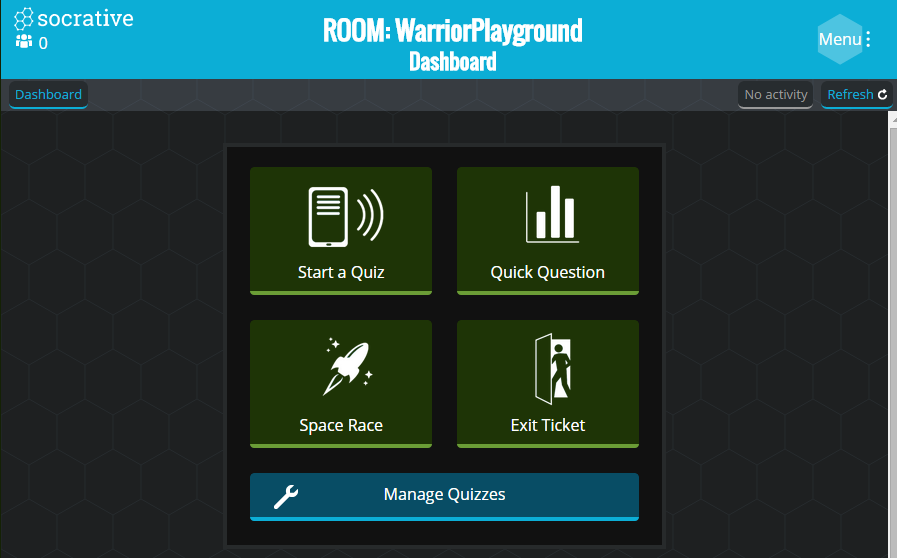
You can create a quiz in advance, and lead your class through it as graphical displays of responses appear on the screen, or you can put the students in groups and have them work at their own pace. You can also create questions on the spot or use the "Space Race" (students square off against one another in teams) to add a competitive gaming element to the classroom. At the end of the activity, you can get a report of how each student did on the quiz.

Socrative's brief video tutorial is embedded below:


-------------------------------------------------------------------------
Reference:
Beatty, I. D., & Gerace, W. J. (2009). Technology-Enhanced Formative Assessment: A Research-Based Pedagogy for Teaching Science with Classroom Response Technology. Journal Of Science Education And Technology, 18(2), 146-162.