Tuesday, October 25, 2016

FTT - Google Read & Write

Improve Reading and Writing Confidence With Read&Write


@LisaBerghoff/@Joe_EdTech


Remember the first time you saw Google docs? The whole idea of students being able to share documents, work collaboratively, embed links, images, etc. regardless of the device and regardless of physical location still completely blows my mind. The list of things we are now able to do to help our kids learn keeps growing but one thing remains, reading and writing is key for student success in any  subject area.Yes, even math. The big question is, what do we do when we have students who are struggling with reading and writing? There is a company called TextHelp whose mission is to bring literacy to life for everyone. They have several amazing products but today I want to highlight my favorite. 

Read&Write for Google is an extension that is free. Many of our students are already using it but may not know the full extent of what it can do. For those of you who are new to Read&Write, it allows students to hear words, passages, or whole documents read aloud with highlighting that makes it easy follow. It has both a text and picture dictionary. Students can hear words translated into many languages. The read aloud and translating features are free for everyone. TextHelp gives teachers their premium version for FREE and it's yours forever (their words not mine). To sign up and get your free premium version, click here after installing the extension. Students can sign up for a fee 30 day trial of the premium version. The upgraded version, which is completely free for teachers, also has word prediction, speech to text, voice notes, highlighted text can be automatically converted into a new document. The list goes on because TextHelp is constantly adding features. 
Read&Write works on Google docs and on any web based text. For example if you have students reading an article on National Geographic's website, they can use the read aloud features for that article, hopefully with headphones. The premium version also includes pdf, epub, and kes files. 

Adding and using Read&Write is extremely easy. Just go to the chrome web store from your apps doc or click here. Once you click to add Read&Write, you need to give it permission to access your google account. Once it is successfully installed, you will notice a little purple puzzle piece that will show up near the top of your screen. Clicking on that puzzle piece activates the Read&Write features. As you hover over the icons, you will see text pop up that explains what everything does, though I bet you can guess which button stands for "play" and which one stands for "stop".
Helping your students add Read&Write is going to be a breeze because it's the same process. The kids can control the speed and the voice that is used for the read aloud by clicking on the gear icon in Read&Write. Since it is an extension, it will work on whatever device the student is using, as long as they are logged into chrome.

Giving your students access to Read&Write helps them to utilize the supports that they need independently. I'm not sure how it looks in your classes but in my biology class, having a teacher sit next to you and read to you can really negatively affect your self esteem as a student. When my students are able to use supports in a way that does not draw attention, they are more likely to use the supports. Also, having those supports available gives them more confidence in their reading and writing and therefore makes them more likely to participate actively in class. 

Here is a short video introduction to Read&Write:


Are you or your students using Read&Write? If so, post in the comments section below and let us know how it's going. 

Tuesday, October 18, 2016

FTT - Quizlet Live

Racing Towards Mastery with Quizlet LIVE

@joe_edtech/@LisaBerghoff


A couple of weeks ago, I was conducting a site visit at DHS and we walked into one of our Spanish classes. The kids were excitedly working together, competing in teams using a tool called Quizlet Live. I've used Quizlet a lot as a flashcard generator, but I hadn't seen Quizlet Live. It is an easy to use tool that turns group activities into fun and challenging games. So, I had to ask the teachers to write about it. This is the resulting
guest post by DHS Spanish Teachers Mercedes Koch (@Profe_Koch) and Matt Wallace

Do your students use Quizlet to study key vocabulary terms?  Do your students like to play collaborative and interactive games in class?  If so, Quizlet Live is perfect for you and your students!

In the very recent past, Quizlet has released Quizlet Live, which takes existing Quizlet sets and creates a collaborative, interactive game using the information contained in the set.  The general idea is very similar to that of Kahoot!.  However, there are a few differences which will be highlighted below.  Here is a brief overview of how to access Quizlet Live and how to play.

Step 1: in order to access Quizlet Live, you must request access.  Email beta@quizlet.com  with your username and request access to Quizlet Live.  You will receive an email once it is active on your account and at the top of each Quizlet set you will see this icon:  


Step 2: When you are ready to start a game with a particular set, click “Live”.  You will be taken to a page with a “Create Game” link.  Click “Create Game” and the next step is when your students will become active.  The next page will look like this:


You will want to project your screen to the class so that the students can see and enter the code at quizlet.live.  They will enter their names, and the names will show up in the black portion on the right side of the page.  If a student enters an inappropriate name, simply click on the name to erase it and ask that student to re-enter their information.

Step 3: When all students are in the game, and when you click Create Game, Quizlet will randomly group the students in your class into groups of 3 or 4 and the groups will be given a team name. Apparently Quizlet is very animal-friendly because the team names are always names of animals.  You will want the students to sit next to each other during the game, so they should find their teammates and sit next to them at this point.  You are now ready to start the game.

Step 4: The actual game consists of the students seeing some sort of question posed to them, a vocabulary term for example. Then, they are given multiple options.  However, not all students on the team will have the correct answer as one of their options.  This is where the collaboration comes in. They also see the options given to their teammates.  This is what a student sees:

The middle column contains their options and the two columns on the sides contain their teammates’ options.  The students must discuss to determine the correct answer, and the student with the correct answer on their screen is the only one who can select it.

One difference between Quizlet Live and Kahoot! Is that the questions posed to one group will be different from those posed to another group.  Let’s say that your Quizlet set has 50 terms.  Each group’s questions will be a completely random sampling of those 50 terms.

Step 5: How does a team win?  When a team answers a question correctly, Quizlet Live automatically moves them onto the next question (which is different from Kahoot! where everyone is working on the same question at the same time).  While teams are accumulating points, the teacher screen tracks their points:
The first team to 12 correct answers wins. HOWEVER, when a team answers incorrectly, their points are reset and they start over at zero.  The new questions posed to the group are again chosen at random from the set, not a repeat of what they already answered.

A few extra notes:  
  • If you want to play another game/round but also want change the groups, you can do so with the click of a button.  
  • You can add students to the game using the game specific code.  
  • After completing a game, you can see the stats of the game.  This may be helpful for identifying common misconceptions related to the content.

--------------------------------------------------------------------------------------------------------------------------
I'd like to thank Mercedes and Matt for "volunteering" to write this week's post. If you are using a cool free tool to improve learning in your classroom, tell us about in the comments below - or email me and author an upcoming post!


Tuesday, October 11, 2016

FTT - Seesaw

Student Driven Digital Journals and Portfolios? Yes Please!

@LisaBerghoff/@Joe_EdTech

This week's free tech tool comes to us from HPHS world language teacher Weifang Wang (@WangWeifang).


The sweet spot for teachers of any content is when you have students who are taking ownership for their work, reflecting on their learning, and articulating all of that both in and outside of the classroom. As a teacher, the joy is in guiding students towards learning and then getting out of their way so they can express their understanding of new ideas, concepts, and analysis of information, while connecting this new understanding in a way that is meaningful.

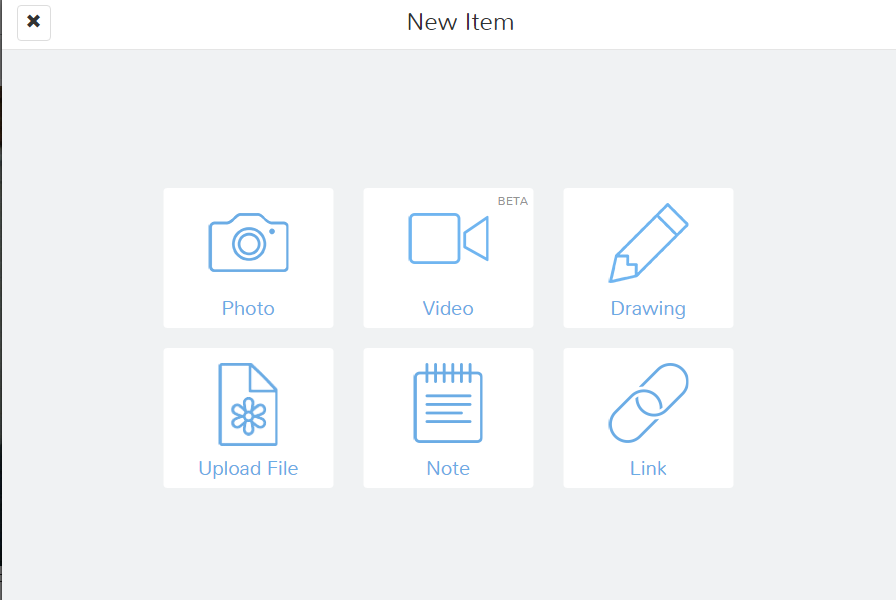
The Seesaw platform is designed for student-driven digital portfolios. It is so simple to use, it quickly became a favorite of elementary teachers because kids can truly do it on their own. What I love about Seesaw for high school students is that even though it is easy to use, the tools are powerful and robust. As we are searching for tools that help us to differentiate for all of our students, Seesaw allows for students to add photos and videos (uploaded OR recorded on Chromebooks), drawings, links, text, notes, or files to be uploaded. Once added, our students can write captions or leave voice recordings of their reflections. Seesaw also has the ability to set up a class blog for you. You can password protect it and decide if you want to allow comments. Once your blog is set up, both teachers and students can post to it. 

Here's how it works:
1. Students log in using their Google account and they input the class code that teachers get when they create a class.

2. As a teacher, you can post to an entire class or just to select students. You might post a prompt and ask your students to show their work, reflect, and respond.

3. If you just want your students to begin without a prompt from you, they can click on the green plus button to add an item. Students can easily use their Chromebook camera to take photos or videos and add them into their seesaw journal. 

4. Once they have added an item, your students will add a caption OR leave a voice recording that talks about the work they are displaying. 

 5. Teachers must approve students' journal entries so we are able to help guide them towards habits that will help them create a positive digital footprint. While they are learning, Seesaw provides a safe environment. Seesaw has earned a very high rating on common sense education, which is a very respected reviewer of educational applications. 

From another perspective, as a parent, it is difficult for me to know what is going on with my kids schoolwork now that they are doing so much of their work digitally. I can't just go into their backpacks and look through their folders (thank goodness!). All of the digital work can be unnerving because I want to support my kids and have conversations about what they are doing in school. 
Seesaw makes it easy to connect parents to see their students' work and be able to have a "window into my child's school day", according to the seesaw website. This of seesaw as a communication platform between students, parents, and teachers.  

Seesaw can be used on any device and the free version has an outstanding platform with features that students will actually want to use. 


Here is a screenshot of my first photo journal entry to my Seesaw class!


Are you using Seesaw or digital portfolios and blogs in your classes? Post in the comments below and share your thoughts. 

Tuesday, October 4, 2016

FTT - uBlock Origin

Decommercializing the Web for the Classroom (and Maybe Home, Too)

@joe_edtech/@LisaBerghoff

Today we are proud to start featuring Free Tech Tools proposed by some of our classroom teachers. This guest post is from DHS Social Studies Teacher, Dan Kim (@TheMrKim).

I had always considered myself to be a price-savvy, prudent consumer who wasn't susceptible to the same greasy advertisement schemes, ploys, and tactics that suckered the rest of society.

And then I began shopping for an engagement ring.

One of the best and worst parts of planning a proposal is the immense pressure of creating that perfect moment of astonishment and surprise.The mental gymnastics involved in somehow discretely acquiring a person's ring size, or moving the little ring box from its original hiding place in the bathroom closet, into a much safer, much smellier left tennis shoe in the middle of the night, speaks volumes of the necessity for discretion.

You could then imagine my horror when after a few nights of researching engagement rings online, my browsers were now full of engagement ring related ads and pop-ups basically screaming at my girlfriend that things were about to get real.

Now if you've done any amount of online shopping, you will either find it creepy or helpful that firms will often keep tabs on your search history to populate relevant ads on your websites. Led by internet giants like Google and Facebook, ads have become more and more sophisticated and pronounced.

IMBD Site WITH Ads
This is where a neat, light-weight Chrome Extension called uBlock Origin comes in. uBlock Origin will filter and block the majority of ads that you see and experience on the web. Without going too deep into the ethics of ad blocking, it is safe to say that ads are detrimental to the classroom environment.

IMBD Site WITHOUT Ads - uBlock Origin
Ever try to show a YouTube video in class that was preceded by an inappropriate, awkward, and unskippable commercial? Or see a popular website taken over by large, obnoxious advertisements? uBlock Origin can help.

Perks of uBlock Origin:

  • Websites will load faster
  • Mobile users won't have to waste data on bandwidth-hogging commercials or advertisements. 
  • Filters advertisements that contain viruses, malware, and phishing messages.
  • Block all ads on YouTube


Once installed, users will not have to do anything to enjoy the benefits of uBlock Origin. It's a simple plug-and-play extension that works so well that at times I forget it’s even installed!

Now there are a few things to consider once the extension is installed. Some websites have caught on to ad-blocking, and will not allow users access to their sites until the ad-block is disabled. Users can simply pause uBlock Origin by clicking on the giant power button on the menu on the top right corner of your browser.


Are ads disrupting your online educational experience? Feel free to post comments below!
--------------------------------------------------------------------------------------------------------
Gotta free tech tool you'd like to share? Contact Lisa or Joe to be a guest blogger!


Tuesday, September 27, 2016

FTT - ePals for Global Connections

From the ePals Website
Making Global Connections in Your Classroom

@joe_edtech/@LisaBerghoff

One of the many things that has impressed me in my short time in District 113 is how globally aware our staff and students are. As proud as we are to be Giants and Warriors, I don't get an insular feeling of isolation at all. All eyes are focused on the future of our global community.

With technology in the hands of all of our staff and students, our global connections can become more than just theoretical. However, based on several conversations I've had this year, there is a little bit of trepidation about connecting our kids with that global community online. At a National School Board Conference a short time ago I was introduced to the online tool called ePals, designed to give students authentic cross-cultural experiences in a completely safe, managed environment.

From the ePals website, "Teachers use the free ePals Global Classroom to create real world, culturally- enriching learning experiences for their students. With ePals classroom matching, a high school class studying Chinese can connect with a class studying English in China, or the classes can work on a special project together." While ePals is great for World Language, it is also perfect for any globally minded classroom.

Here's a short video that shows you what ePals can do and how to get started:


For the High School Classroom:
There are a lot of tools included in the ePals suite, and you may want to use some of them with your classes. I've found that the tools we have in Google Apps are probably better for collaboration and production with high school students, but ePals overall has been designed to be a safe place for students as young as the elementary age to develop authentic global connections. The "Classroom Match" tool is what really makes ePals powerful for high school students.
--------------------------------------------------------------------------------------------
Have you used ePals or a similar tool to make global connections in your classroom? If so, please share your experiences below.

Tuesday, September 20, 2016

FTT - Custom Search

Custom Search With Google


@LisaBerghoff/@joe_edtech


I grew up in a time when phones had cords, photos were taken with film that needed to be developed, and research was done with encyclopedias. I am amazed each and every day that my students have current, quality information at their fingertips and that communicating with experts on the other side of the world is possible with the click of a mouse. When students have questions, one of my favorite phrases to use in my class is "you have a very powerful computer in front of you, let's look it up!"  They will eagerly go to Google and type in a few words or a phrase to search. Inevitably, they will get somewhere in the order of 23,000,000 responses in .41 seconds. How amazing is that!? However, the excitement starts to wane as my students begin to sift through their results. Many educators believe that proper search skills are imperative for success in the future and I agree. Google has a whole curriculum for teachers about effective search skills. Click here to access Google Search Education. 

It can be tricky to teach search skills when the internet can be such an unwieldy place to learn. I was at a #GAFEtalk sponsored by TextHelp last week and learned about an incredible tool called Custom Search.  I don't know how I never came across this before but I'm happy to share it with you now. 

Custom Search was developed for users to add a search engine to their websites. When you are on a website, you may notice a search bar that says "search this site". It allows you to search for content that is located on just the website you are on. 

This has HUGE implications for the classroom.

Here is an example:
In my biology class, we are currently studying trophic levels in Yellowstone National Park. I want my students to search for information, but I don't really want them to search the entire internet and then spend their time sorting through potentially bad sites. I can create a custom search for them, it looks just like a Google search, but will allow them to search within certain sites, such as NationalGeographic.com or NationalParkService.gov. I might want some of my students to search a site like newsela.com, where they can adjust the reading level. I will create a custom search for them and that will be their platform for finding information.

  • Begin by going to the Custom Search Homepage
  • Click "create a custom search engine" or "new search engine". 
  • In the sites to search box, type one or more sites you want to include in the search results. You can include any sites on the web. Don't worry, you can add more later.
  • In the "name of the search engine" field, type in a name to identify this search engine. I will call mine Yellowstone Research.
  • When you are done, click "create".
  • Click on the box that says "public URL" and that is the link you will share with your students though your website, Hapara, Google Classroom, or however you share digital information in your class.
  • You can make several adjustments to your custom search including turning off image search, enable speech input for the search box, format the layout of the results, and see some of the analytics for your custom search.

Here is what it looks like:

5 Ways/Reasons to Use Google Custom Search

1. Easy differentiation. The search looks just like Google search but some students will do better with different search results.

2. Really focus and hone in on specific websites. Tired of students trying to take the easy way out with wikipedia? Not anymore!
Save time and frustration when students are searching.

3. Enable students to search and choose, but just stay within the sites you want them to use.

4. It allows students to search without needing to leave the page or site that you are on.

5. Your students will be researching sites that you have already vetted as high quality.


Are you using Google Custom Search? 
What are some ways you would (or do) use this in the classroom?
Go ahead and post comments below. 


Tuesday, September 13, 2016

FTT - EDpuzzle and PlayPosit

http://nyphotographic.com/

Alternatives to Zaption: EDpuzzle and PlayPosit

@joe_edtech/@LisaBerghoff

For good and for ill, technology is always changing. The company that created and supported Zaption, one of our favorite "Free Tech Tools," was sold and the new company announced that the product would be taken offline.

The good news is that while we tend to highlight our favorite online tools, there are usually pretty decent alternatives in the EdTech world. EDpuzzle and PlayPosit (formerly eduCanon) are both great alternatives for teaching with online video. Like Zaption, both allow you to take ANY online video, embed questions, and assign it to students or groups of students. 

EDpuzzle 

Edpuzzle.com is a free Web2.0 tool that is designed to help teachers make any digital video interactive. With a few clicks of a button, teachers can add personalized introductions, comments, or questions to any portion of any digital video available through the products listed to the left. Furthermore, the videos can be assigned to groups or classes, and teachers can monitor student progress as they view the videos and answer questions, and the videos can be locked so students can't skip important parts just to answer the questions.

Videos and lessons created on Edpuzzle.com are public and searchable within the platform. The idea is that we are all creating products that could potentially help other students. So part of the power is that you can simply log into to Edpuzzle.com and find a video lesson that has already been created and assign that to your students. You don't always have to start from scratch. 

To get started, simply select your video source and use the embedded video editing guides to add voice-overs, comments, or questions. As an added bonus, EDpuzzle.com integrates nicely with Google Classroom, allowing you to easily import your roster and share "puzzles."


PlayPosit - formerly eduCanon

PlayPosit works pretty much the same way EDpuzzle.com does except that it has been designed to integrate nicely with any LMS, whether you use Google Classroom, Edmodo, or Schoology. Rather than "puzzles," you create and assign "bulbs" to your students.

The best way to see the way PlayPosit works is to try it out. Click here to open a public "bulb" created for a Ted Talk video. Notice, you'll have to answer the embedded questions before you can move on in the video.


Here's how my friend Mike uses PlayPosit in his classroom:

I use PlayPosit for a couple of purposes. One of them is to disseminate information via the flipped classroom model. Students can access the lesson that I've created in PlayPosit and watch the video presentation for class discussion the following day. The best part of PlayPosit is that during the presentation, kids have to answer a few questions during the video. This serves the purpose of not only checking for accuracy in their viewing, but also as a focus point. It also allows me as a teacher to design questions that are timed to emphasize the points that I wish for them to know. Finally, the questions are required. The video will not go on until the question is answered. It is a creative and interesting way to get started with the flipped classroom model.

----------------------------------------------------------------


Have you used EDpuzzle or PlayPosit in your classroom? Tell us how. OR tell us if you use a different tool for embedding interactive videos in your classroom.