Tuesday, April 19, 2016

FTT - OpenBadge.me

Changing the Educational Game
with Digital Badging

@joe_edtech/@LisaBerghoff


A couple of years ago, I attended a conference that hosted a TEDx event instead of a Keynote address. Perhaps the most outstanding speaker I saw that night was Ali Carr-Chellman from Penn State University who talked about her program, "Re-Engaging Boys." If you have a few minutes, you can watch her TED Talk below:


If you don't have time to watch the whole thing, here's a brief summary of a couple of the statistics she cites:

  • For every 100 girls suspended from school, there are 250 boys suspended from school.
  • For every 100 girls expelled from school, there are 335 boys expelled from school.
  • For every 100 girls in special education, there are 217 boys.
  • For every 100 girls diagnosed with emotional disturbance, there are 324 boys.
  • The numbers are worse for boys of color, or boys who come from economically challenged homes.
  • Boys are 4 times as likely as girls to be identified with ADHD.
  • 60% of Baccalaureate Degrees go to women - some universities are approaching 70%
One of Professor Carr-Chellman's suggestions is that we can re-engage boys by utilizing video games in the classroom. While her research might be the most extensive on the topic, Professor Carr-Chellman's conclusions are not unique. There is a growing chorus of teachers out there who suggest that adding some elements of gamification can boost student engagement across the board, but especially in boys. 

I started thinking about this topic again because Lisa and I attended the CoSN conference two weeks ago, and the most dynamic session I attended while I was there was about gamification in the classroom by Dr. Liz Kolb from the University of Michigan. Dr. Kolb said her research was really in its beginning phases, but she had seen some positive results by adding elements of gaming to her preservice education courses, and she reported that those gains were highest amongst her male students.

Dr. Kolb suggested that it is fairly easy to start the process of gamification by instituting some student choice into your classroom activities and awarding students digital badges based on accomplishments. I think I'll have much more to offer the district from Dr. Kolb's work in the very near future, but for those of you who might be ready to start badging in the classroom, you need two things. You need a site for creating badges, and you need a site for posting and awarding your badges. For this week, let's focus on creating digital badges.

Part of the Mozilla Open Badges Project, OpenBadges.me allows you to create simple graphic badges that you can download to your computer and post to any website. According to the website, the OpenBadges.me "designer provides a simple way to layer different shapes and images on top of each other to create an attractive Open Badge graphic. The tool lets you add text, color elements, move certain elements and even fade items in and out - all presented in an easy-to-use web page."


Click here for an easy to follow guide on using OpenBadges.me. If you get stuck, you can even go to the guide and post a question. Someone from the Open Badges community will respond to your question.
----------------------------------------------------------------------------------------------------------------------

Next week, I'll provide you with three different platforms for posting and awarding badges to your students.

Tuesday, April 12, 2016

FTT - Google Keep

Do You Have To-Do Lists On Your To-Do Lists? Organize and keep it all straight with Google Keep.

@LisaBerghoff/@joe_edtech


Spring is here! The sun is shining earlier in the morning, the birds are chirping, the winter coats are getting closer and closer to the closet. I'm hoping to actually put them away very soon. This time of year always motivates me to clean out the clutter and reevaluate my organizational systems. My friends who are not teachers often make comments like "Oh, things must be winding down for the end of the school year." Ha! Those of us who work in schools know that the end of the year is actually something along the lines of running full speed into a brick wall.  Fourth quarter just gets busier and busier until it comes to a screeching halt.  I often wonder how it will all get done. This is when I really need some help with productivity and organization. My to-do lists start branching off into other lists and I begin to worry that something is going to fall through the cracks. 

Our buddies at Google have created a little known tool called Google Keep. Google Keep is a note-taking service that allows you to make virtual sticky notes. You can create lists, use images, color code your notes, and of course share your notes with others so you can collaborate and keep everyone in the loop.  GKeep is friendly, colorful, and easy to use. Also, you can use your Google apps account information to log in so there is no need to create a new account and create another password that you may or may not remember. There is a GKeep app that can be added to your android phone, iphone, or tablet. Think of Google Keep as a digital version of that little notebook that you may carry around with you. I keep a composition book in my bag and will often write little notes to myself or start brainstorming ideas in that book. With Google Keep, I don't need to have my book with me because I can access it from pretty much anywhere.
Screenshot from Lisa's computer using GKeep

Using Google Keep (or GKeep as the cool kids call it) makes a lot of sense for helping to keep track of your own to-do lists, big ideas, reminders, etc. As with all Google apps, it saves automatically and syncs to all of your devices. You can also add labels to make it even easier to locate all of your incredible ideas and important information. Of course you can search your notes so when you have amassed a large amount of amazing, inspiring, thought-provoking ideas you can retrieve them without a problem. 

When I think of classroom applications for GKeep, I know my students would benefit from using it when they are working on group projects. Imagine if a group of students used shared to-do lists which they can check off as tasks are completed.  Or at the very start of a project, they could create notes to keep track of their brainstorming thoughts. When we think about next generation skills, we know that being able to effectively work in groups on collaborative projects is extremely important. 
Students can use Google Keep for their own notes in class and can set reminders based on date and time OR location. For example, it can be set to remind me to update my blog when I get to my house. 

Got 47 seconds?  Here's an informational video about Google Keep:


What are some other ways that you use Google Keep in the classroom? Feel free to share in the comments section below.

Tuesday, April 5, 2016

FTT - Twitter for Professional Development

"Follow me! Follow me to Freedom!"

@joe_edtech/@LisaBerghoff

Well, that might be a little dramatic, but I always get excited when we can connect in very cool new ways. And this is cool, I am writing to you from my "spacious" coach seat on board my American Airlines flight to Washington DC. Lisa and I are attending and presenting at the CoSN National Conference on Ed Tech Conference this week. Of course, we'll share our presentation and all of the new resources we get when we get back. But, we really don't want to wait that long to tell you about the great things happening here. 

Even if you never send a Tweet, Twitter can be an amazing Professional Development tool for educators. This week, Lisa and I will be Tweeting out lots of information from the Conference, some of it you'll be able to use in your classes right away. Some of it will just be fun. For instance, we got to hear Daniel Pink, author of Drive: The Surprising Truth About What Motivates Us, give the Keynote address. He opened the tech conference by talking about how important devloping art skills is. And he challenged everyone in the audience. "You can't change everything in your school district at once, but you can one small thing you can change tomorrow and make things better."

We also got to meet Megan Smith, United States Chief Technology Officer, Assistant to the President focusing on how technology, policy, data and innovation can improve the future of our nation. She talked about the importance of offering creativity tools, maker spaces, and authentic coding experiences to reach even our most disenfranchised students.

Lisa and Joe Hobnobbing with Megan Smith

To follow the rest of the conversation and conference activities, all you have to do is get a FREE Twitter account and search for the hashtag #CoSN16. If you are new to Twitter, here's a short video from Dan Krutka, Ph.D..to help you get started:

Once you get logged in, try following some of these great educational resources:

  • Edutopia - The George Lucas Foundation for Education
  • NSBA - The National School Board Association
  • David Pogue - Tech columnist, NY Times; PBS NOVA host; Missing Manuals creator, dad of 3!
  • Common Sense Media - Organization for Research Based Digital Citizenship Curriculum
  • Deerfield High School
  • Deerfield High School Libraries
And that doesn't even scratch the surface. You can follow writers, other teachers, colleges, organizations, teams, politicians (ugh, I don't recommend following them).

Here are some great lists and resources you can use.

All you need to do to get started is create an account on Twitter.com. HOWEVER, before you do, click here and check out "The Ultimate Twitter Guide for Teachers." Jeff Dunn (@edudemic) provides you with:
And much, much more.

Once you start using Twitter, you'll learn about "hashtags" (#). They are used in Tweets to denote important topics, and to make Twitter feeds more searchable and user friendly. The most important hashtag for educators is #edchat. Click here to get an idea of the myriad of topics discussed on Twitter labeled #edchat.

Find Twitter Here - And create your free account today.

By the way, there are two great HashTags (#) you should be following and contributing to if you are on Twitter:

#DHS__Pride = Tag the great staff, students, and accomplishments we have.
#D113PLN = Contribute to our online Professional Learning Network


MOST IMPORTANTLY, this week, follow #CoSN16.  Our session, "What NOT To Do With Technology In The Classroom" will be Tuesday, April 5, from 1:45 to 2:45 Central Time.

Tuesday, March 22, 2016

FTT - Tools to Maximize YouTube in Class


Maximize The Benefits Of YouTube, Minimize The Annoyances

@LisaBerghoff/@Joe_Edtech


It is so exciting to see how many teachers are taking advantage of YouTube in the classroom. According to Digital Stat Articles 2/14/2016, 82% of internet users aged 14-17 use YouTube. It makes sense that we would leverage this user- friendly, engaging, massive collection of videos for our students' benefit. There are endless possibilities when it comes to learning applications with video. As much as I love YouTube, there are a few minor inconveniences that can feel not so minor when you are in front of a room of 25 adolescents.  First of all, how often have you cued up an amazing video for your class but first you must awkwardly sit through a 15 second commercial?  I am usually just crossing  my fingers that it's an ad for something that is  age appropriate and extremely boring. Otherwise, guess what my students take away from the whole lesson?  That's right! All of that time I spent searching for the perfect video is completely wasted because of one 15 second ad.  Ok, here's another one.  The video is over, the students were completely amazed and are ready to discuss, apply, and extend what they have learned (work with me here) but YouTube shows an entire screen of additional videos that I may or may not want to show.  While we're at it, does anyone else find the strip of related videos down the side of the screen very distracting?

You get the point.
What's a teacher to do?

I have a few tools for you to try that are designed to eliminate these annoyances and maximize the benefits of video.

Adblock for YouTube 

This is a chrome extension which means it lives in the upper right corner of your chrome address bar. Little known fact, that chrome address bar is called the omnibox. There will be extra credit for anyone who uses the word omnibox in a sentence today. The Adblock for YouTube extension magically takes away those ads that automatically play before your actual video plays.


Quietube and Viewpure


Removing the video ads is wonderful but what Quietube and Viewpure do is absolutely amazing. These free tools eliminate the distractions such as suggested videos, comments, and ads.  When you go to Quietube's website you will be very underwhelmed. These are no frills tools that deliver on their promise to do a specific job. All you need to do on your end is drag the quietube button up to your bookmarks bar and when you are watching a video on YouTube, simply click the button.  You will get a clean screen with nothing but a viewing box showing your video.  Viewpure works very much the same way.  You can drag the "purify" button up to your bookmarks bar or insert the YouTube link into the space on the website and click "purify" to get the new link. Under the viewing box you can click to get a short link to share with your students so they too will only see the video.  You can put that link into Google classroom or whatever system you use to  share content with your class.  When your students click the link, they will view the video in quietube format.  You also have an option for a black background.  Here is a 35 second tutorial:


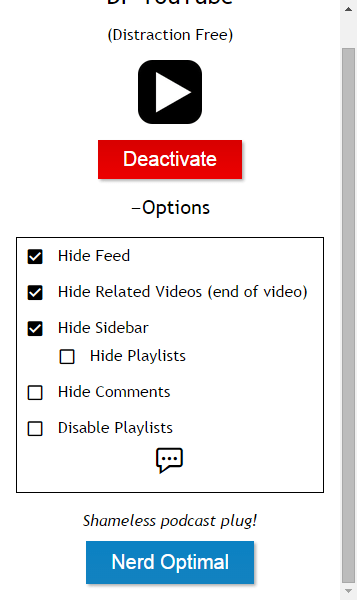
DF YouTube (Distraction Free) 


If you're still reading this post then your persistence will be rewarded. I have saved the best (in my opinion) for last.  DF YouTube is a chrome extension that takes away the ads, thumbnails, video recommendations grid that appears at the end of a video, comments, etc.  The extension makes all of these settings configurable!  You can click on the extension and click "options" to easily check or uncheck what items you would like to hide.  The one downside to DF YouTube that I can see is that it does not give you a link to share with your students.  This extension is perfect for displaying a video to a group.  If you are sharing a video with students and you want it to be without the distractions, I would suggest using Quietube or Viewpure.


As we continue on this journey of transforming education through the use of new tools and a new way of thinking about teaching and learning, I am confident that video will remain a fan favorite in our classrooms.
-----------------------------------------------------------------------------------------------------------------
How are you using YouTube with your students?  Post in the comments below. I'd love to hear from you!

Tuesday, March 15, 2016

FTT - Infographic Generators

Image from Visualistan.com
Challenging Your Students to Support Their Arguments with Data

@joe_edtech / @LisaBerghoff


As I was planning this blog post I had to keep searching through my previously published topics. I couldn't believe that I hadn't written about infographics before - at least once. So this is long overdue.

The STEAM philosophy in education is not the preference for certain content areas in the curriculum - don't get hung up on the acronym. STEAM is about teaching our kids to think creatively, in an interdisciplinary way. Student created infographics is an easy way to integrate STEAM ideas in any content area. When kids make good infographics, they learn to construct a coherent argument, supported by graphical representations of both quantitative and qualitative data, designed in a way that is both pleasing and convincing.

Honestly, your students could make good infographics on their own using Google Docs or Microsoft Word, but there are some pretty decent infographic generators out there in the Web 2.0 world. The three that I've seen used most effectively in the classroom are Venngage, Visme, and infogr.am. All of them work pretty much the same way, and all of them have a few drawbacks. For instance, all of them fall into the category of free-ish. They all have premium versions that have far more features and options than the free for education versions, but they all have templates and examples to help your students as they work.

Venngage has actually added more features to its free products in the last year, so let's start there. Here is the short Venngage introduction to their product:


As you can see, there are many more templates available for the premium version, but there is plenty available with your free account.

Visme is another infographic generator that is easy to use and offers several templates for free, however, Visme only allows you to keep 3 infographics in your free account at any one time. infogr.am is not just an infographic generator. It also allows you to create maps and graphs. However, infogr.am is really built around its premium service. The "free" plan restricts users to 10 infographics, and also restricts the number of image uploads. 
------------------------------------------------------------------------------------------------------
Have you found other ways to create good infographics in the classroom? Please tell us about them in the comment box below.

Tuesday, March 8, 2016

FTT - Blendspace

What's The Best Tool For The Job? Blendspace Makes Blended Learning Effortless!

@LisaBerghoff/@Joe_EdTech


I get asked the following question at least once on a typical day: "If I'm going to use technology, can you teach me how to use the absolute best._______ ?" Go ahead and fill in the blank.  I'm often (but not always) hesitant to answer this question as many tools are more appropriate for some tasks while other tools are better suited for other tasks.  There is also the factor of personal preference that must be taken into account.  As busy teachers, we don't really have extra free time to spend learning how to use technology that we may or may not end up using.

That is why I am a huge fan of "blended learning", which is a mixture of face to face interaction along with web-based digital and media tools. There is no need to completely abandon those tried and true lessons that we know our students respond to.  There is also no need to constantly try to create something brand new.  The internet is a sea of rich resources that can be utilized for a huge range of teaching opportunities.  One issue however is that the internet  at times seems unwieldy because it can be endless and sorting out the quality from the crap can be tricky.

For those of you giving me a virtual high five right now, I'm happy to introduce you to Blendspace.  This free website and chrome app is there to help you create digital lessons in 5 minutes! It makes planning, building, and delivering lessons that integrate content straightforward and painless. You can create interactive, creative lessons with  some of the tools you are already using like YouTube, digital media, and your own files.  You can also take advantage of TES resources, which is a marketplace that helps teachers find free and paid online resources that are created by other teachers. and are available on Blendspace.  You can add a quick quiz, text, or bring in any files from your Google drive or your computer. 

Here is a 1- minute tour of Blendspace: 


Not sure you want to be creating digital lessons? How about having your students use Blendspace for digital storytelling, biographies,  or collaborative research projects? Students can use Blendspace for quiz and test review materials. Tired of slideshow presentations? Have your students use Blendspace to create an interactive presentation that will have everyone interested and engaged. Students can store their links, videos, pdfs, presentations and other digital content in an organized, interesting, and FREE way.

Want to see an example of a Blendspace lesson? Below is a lesson on magnetism that I created in less than 2 minutes.  Imagine what I could have produced in 5!  You can see that it has two powerpoint presentations, a worksheet, videos and images.  My students can access this resource at their own pace and I can easily track their progress.


Give Blendspace a try.

What are some of your favorite blended learning tools?  Post them in the comments section below.


Tuesday, March 1, 2016

FTT - Choosito!

Using Choosito! to Differentiate by Reading Level

@joe_edtech / @LisaBerghoff

Technology changes. Sometimes, I don't like the changes. But it happens and I learn to get over it. For instance, I have spent a lot of my time teaching people how to search well using Google's Advanced Search features - and one of the things I loved to teach about was sorting results by reading level. OK, Google didn't give you Lexile levels or anything like that, but the search engine used to categorize the results by Basic, Intermediate, or Advanced reading levels. Alas, Google giveth, and Google taketh away - reading levels are no longer available in Google's Advanced Search. 

However, Choosito! is a free Web2.0 tool that will allow you to search the web, and their curated library, and filter by both content and reading level. Here's a short video to help explain Choosito! a little better:


Once you create a free account and log in, you can go to Choosito! Search. Simply enter the topic as you would on Google, then choose your categories. What reading level do you want? Are you looking for that topic in Humanities or Business & Career? And are you searching the web, the Choosito! Library, or are you searching for a school safe image?
When you get your results, you get a little more than a link to a website. You get a preview of the page, the website "ranking" from other Choosito! users, and the ability to add the resource to your own curated page (click the "+"). Some of your resources may have an icon that looks like a little red schoolhouse. That means the resource has been vetted by a number of other teachers and librarians and added to the Choosito! library.
____________________________________________________________________________

If you've found other ways to get differentiated Internet search results, please tell us about them below.