Tuesday, September 1, 2015

FTT - Kami PDF Annotation Tool

Kami - Formerly NotablePDF
Kami Annotation Tool for Google Drive

@joe_edtech


Is this cheating? Last year the first Free Tech Tool I published was a tool for annotating PDFs online. The tool was decent, but the company totally reworked the product, improved it, and gave it a new name. So, I'm going to post an all new Free Tech Tool Tuesday on the new revamped PDF Annotation tool.
---------------------------------------------------------------------------------------------------------------------
One of the hurdles teachers face as they start to integrate Google Apps into their classrooms (the substitution step on the SAMR ladder) is how to make their printed materials usable once they've been scanned. It is easy to read PDFs in Google Drive, but it isn't so easy to make PDFs interactive. Kami, formerly Notable PDF, available from the Chrome Web Store, solves some of the problem.

The first step is to go the the Chrome Web Store and add the Kami app to your browser. Once you've done that, you'll notice that you will have options when you want to open a PDF in Drive.
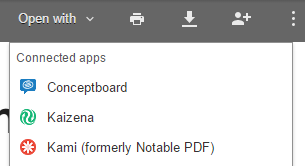
This image is from the PDF Preview in Google Chrome

The first time you open a file with Kami, you'll have the option to watch a brief tutorial on the functions of the product. When the document opens, it will open with a black border and a few "menu buttons" on the right hand side. They are pretty standard annotation functions (highlight, strikethrough, underline, comment, add text, and select text), but if you hover over any of the buttons, you'll get a mini pop up with a description of the functionality.

Screen Shot is actually from the Chrome Webstore
In the example to the left, I added text in the white space of the PDF using the "add text" tool (capital A). 

I also added a text comment. Similar to working in Drive, comments are linked to some portion of the text. So after clicking the "dialogue bubble" icon, click on the pertinent text and type your comment in the pop up box that appears on the right hand side of the screen.

UPDATE: Last year, one of the problems with this product was that it couldn't necessarily read text on documents that were scanned. With the introduction of the new Kami software, there is OCR Text recognition. So you should be able to use all of these tools with any PDF.

If you look at the top menu bar, you'll notice there are a few more tools. Most of them are pretty standard, but perhaps the most useful for your classroom is the "share" icon:
The share icon allows your students to add you to their Kami documents. Once you've been added, you can see their annotations, add your own, and reply to their comments. The good news is that annotations you make and comments you make are automatically saved in Kami. 
-------------------------------------------------------------------
Kami is just one of the many options for working with PDFs online. If you have one that you've used and have had success with, please share it in the comments box below.

Tuesday, August 25, 2015

FTT - Multiple User Accounts for Chrome

Posted by "verndewd"
Managing Multiple Google Accounts in Chrome

@joe-edtech

Welcome back to another year of learning! I'm excited to announce that my Free Tech Tool Tuesday blogs will be co-written by my friend and partner, Lisa Berghoff, Director of Instructional Technology at Highland Park High School. Hopefully together we will be able to bring you some good ideas for enhancing your classroom. HOWEVER, we wanted to start the year with a solution to make the lives of teachers easier! 

Many of us have gotten “googly” in the past few years and there is a very good chance that you have more than one google account. We all have our Google education accounts through District 113 but you may also have a personal account or multiple other google accounts. Managing these accounts can get frustrating and confusing because as you switch back and forth, you will need to constantly be checking to make sure the correct account is the one that is active.  Since I don’t need any more frustration or confusion in my life, I have learned a simple solution that will keep all of your various things Google in their proper place.

First, here is the wrong way:

You might be tempted to click in the corner of your screen and click the “Add account” button. You might already have added your accounts and you might see that you can toggle back and forth between those accounts. Please resist the urge to do this! If you haven’t run into problems yet, you will.  You might click a link and the wrong account will come up. Or, you might be prompted to re-sign in multiple times. The lines become very blurry between your accounts and before you know it, your vacation itinerary will end up in your school account and your students will be booking their spring break trip just so they can join you on the beach.

How to manage multiple google accounts.

Step 1: Use google chrome. Go figure, google works best when you are using their chrome browser.

Step 2: Sign out of all of your accounts except for the account you use the most.
Here’s how you do that…


Click your account in the upper right hand corner of the browser window and click “sign out”. The page will say: Choose an account. Click remove: X out of all except your primary account.

Step 3: Select your primary account, and re-sign in. Step 4: Go to Account Settings
You may be required to sign into chrome again. (I know!) You will now only see 1 account in the upper right hand corner.

Step 5: Set up google profiles in chrome. (This is where the magic happens!) Click on settings and make sure you are signed in. If you are not signed in, go ahead and do that and link the data. Then click top right. It shows you which account you are using. To add another account, click on “add person:"

When you click “add person” a new chrome window opens. prompting you to log into chrome. This time, log in with your secondary account and go ahead and link the data.
Each of your chrome profiles will be slightly different depending on the extensions and apps that you use with each account. You will now have 2 different browser windows with 2 different accounts. You can easily switch between the windows and your google profiles can stay safely apart from one another. (On a PC, Chrome will actually add an additional shortcut to your desktop or taskbar. On a Mac, you’ll need to “toggle” between people - which is explained below.)

You can toggle between accounts in the upper right corner.

This takes a little extra time to set it up but this will help you manage multiple accounts effectively moving forward.

Here is a short video that walks you through the same process:


Tuesday, June 9, 2015

FTT - All Of Them

Unveiling the District 113 Technology Learning Center

@joe_edtech


I believe teachers learn best when they can explore new things at their own pace, can select the tools that best suit their needs and purposes, and are provided with both formal, delivered instruction and 1 on 1 time for deeper questioning and exploration (sounds like it would be good for students too - hmm). That said, in order to facilitate that kind of exploration and learning, today's Free Tech Tool is actually a collection of all of the Free Tech Tools that I've discussed this year.

In the first truly collaborative project between myself and my new partner, Lisa Berghoff, Director of Instructional Technology at Highland Park High School, we are unveiling our new district wide support site for innovative teaching with technology. It is tentatively called the "District 113 Technology Learning Center." However, it is still a work in progress. While this will eventually be the spot where you can go to get information about all kinds of Open Educational Resources, the latest and greatest regarding Google Apps for Education, full-blown professional development modules on integrating technology into the classroom, and information about technology tools specifically designed to level the playing field between advanced and challenged learners, the "Free Tech Tools" page is up to date and available beginning today to anyone interested.

All of the Free Tech Tools have been categorized by purpose (for example, tools for flipping your classroom, tools for global education, tools for formative assessment). Then, on each page, there is a short description of each free tool followed by a link to the original blog post with training materials, and then a link to the tool itself:
From the "Social Media" page - Each entry uses the same format.


Lisa and I both believe in sharing our products with other teachers, and neither of us believe that this is the perfect website. If you know teachers in other districts who would benefit from our "Free Tech Tools" page - please send them the link. If you have suggestions on how we can improve the site or any of the entries, please let us know in the comment section below.

We hope you have a great summer! And, Mom, I hope you will come back to read more of my blog entries in the Fall.

Thursday, June 4, 2015

Summer PD

Um...What?
Summer Professional or Personal Development

@joe_edtech

Summer must be approaching because my daughter keeps saying things like, "One more Monday of school!" or "4 more wake ups til no more alarm clock!" My schedule doesn't work exactly like that anymore, but I remember really looking forward to summer vacation, except for one thing. Preparations for the Fall and professional development responsibilities coupled with all of the responsibilities of home really can create a whirlwind.

The summer should afford us the time for deliberation and study, but too much of our professional development models resemble the "Networked Professional Development" schematic embedded on this page. A LOT of things to do and talk about in a very little amount of time - usually in a poorly lit classroom with sketchy air conditioning. With that in mind, I suggest you take matters into your own hands and engage in Personal Development in addition to your summer workshops and classes and, and, and...ad infinitum. 

Pick some good books to read. This summer I'm going to read two books (both of which I've previewed, neither of which will take much more than a complete weekend to read). First, "The One World Schoolhouse: Education Reimagined," by Salman Khan. Mr. Khan has a Harvard Business background, but has turned his tutoring business into something incredible, Khan Academy. I may not agree with all of his conclusions, but I do think that we should ask some big questions about how we got to our current primary education system and about how we might redesign it for the 21st Century. Secondly, I'm going to read "What Connected Educators Do Differently," by Todd Whitaker, Jeffrey Zoul, and Jimmy Casas. This book is about establishing powerful personal learning networks with other teaching professionals across the globe. Selfishly I want to read this because I think that such PLNs have a tremendous amount of potential to offer us all informal PD and support as continue to grow and improve as teachers and school leaders. Also, one of the authors, Jeffrey Zoul, is an Associate Superintendent at one of our sender schools, and I am always interested in pursuing a closer relationship between the high schools and the K-8 schools.

Next, watch some inspirational speakers - even if it is only on YouTube. If you want to get charged up about teaching with digital tools I suggest watching Kevin Honeycutt, former art teacher and current school board member, as he discusses the importance of authentic learning environments - helping students pursue their passions to the point of creating real and marketable products. Jim Sills, very Googley, is another expert in teaching digital media. At the Google Summit in Glennbrook, IL over spring break last year, he taught about telling a story with video using just four shots. It was amazing.

Finally, learn something new that is just fun to learn. I suggest subscribing to the Google Gooru and trying some of the tools in Google Chrome and in Google Apps not because you are ready to use them in your class, but just because they'd be fun to try. I love learning about Space and our place in it even though it serves me no professional purpose. So I installed "3D Solar System Web" from the Chrome Store and I'm going to play around with making my own 3D Solar System tours over the summer. 

Regardless, teaching and using technology should be fun. So take some time this summer to do something fun!
-------------------------------------------
What do you do for Personal Development over the summer?

Tuesday, June 2, 2015

FTT - Published Goobrics

From "New Visions Cloud Lab"
Shared By Professional Educators For Professional Educators

@joe_edtech


It's funny - in life in general, I am not a collectivist. I believe strongly in the power and rights of any individual to pursue his or her own passions and to achieve based on that pursuit (yes, I do know that Thomas Jefferson said it better). However, in education, I very strongly believe in the power of collaboration. Whether we work in PLCs inside our buildings, or PLNs made up of real and ethereal connections, there can be little doubt that there is a lot to be gained from the shared resources of our professional educators. Maybe it is one reason I bristle at the idea of treating schools like businesses. We aren't creating widgets and the power isn't in competition with one another, but in collaboration to provide as many opportunities for students as we can. - And that in a nutshell is why I believe so strongly in both the Google Education Community and the movement to pursue Open Educational Resources for schools, both topics I've written about in blog posts before - here and here. When we create resources that are good for students, and share them with other professionals, we have the potential to improve things for an exponentially greater number of students than the moments when we work in isolation.

Andrew Stillman and his fellow geniuses at New Visions Cloud Lab have been creating and sharing awesome educational resources for a number of years, and their library continues to get more impressive. I have already written about some of their awesome add-ons, like autoCrat, and just a few weeks ago I wrote about integrating Doctopus and Goobric with Google Classroom

Goobric, my loyal readers (Mom) will remember, is a tool to integrate writing rubrics pretty seamlessly into Google Docs. One of the very few drawbacks to Goobric was that there weren't many exemplars or samples to choose from. Recently, New Visions Cloud Lab went a long way towards solving that problem by posting libraries of "Goobrics" to their website. So far they have posted rubrics from New Visions for Public Schools, the Literacy Design Collaborative, and the New York Department of Education, which has already been a huge contributor to the OER movement.

The libraries of documents can be added as "View Only" docs to "My Drive" in Google Drive. From there, you can use them as is and attach them to any assignment as a completed rubric. Or, as is the case with any Google Doc, you can make a copy and adapt the rubric to your assignment.

This is a great addition to the New Visions Cloud Lab arsenal, and it promises to grow.

Tuesday, May 26, 2015

FTT - Conceptboard

Logo From Conceptboard.com
 Annotate, Comment, and Collaborate with Conceptboard in Chrome

@joe_edtech

In my very first blog post for Deerfield High School, I introduced a Chrome Add-On called Notable PDF, an App designed to make scanned documents usable inside of Drive. While Notable PDF is still a pretty good tool, saving and sharing annotated PDFs isn't intuitive, and sometimes that serves as a barrier to good collaboration.

I recently started using a different app, called Conceptboard. Conceptboard is also available on the Chrome Web Store and also integrates nicely with Google Drive, however, Conceptboard is both more user friendly and more powerful than Notable PDF. With virtually no training, any user familiar with Drive can open a PDF using Conceptboard, insert comments, and share the "board" with other users.
After you've added the app to Chrome, open any PDF
or Picture file in Conceptboard to get started. 
However, Conceptboard is much more than just a way to annotate and share PDFs. The CEO of the company puts it this way, "Conceptboard is about visualization and task management: We've made it easier to communicate your ideas graphically and to get more precise feedback. Or the other way around: We enable you to create tasks more precisely, so your ideas are realized exactly as you imagined them!" This is their official video on getting started with Conceptboard:


While I have genuinely grown to like using this tool, I have to admit that I have an ulterior motive for selecting this as our Free Tech Tool this week. I didn't find Conceptboard. Our DHS Students did. Specifically, students in an English class who were working with PDFs that they needed to annotate. They went exploring, tried a few things, and ultimately landed on Conceptboard as a great place to work - with a lot of potential that we haven't even considered at this point.

The lesson is that we don't need to have all of the answers when it comes to technology. No teacher has the time necessary to fully explore all of the apps that are available for Chromebooks or iPads, but some students absolutely thrive on the opportunity to build...or find, as the case may be...a better mouse trap. It might be just the hook some of our students need to really engage with our assignments. When it comes to teaching in a 1:1 classroom, it is perfectly acceptable for us to learn from our students, too.
----------------------------------------------------------------------------------------------
Have your students introduced any good apps or tech tools to your classroom? If so, please tell us about the best ones below.

Thursday, May 21, 2015

Brainstorming Tools

10X GameStorming: Brainstorming with Big Changes in Mind

@joe_edtech

This blog post is really a reflection of a bunch of great ideas that were hatched by several different people and then brought together and improved upon by still more people. In otherwords, it's really about the power of group collaboration. 

Several weeks ago I attended what I hope was the first of many Illinois Google Education Leadership Summits. A couple of guys from Google were there and they were demonstrating some of the activities that happen in the "Garage" on the Mountain View campus. The "Garage" for Google is a little like Microsoft's Hackathon centers, it is a place designed to facilitate group thinking and tinkering.

While we were there, they talked about the goals of their brainstorming sessions, inspired by the 10 X Rule recently written about by Grant Cardone. From Cardone's book cover, "While most people operate with only three degrees of action-no action, retreat, or normal action-if you're after big goals, you don't want to settle for the ordinary." In other words, don't just imagine change - take whatever change you've imagined it and make it 10 X bigger. At the Summit in April someone made the point that the alternative is to plan for incremental change. But if you do that you will only get incremental results.

After talking about the goal for a bit, the Google Edu team shared with us one of their methods. They called on strategies from a website called "Gamestorming" (but actually is http://www.gogamestorm.com/). On it's Wiki page, Gamestorming offers a tremendous list of brainstorming activities that you can try. The one we practiced with that day, and that I have since used with a great deal of success, is called, "Start, Stop, Continue." The activity begins by having participants reflect and write on practices in their organization that they would like to see started, those that should be stopped, and those that should continue. Collaboration in growing concentric circles leads a couple of big ideas to bubble up and reach a critical mass in the group.

This is actually the time of year when hope for even better things in the Fall starts to build. Is there a group that you work with on a regular basis that you can challenge to think not of the safest baby steps you can take for next Fall but of bigger things - maybe things that are 10 X better? And what kind of conversation could you have if you asked every member of your group, PLC, team, or classroom what they would like to start doing, stop doing, or keep doing? 

The conversation might be life changing.

---------------------------------------------------------------------------------------------
If you have a great brainstorming technique you've used with success, please tell us about it below.