Tuesday, January 31, 2023

FTT - Quizizz, Where Motivation Meets Mastery

Quizizz

Where Motivation Meets Mastery

@LisaBerghoff@MrKimDHS

Sometimes in the excitement of looking for the next new tool, it can be easy to overlook tools that already exist. Sometimes it can be helpful to simply be reminded of these tools that have been around a while but most often there have been updates that are worth looking into. Remember that technology moves much faster than education does so just because you used it three years ago does not mean it looks or acts the same now. I also love thinking about using these tools in new ways. Today's post is one of those tools that is not new but has been updated and also there are lots of ways to use it.

I took a look at the Tech Tool Tuesday archive and the last time Quizizz got it's own post was back in 2015 when it first launched. It has been mentioned in several other posts, including one on formative tools, one on tech tools to know, and another on bringing games into the classroom. While Quizizz is not new, it does have several new features including one that could make it a viable alternative to Quizlet since Quizizz is on our SOPPA approved list and Quizlet is not.

In case you have not heard of Quizizz, here's the elevator speech. According to the website,  "Quizizz is a Learning platform that offers multiple tools to make a classroom fun, interactive and engaging." It is in the same category as Kahoot and Gimkit in that it's a great tool for review games.  


I made a game just for D113 staff so you could try it from a participant perspective. The questions are a little silly, but you will get the idea. 

You can also go to joinmyquiz.com and enter the code 31790907

As a teacher, you can create lessons, conduct formative assessments, assign homework, and have other interactions with your students in a captivating way. 

Quizizz is fun and engaging. Ask your students and they will confirm. As the teacher you have lots of options but I also really like that it also gives students options. When they start a game they can toggle on to have questions read to them. They can also choose whether or not music plays or memes come up after they answer questions. For students who are easily distracted, this can really help as we teach them to work on self awareness and attending to a task. Allowing the students to make these adjustments gives them an opportunity to tailor the experience to their needs.


Quizizz is most commonly used as a tool for review of information.  Students can play the game asynchronously or you can play in class. You can decide how many attempts they get. Students can also use flashcard mode (Quizlet replacement) to review. 

You can also use Quizizz to take a poll in class and there is now a new feature where you can create interactive slides in Quizizz. 

Quizizz features: 

  1. Instructor paced Lessons/Quizzes: Teachers control the pace; the whole class goes through each question together.

  2. Student paced Lessons/Quizzes: Students progress at their own pace and you see a leaderboard and live results for each question or lesson. The free version allows for 100 players for a given game. 
  3. Sync across devices: Students always see the content on their own devices, be it  PCs, laptops, tablets, and smartphones.
  4. Access to millions of Quizzes: Import any public quiz as-is, edit and customize them.
  5. Quiz+Lesson editor: Several question types to choose from. Add images to your questions. 
  6. Reports: Get detailed class-level and student-level insights for every quiz. Share with parents/guardians to monitor student progress.
  7. Sharing & Collaboration: Share your quiz with other instructors and/or ask them to be collaborators.
What's New In Quizizz?

Pre-Game Features-
Question Types:
There are some new question types. Many of them are part of the premium subscription but not all. For those of use using the free version, we have the original multiple choice but we now also have fill in the blank, drawing, and open-ended questions. 

New quiz editor:
Now you can search and add Google images and YouTube videos directly from the editor.

Create from a spreadsheet or an existing Google form:
You can easily import your existing questions or vocabulary lists from a spreadsheet. Or, if you already created a quiz in Google forms Quizizz will create a Quizizz game for you from your multiple choice, open ended, or poll questions. Click here to see more information about importing from Google Forms.


Asynchronous Settings:
Assigning for homework? You can decide how many attempts students will get. Decide whether or not they see the correct answer after each question. Allow students to review questions and the answers when they are done. A new feature is the "redemption quiz" where you can allow students to answer the questions that they got wrong at the end in order to improve accuracy. There is also the option for an "extra life". Turn off redemption quiz mode to give your students another chance to get some types of questions right. 


During Play Options:
There are now power-ups. This is a nod to Gimkit, another online game tool. 
Scores and grades are not affected by power-ups so you won't get an inaccurate measure of their learning if you choose.
You still have the activity settings that you have always enjoyed. Choose to shuffle the questions or the answer options (for multiple choice questions), show the leaderboard, play music, show memes. You have lots of controls to adjust for your particular group of students.


After Play Options:
Print the quiz for students who may benefit from a hard copy. Just click where it says Worksheet. 


Click Reports to take a look at the stats for all of your Quizizz activities. Based on the level of accuracy you many want to assign more practice. 

Flashcards: When students have completed the game. They can review the questions and answers and are given a button to click for Study Flashcards.  When they click on the button, the questions are given in flashcard form, with the question on the front and answer on the back. If they click "view options" they can also see all of the answer choices from the game. They can just press the space bar or click to flip it over and see the correct answer. 

Pushing games out to students is simple and you have several options.
You can share the link, just add it to your Schoology materials page or updates.
You can also have students go to joinmyquiz.com and enter the game code.
Finally, there is also an option to embed. When you are on the editing screen, click "embed" and you can grab the embed code. Switch to html mode on a Schoology assignment and copy the code there. That way your students don't even need to click to access your game.

Try it now!

Want to give Quizizz a try from a participant perspective?
You can also go to joinmyquiz.com and enter the code 31790907


Tuesday, January 24, 2023

FTT - 8 Digital Skills Every Teacher Should Know

8 Digital Skills Every Teacher Should Have

@LisaBerghoff/@MrKimDHS

Coming straight from The Learning Technology Center for Illinois is a short list of 8 practical digital skills every teacher should be comfortable with in today's classroom. Luckily for us, remote and hybrid learning was probably the most effective (albeit forced) EdTech professional development educators around the world ever engaged in. So without further ado, here are 8 digital skills with some examples of supportive programs.

Blending Learning:
The pandemic signaled a major paradigm shift regarding society's professional and educational workspaces, as well as how individuals interacted there. While no one is eager to return to asynchronous eLearning, remote or hybrid work has been embraced by myriad firms worldwide and is having a lasting impact on the labor market, as well as the commercial real estate markets. Luckily for our district, we were already embracing blended learning by adopting the learning management system, Schoology, by the time our doors were shut. Teachers should no longer be limited by the physical space and contact time of their classrooms. Schoology, and other programs like it, allow instruction to manifest itself digitally which aligns expectations for future work.

Examples: Schoology, Canvas, Google Classroom, PowerSchool.

Content Creation:
Now no one is threatening to take away posters and tri-folds, but students now have the ability to express their creativity through digital mediums. Visual arts and design skills are exceptionally important, and there are accessible ways for every teacher to experiment and design content to support their instruction. Canva and Google apps like Youtube, Draw, and Sites, are increasingly popular ways for teachers to infuse their instruction with visually appealing content.

Examples: Canva,  Adobe Spark, Google Apps

Video Creation:
Important enough of a distinction with other forms of content creation - instructional videos are becoming increasingly relevant in a digital world. With mini televisions/video recorders in every pocket, this type of accessibility can be educationally helpful if done correctly. Movies or music videos can be a fresh alternative to traditional presentations or written assignments. Utilize students' mastery of iMovie and social media for fun, and interactive assignments.

Examples: WeVideo, Flip (formerly Flipgrid), YouTube, Animoto.

Screencasting and Recording:
We've all probably benefited immensely from the expertly crafted videos from Khan Academy. While our production value may not be on par with Sal Khan, your students may get more from your personally created videos than those made for a general audience through Khan Academy. I hope this does not bring out too many bad memories from Remote/Hybrid learning. Screencasts and recordings can be powerful tools for students who may need to revisit a topic/concept without having to meet individually with a teacher.

Examples: Screencastify, Google Meet, Zoom, Screecast-O-Matic

Presentations:
While most of us are comfortable with Microsoft Powerpoint and Google Slides by now, you can augment your presentations with programs like NearPod or Pear Deck. While undoubtedly your expertly-timed jokes and anecdotes are doing wonders in tethering students to reality during your lessons, we can all use a little help. Check out district-funded programs like Pear Deck to take your presentations to the next level.

Examples: Pear Deck, NearPod, Google Slides, Prezi

Data Collection:
How do you know if your students are learning in your classroom? Thumbs up and head nods? Staff should feel comfortable aggregating (or disaggregating) student data, qualitative or quantitative. You can take traditional modes of data collection through Google Forms and Sheets, or you can work with programs like GimKit, Survey Monkey, or Kahoot! to feel the "pulse" of your class. You can also take advantage of Panorama Education's ability to collect, organize, and categorize student data pulled directly from Infinite Campus.

Examples: Panorama, Google Forms/Sheets, Gimkit

Digital Assessments:
Now I know that this is somewhat of a sore subject, what with our digital assessment security program, Lockdown Browser, failing somewhat miserably for us the last few years. But let's face it, when it works well, digital assessments have too many perks to ignore. Instant grading, data storage, and easy access/dissemination are all benefits of digital assessments. If only we can work out test security, retakes, extended time, etc....

Examples: Schoology Assessments, Google Form, EdPuzzle

Resource Collection/Sharing/Organization
Let's face it, we should just call this one Google Drive. As an educator and colleague, do you have the skills to create, organize, and share content on Google Drive? Do you know where your most important documents are? Are they organized in a coherent manner? Can you easily share and access documents in a timely manner? Google Drive is quietly one of the most impactful programs in education today, and it's worth taking the time to learn.

Examples: Google Drive, Microsoft OneNote

OK, that was a lot. We're not saying you need to be able to effectively use everything listed in this blog. But you should strive to be more and more comfortable with these digital skills. Perhaps make it a point to touch upon these skills throughout your semester. The more you are comfortable with these skills, the better model you can be for your 21st century learners. Need more help with these digital skills? Please reach out!


Tuesday, January 17, 2023

FTT - ChatGPT - Fascinating or Frightening? Maybe Both

Chat GPT

Fascinating Or Frightening? 

Maybe Both

@LisaBerghoff/@MrKimDHS

I'm always interested in the buzz but I am also skeptical. I don't jump on the newest shiniest thing in my personal life and I certainly don't jump on the bandwagon when it comes to education. I do however believe in being well-informed and staying curious about what could help our students be best positioned for whatever the future holds for them. 

In case you have been living under a rock, Chat GTP is an artificial intelligence chatbot that was launched by Open AI in November of 2022. It uses enormous language models to predict and generate the next word in a series of related words. The world of academia was understandably wary of its capacity to answer questions and write papers. I saw a demonstration where a teacher asked it to write an essay about the thirteen colonies in the style of a third grader and cite two sources. In a matter of seconds, the essay was written. There is also a fair amount of buzz from the education world in the positive column in terms of utilizing AI in the classroom. Teachers can generate models of writing for students to analyze and edit. It's far from perfect, and according to several news sources, it will soon be behind a big paywall. 

Regardless of what you think, the notion of AI in schools is not a new one and is most likely heading in our direction. It opens up many good topics for conversation. Should students do most of their writing in class? Does this help with equity since we know that students already work with tutors, some of whom are writing papers for students? 

At any rate, I thought I would ask the chatbot to help me out by writing a post for educators on the benefits of AI in classrooms along with addressing the issue of cheating. Here's what it came up with.

The integration of artificial intelligence (AI) in the high school classroom has the potential to revolutionize the way students learn and teachers teach. Here are just a few benefits of incorporating AI into the classroom:

1. Personalized learning: AI can analyze data on each student's learning style and abilities, and adapt the curriculum to best suit their needs. This can lead to increased engagement and motivation for students, as well as improved academic performance.
2. Improved efficiency: AI can assist teachers with tasks such as grading assignments and providing feedback, freeing up more time for instruction and interaction with students.
3. Enhanced assessment: AI can provide immediate and accurate assessment of student work, allowing teachers to quickly identify areas where students need additional support.
4. Increased access to information: AI can provide students with instant access to vast amounts of information, expanding their knowledge and understanding of subjects.

While these benefits are significant, the use of AI in the classroom also raises concerns about cheating. To mitigate this risk, teachers can take the following steps:

1. Clearly communicate expectations: Clearly communicate expectations to students regarding the use of AI, and the consequences of cheating.
2. Monitor student work: Keep an eye on student work to ensure that they are completing it independently.
3. Use multiple forms of assessment: Use a variety of assessment methods, such as open-book exams, oral presentations, group projects, to ensure that students are demonstrating their knowledge in multiple ways.
4. Use plagiarism detection software: Utilize plagiarism detection software to check student work for plagiarism.
5. Be aware of the latest cheating techniques: Stay informed about the latest cheating techniques and be aware of how they might be used in the classroom. 

Overall, the incorporation of AI into the high school classroom has the potential to significantly enhance the learning experience for students and teachers. By taking steps to mitigate the risk of cheating, educators can ensure that the benefits of AI are realized while maintaining academic integrity. 

(end of ChatGPT)

Additionally, if you'd like to try out an AI text detector, here are a few options you can utilize to check for plagiarism. Note, they are not 100% accurate, but probably better than you:


Monday, January 9, 2023

FTT - Most Common Errors - IC-Schoology Sync Edition

Most Common IC-Schoology Sync Mistakes    

(and how to avoid them)

@LisaBerghoff/@MrKimDHS

Our first go-around with the new IC-Schoology gradebook sync was full of fun and exciting challenges for mostly everyone involved. But as one of my favorite characters in one of my favorite books would say, "What do people want? Only that things go on as normal and tomorrow is pretty much like today." I think what he meant was that regarding some things, we crave consistency and reliability and the good kind of boring that we can depend on. We can certainly get there with the IC-Schoology sync if we avoid some simple errors:

Infinite Campus Setup

  • Make sure that your IC grade-calc setup is done correctly. If you want to weigh your categories, make sure "weight categories" is checked (and vice versa). Double-check that your category percentages are set the way that you want them to be and that they match with Schoology's grade setup. Click here for updated instructions.


Syncing Courses that have been Section-Linked:
  • If you have multiple sections of the same course and you section-link them on Schoology, you MUST set up the actual sync in each section. By clicking on the "Infinite Campus" tab on the left-hand side of Schoology, you can access each section by toggling the names on the top left.


  • Setting up the sync really just means creating categories in IC and matching them in Schoology:


Schoology Gradebook 
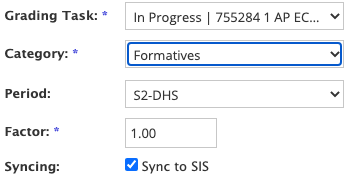
  • Make sure when you create assignments in Schoology, that the grading task reads "In Progress" and the Sync to SIS button is checked. These are defaults so you shouldn't have to mess with them too often.

  • Factor 0 does not sync over to IC. If you wish to continue using "Factor" for your gradebook entries, you can either directly add them to IC and utilize the "Multiplier" or create a separate category with a default multiplier.
    You can find the multiplier in IC when you create an assignment

  • Find issues using "Bulk Edit." If you click on the 3 dots in the top right corner of your Schoology Gradebook, you can find the "Bulk Edit" option which gives you an aggregate overview of all of your assignments. You can quickly identify and fix issues here all at once.
The bottom line is, staff are being asked to keep two separate gradebooks that operate in two separate systems with two different sets of rules. On top of that, you only set them up once or twice a year. That's a ton to remember. So take a careful look at the resources provided, and don't be afraid to ask for help! Good luck and happy New Year! 

Tuesday, December 13, 2022

FTT - End of Semester Grade Book Checklist


 End Of Semester Grade Book Checklist: Schoology/IC (December 2022)


As we look to close out the first semester of the 2022-2023 school year, here is your checklist for entering final exams and posting your semester grades. 

Step 1: Enter Final Exams. 
Do you have a final exam that lives outside the in-progress semester grade? 
For example, here is a breakdown of how my semester grade is calculated.

 Two Options- Enter In Schoology And Sync Or Enter Directly Into IC
   
For either option, do this first:
  • Go to your IC gradebook and click on Settings -> Grade Calc Options and make sure it is set to calculate correctly. As an example, here is what mine looks like.


Option 1: Enter in Schoology and then sync to IC
  • Enter your assessment/assignment in Schoology. DO NOT click the box that says "Set As Midterm/Final". Just make sure your grading task is set to Final Assessment. You can enter multiple parts to your final. As you enter each part, just make sure the Final Assessment grading task is chosen. 

  • Enter the grades and click on the sync button to move over to IC. You should be able to see those grades appear in the Final Assessment task in Infinite Campus.
Option 2: Enter directly into the Infinite Campus grade book

  •  In Infinite Campus go to your grade book, choose a section and then choose Final Assessment as the grading task.
  • Click Add (top left, above settings) and then enter the details for your final. If you have a final with multiple parts, you can click Add and enter as many parts as you need.
  • Click Save or click Add Sections to add it to other course sections.
  • Enter the grades in the IC grade book and click Save.

    Step 2: Finalize, Post, and Save Your Grades.
  • Take a look and make sure the grades look accurate. Go to your Infinite Campus grade book and select a section. Choose the Semester grading task. 
  • Go to Grade Book.  Under the Semester task, click the orange "Post" in the "In-Progress" column.  After you click "Post", a window will open to the right to confirm details.  Make sure you are posting to the Semester Task and click OK.  This will put all grades in the "Posted" column.  Lastly, make sure to click "Save", which will turn orange from grey after you post.  Repeat for every section.


  • IF YOU NEED TO MAKE ADJUSTMENTS TO THE GRADE: You will do that in the Posted Column and then click SAVE. 

Step 3: Do a Happy Dance! (and then make sure everything is set up correctly for Semester 2) 


Monday, December 5, 2022

FTT - Gradebook Syncing and Building Technology Guest Blog!

                  Gradebook Syncs and Tech Office Tips

@LisaBerghoff/@MrKimDHS


This week's blog will address some key information regarding our favorite topic of 2022, the Schoology-Infinite Campus sync, as well as some tips from our building technology departments regarding Papercut and Google Drive!

Syncing Best Practice

With the end of the semester approaching rather quickly, it's certainly worth checking for any major sync issues BEFORE things get a little hectic during finals week. Our suggestion is to compare the composite grades in both gradebooks. THEY SHOULD BE THE SAME (.01 difference for rounding). If your composite scores are different, here are a few key steps you can take to identify and solve the discrepancy. 
  1. Audit your Sync Status Log! Click on the Clipboard icon in your Schoology gradebook to see whether or not your assignments are actually syncing correctly. 


  2. Schoology-IC Category Calculations. Make sure your category weights and calculations are the same in Schoology as they appear in IC. Note though, that you do not HAVE TO calculate the composite score in Schoology. Students do not see composite scores in Schoology.


  3. IC Uncategorized Assignments. Make sure that you go through each of your IC gradebook tabs to make sure that you have no uncategorized assignments. If you do, you will see an Uncategorized Assignment notice with a red number in IC.


    If you have any further questions regarding the Schoology-IC sync, please contact us!

Technology Building Tips on Google Drive and Papercut

The next few tips come from our tech departments as commonly asked questions. Take a look:

Here are reminders for signing back into Google Drive and Papercut.  If you have further questions, please send an email to helpdesk@dist113.org.

Sign back into Google Drive when your G: drive is no longer available
  • Launch Google Drive from your Start Menu (Windows) or Launchpad (MacOS)
  • Then click on the Drive icon in the Task bar (Windows) or the top menu bar (MacOS)
  • You may be prompted to sign in via Okta

Sign back into Papercut when your district printers are not appearing
  • Right-click on the Papercut icon (Windows users will find it in the Taskbar, Mac users will find it in the top menu bar)
  • Select View my printers
  • When the Papercut Print Deploy Client window opens, click Sign in with Google
  • This will open the Papercut app
  • Launch View my printers again, and you will see your Papercut list of printers
Hope this was helpful! 

Tuesday, November 29, 2022

FTT - 5 Google Forms Tips and Tricks

5 Google Form Tips and Tricks 


Google forms can be a wonderful tool for all kinds of things. Anytime you want to collect data you can quickly and easily create a form. Forms are great for sign-ups, taking a quick poll, getting to know you information, check-ins,  or exit tickets. There are also lots of great add-ons that you can use with Google forms and the Google sheets that go with them.

I definitely remember the first time I used Google forms with students. I was giving a short quiz in the health class for my students in the essentials program. I was beyond excited to have them respond and to get all of their answers in one place. I felt like it was a life-changing teacher moment. I emailed my students the link to the form, we did not have an LMS, or QR codes and if I wrote the URL on the board there was no way my students were going to type it in correctly. It worked! My students filled out the form and then clicked submit. Later, when I went to grade their quizzes, my heart sank as I realized I forgot the most essential piece of information. I forgot to ask for their names. In the early iterations of Google forms, there was no automatic collection of email addresses. There was no auto-grading. Some of you will remember flubaroo as an ingenious discovery.  

The point here is, Google forms has come a long way. And the developers at Google are constantly adding and adjusting and sometimes those additional features get overlooked. 

Here are my top tips for using Google forms right now.

1. Get email notifications

Sometimes you have a form that is available for long periods of time. Students or participants can fill out the form whenever they need to sign up for something. You make the form, you send out the form, and then you forget about it. I used to set calendar reminders to check certain forms but now you can just get an email notification whenever someone submits. 

Here's how:

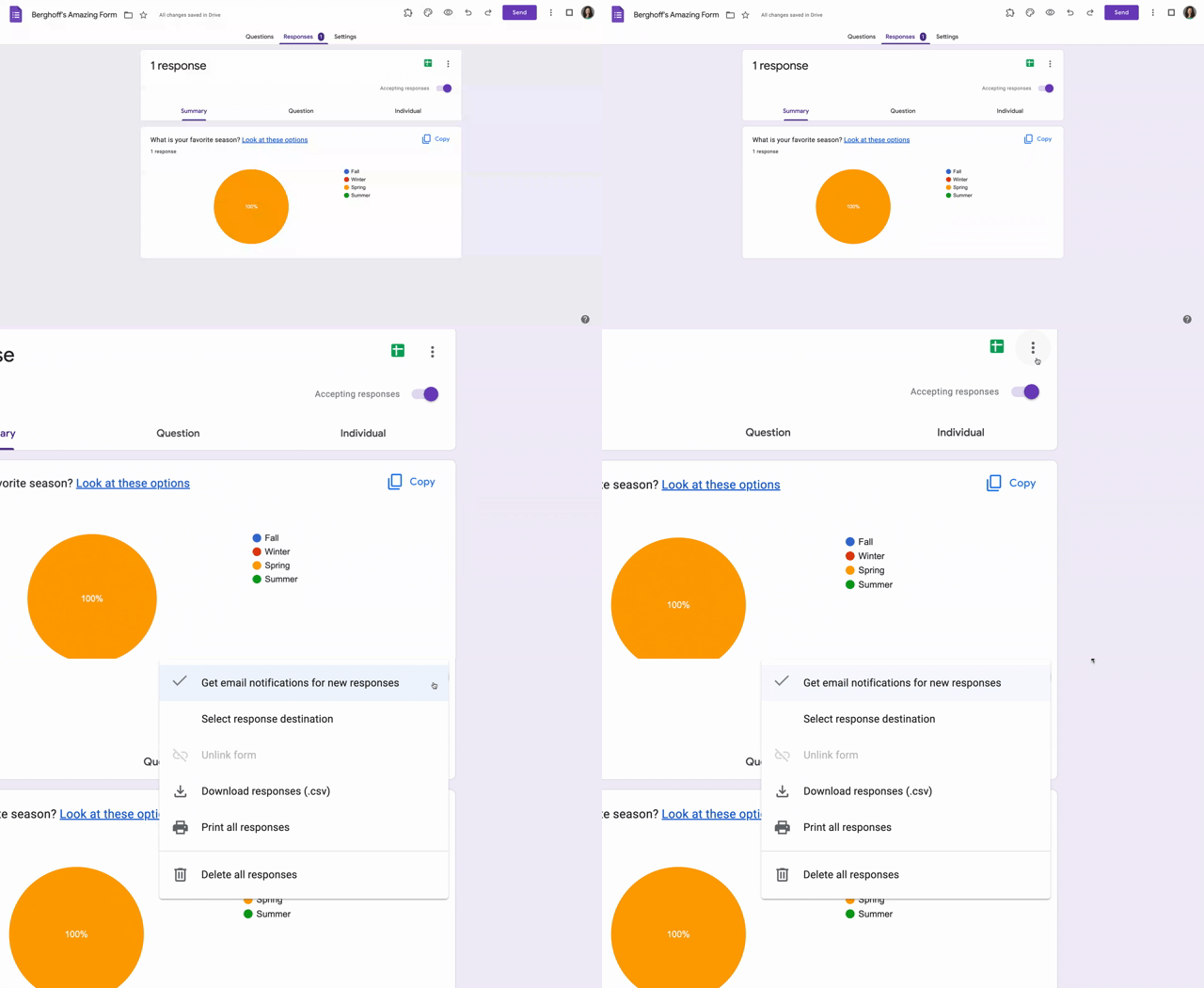
1. While you are in edit mode on your form, click Responses a the top.

2. Click the 3 vertical dots next to the Google sheets icon

3. Select Get Email Notifications For New Responses


2. Use conditional logic: Jump to a section based on the respondent's answer

This is one that many people know about but often shy away from trying because they believe it will be too complicated. I'm here to tell you that you can do it! This ability really comes in handy when you have many questions but they might not all apply to all respondents. For example, if you are using a Google form to collect some feedback from students as a formative assessment, you might ask them how they are feeling about their understanding of the current unit and then your follow-up questions will vary depending on their responses.

Here's how:

1. While you are in edit mode, enter your questions and create sections by clicking the add section icon. 

2. Go to the question that will determine the follow-up. This needs to be a multiple-choice or drop-down question. Click the three vertical dots next to the "required" button and choose Go To Section Based On Answer. 

3. You will see "Continue To Next Section"  appear next to each of the response choices. You can click to adjust where you want the respondents to go based on their answers. You can choose another section or you can opt to have them simply submit the form.


3. Embed your form into Schoology using the iframe embed code

Most of the time I am using Schoology's assessment tool with my students. However, sometimes a Google form is the right way to go. It depends on your purpose and what you are going to do with the data. There are times when I really want that spreadsheet with their responses. I can always click Send and copy the link and put it in my Schoology course by choosing Add File/Link/External Tool on the materials page. To reduce the number of clicks for my students you can embed with Google forms which is simple to do.

Here's how:

1. On your Google form click Send and choose the embed HTML icon < >

2. Click Copy to copy the HTML embed code

3. In Schoology, click Add Assignment and click the dots on the right side of the edit bar to switch to HTML.

4. Right-click paste to paste the HTML code.

5. Finish the rest of the details of the assignment (remember to disable submissions) and click Create.


Here is what it looks like in the student view when it is embedded:


4. Change How It Looks: 

Adjust Header, Text Fonts, Add Images, Links, and Videos

On their own, Google forms can look a little bland. If we are all using the defaults then they all tend to look the same. This is not inherently bad, but if you are looking to grab students' attention and maybe make your form stand out a bit, consider adjusting the way your form looks.

Here's how:

1. Click the Theme icon. It looks like a paint pallet. 

2. From here, you can change the text font and size of your header, questions, and responses. 

3. To add links, you will notice that there is now a link icon when you are editing the headers or the questions. Simply click the icon and paste your link. This is great if you have a Google doc or an article that you want students to refer to when responding to your form.

4. To add images or videos, you will notice an image icon when you are editing headers, questions, and also responses when you are using multiple-choice or checkbox questions. You may have noticed that there is an image in the example of the embedded form above.

You also have the ability to add images and videos independent of questions. For example, if you want students to watch a video of a TED talk and then respond, you can click the video icon in the pull-out menu that you use to add questions. 

Here is what it looks like:


You can also add a custom header. I like to use Google Drawings for that. Or, you can just search for background images and Google forms will let you adjust so you will know what it is going to look like. You can even add gifs.

5. Response validation

Want to make sure students only select a specific number of items from a checkbox list? Want to make your own digital escape room game or breakout box? Want to make sure your students have the correct answer before moving on to the next question? Want to make sure only the students in your room have access to a form? These are all examples of times when you would use response validation. 

Here's how:

1. Click the plus sign to add your question. This will work with most question types, depending on your purpose. 

2. Click the 3 vertical dots next to the "required" button and choose Response Validation.

3. Enter the parameters. For example, I have a question on my form that says: What is the square root of 81? If the answer is anything but 9 it will say "Incorrect. Try again!"

Here is the setup: 


Here is what it looks like to the students:


To be honest, it was hard to choose just 5 but nobody wants this post to go on forever. I would encourage you to click on the settings tab and take a look at all the changes that are in there. Want some help with Google forms? Let us know. We're happy to help.