Tuesday, October 17, 2017

FTT - Kami for Annotating PDFs


Annotate, Highlight, and Mark Up PDF's With Kami


@LisaBerghoff/@Joe_EdTech


One of the most common tasks that teachers and students look to do when dealing with digital text is to be able to annotate, highlight, and mark-up a document. I personally like to highlight and annotate on paper, it is how I learned to annotate when I was in school.  However, I also really like having my documents available without needing to carry folders or binders with me. It is empowering to be able to access my documents from any device that has internet capabilities. While I like to say we should use less paper instead of being paper-less, there are times when we need our students to interact with text in ways that can be tricky online. For students who struggle with fine motor skills, keeping track of their books, or who benefit from the text to speech features that work with chromebooks, there is a tool that works beautifully.


One of the most popular chrome pdf apps is Kami, which means paper in Japanese. It supports pdfs, documents, and images. The list of tools is vast and includes a PDF and document viewer, highlighter, ability to add notes, underline, and more. Work that is done in Kami can easily be shared with others.   For teachers, Kami is helpful when looking at online resources like e-books and publisher-supplied PDFs. This is a freemium app that has a "teacher plan" with more features.

From KamiHQ.com

Instead of printing or copying worksheets, give Kami a try. To get started, get Kami from the chrome web store.  There is also an OCR tool. OCR stands for optical character recognition and it basically takes the text from PDFs and images and the tool converts the text into an editable format. When the app is open, you can drag and drop the file into the OCR tool and then it is ready to be read and annotated online.

--------------------------------------------------------------------------------------------------------------------------
Are you using Kami for PDFs online? Post in the comments section and let me know how it's going!


Monday, October 9, 2017

FTT - Google Drive for File Storage

Google Drive
Two Tools: File Creation and File Storage 

@joe_edtech/@LisaBerghoff


Most people know that Google Drive is the online tool that allows your students to make collaborative documents, slideshows, and spreadsheets on their Chromebooks. I think many of us have also been using the tool frequently too when we want to collaborate with colleagues or survey students using Google Forms. But, it is really important to remember that Google Drive was designed to be two things, a place to create Docs, Sheets, and Forms, and a place to store ANY file. You do not have to convert files to store them on Google Drive. Literally any digital file can safely be stored in Google's Cloud and since we use Google Apps for Education, we have unlimited Google Drive Storage. Everything you've ever created on your computer can be stored in your school Drive Account and accessed by you from any computer.

Files that are stored in Google Drive do NOT have to be opened using Google Apps. For instance, I store Illustrator files in Drive, but I don't open them with Google Apps. I open them in Illustrator to edit them.

Google Drive is just a fancy way of saying Cloud Computing, but for those of us that don't live in the computer world, Cloud computing can be a scary and confusing topic. Last year, Lisa wrote another blog entry here that summed up Cloud Computing pretty well:

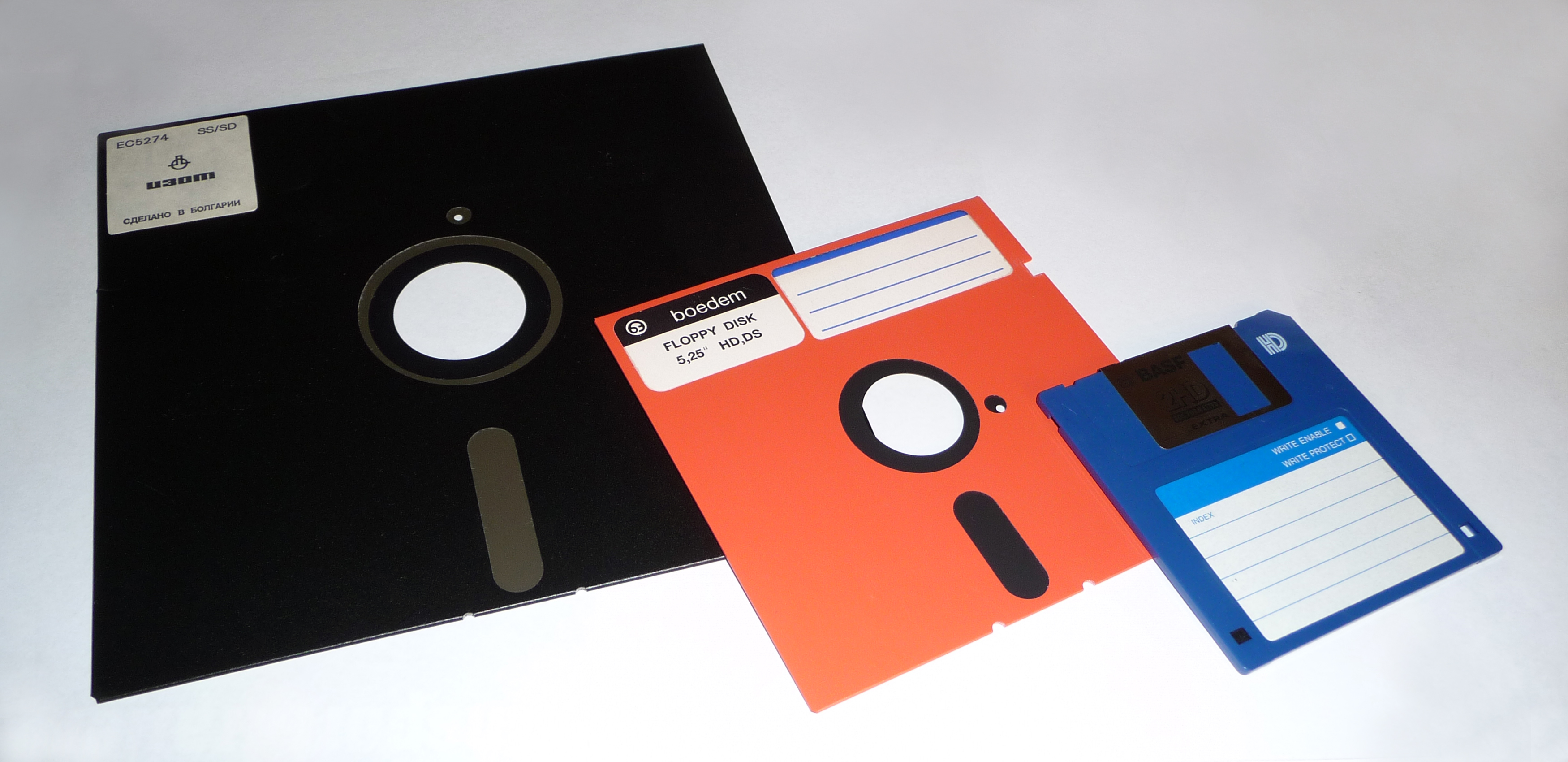
There are many things that I get nostalgic about when I think about the 80's and 90's. Floppy disks, however, are not in that category. Today we have many options for cloud storage. The latest and greatest of those is Google Drive. Here is a 2-minute video that explains the cloud. So many of you have asked and it's a great question. 


Why Would I Store Files in Drive?

The basic answer to this is that you have unlimited storage and you can access your files from any device that you own. Unlike with the old File Share option, you don't need anything special set up on your computer. You simply need to log into your Google Apps account from any device. When I go to visit my parents in Florida, I no longer take my computer with me. I don't need it. If I'm in a jam and need to access one of my files from school, I can log into Drive on my Phone and get what I need.

The biggest objection I hear to storing files in Google Drive is that some people don't want to change formats. Well, you don't have to change formats - not even from Word to Docs. In your Drive Settings, simply uncheck the box the box next to "Convert uploads," and your files will stay in their original format.


Both Deerfield and HPHS will be offering more training on Google Drive in the next few weeks. And you can always contact Lisa or myself if you have questions. But, the good news is you don't have to wait. There are literally thousands of help videos online that can answer help you answer any question you may have or provide you with a tutorial on getting started with file storage in Google Drive.

Here's an example Published by Anson Alexander from http://AnsonAlex.com.


---------------------------------------------------------------------------------------------------------------------
Some of you have been using the Google Drive App on your computer so that you don't even have to go through the Web to access your files. That process is getting even better with Drive File Stream. Look for an update on that very soon!

Tuesday, October 3, 2017

FTT - EdPuzzle

Don't Just Watch, 

Engage, With EdPuzzle

@Lisa Berghoff/ @Joe_EdTech


I am definitely dating myself here, but I grew up watching Mr. Rogers' Neighborhood. I used to love watching the beginning of the show after he changed out of his suit jacket and into his sweater and after he changed into his sneakers, he would talk about what he was up to that day. He would look right into the camera and ask us questions like: Do you ever wonder how pencils are made? or, Have you ever planted a seed? He would pause for a moment, giving us kids a chance to think about the answer. Sometimes my sister and I would even be compelled to answer out loud. Watching Mr. Rogers was more than just a passive exercise in consumption of content. He was a master at getting us to pause, reflect, and even respond. 

Since we have become a 1:1 Chromebook school, with each student having their own device, teachers are utilizing more and more video in their lessons. As our students are watching videos, we want them to interact with the content. We want them to reflect, be thoughtful, and make connections. In short, we want to turn a video into a lesson.

EdPuzzle is a platform where you can turn any YouTube (or other) video into your next lesson. It is super simple to set up, the analytics tell you if your students are interacting with the video, and it is easy to share lessons with colleagues. Also, I should mention that it is FREE! Another bonus is that it works seamlessly with Google Classroom. 


According to EdPuzzle, more than 84% of students use YouTube to help them with homework. The nice thing about videos is that they allow students to learn at their own pace. They can pause or re-watch videos, which they cannot do during your class. Using video in this way allows students to have some control over their learning. 

Here is how EdPuzzle works.
Step 1:  Upload or choose a video. Built into the EdPuzzle platform is a whole list of places to find great educational videos including YouTube, Khan Academy, National Geographic, TED, etc. You then have the opportunity to crop the video. If you have a long video, you can easily crop it so your students will only see a portion of it. 

Step 2: You can add an audio track to the video. If there is something that you want to explain in your own words, you can record it right in EdPuzzle.

Step 3: Now you have an opportunity to add audio notes. For example, you can add an introductory comment that will show up before the video begins. 

Step 4: At this point, you can add questions to the video. As your students watch the video, it will pause and your questions will pop up. You have the option of adding open-ended questions, multiple choice questions-if you choose this option you can make an answer key and it will auto-grade for you, or just insert a comment which can have a link, an image, an equation, or text. 

Step 5: Once you have your video lesson set up, you can assign it to your class. It will automatically assign in Google Classroom or you can give your students a link directly to the video. You can assign it with a due date and you can also check a box that will prevent students from skipping ahead in the video. When you assign it to a class, you can track student answers, see who viewed the video and how many times they viewed it.

----------------------------------------------------------------------------------------------------------------
Are you using video in your classroom? What tools are you using? Go ahead and post in the comments section and share what is working for you. 

Tuesday, September 26, 2017

FTT - CloudHQ Extension for Gmail

One Tech Tool That Solves Two Problems:
cloudHQ Gmail Label and Email Sharing

@joe_edtech/@LisaBerghoff

I've always been a fan of serendipity. But I'm getting ahead of myself. Over the summer, a friend of mine said that she really needed to share a folder of emails (in Gmail, it is called a Label) with a colleague. She wanted to be able to do that without opening each email individually and forwarding it. I did a quick search and found cloudHQ, a Chrome extension with great reviews that purported to do just that. So, I installed it - then I found out it was even better than advertised.

Once installed and activated (it may ask you to sign in and authorize it multiple times) you'll see a new button at the top of your Gmail inbox.


It is pretty simple to use. Once you have authorized the extension and click the button, you'll get a pop-up box prompting you for the name of the label you want to share and the email addresses of the people with whom you want to share. 

If that were the end of the story, it would be good enough. But it gets better. When you install the extension and open an email message, you'll see an entirely new set of menu options:


In addition to the usual choices, you have the option to change the name of the email (the pencil icon), share a link to the email (the chain link icon), or SNOOZE the email (the alarm clock icon). I personally don't have any use for the first two, but I've been looking for a good option to snooze emails for a long time. If I get an email in my inbox that requires some action on my behalf, but the action isn't required for a significant amount of time I can click the snooze icon and hide the email until it is important. 

You can choose from a list of preselected Snooze times, or you can select an exact date and time. The email will be hidden until that time and will then appear at the top of your inbox. 

cloudHQ is a "freemium" service, but I only use the free stuff. If you run your own business or have run an organization outside of school, it might be useful to look into the paid services for syncing and backing up emails. I would love to tell you that I researched this tool and knew all of this in advance of sending it to my friend. But I didn't. It was just serendipity.

-----------------------------------------------------------------------------------------------------------------------
If you've found a better way to share labels or snooze emails, tell us about it below.

Monday, February 20, 2017

FTT - Answer Garden

Create Instant Word Clouds In The Classroom With AnswerGarden

@joe_edtech/@LisaBerghoff


Several weeks ago, Judi Luepke and the Deerfield Optimist Club were looking for a tool they could use to gather some feedback in a meeting. Ideally, they wanted something that would collect a lot of responses with minimum effort and display the responses in a meaningful way. The solution they found was a free and simple to use tool called AnswerGarden. The DHS Optimists asked the faculty to describe the best characteristics of the Deerfield culture. The answer, which was generated live during the staff meeting, is below:


You don't even need an account to use AnswerGarden. Simply create a question, and share the URL or QR Code with your class or audience. And since AnswerGarden has been designed for use in schools, you can create an admin password and moderate answers, hiding or removing answers that are inappropriate. You can also take advantage of their built-in SPAM filters to automatically remove "common unwanted responses."
From the AnswerGarden "Create" page
AnswerGarden is one of the few tools that we use that doesn't even require a video tutorial. If you'd like a demonstration of how AnswerGarden works, simply click here - AnswerGarden Demo.
-------------------------------------------------------------------------------------------------------------------
Do you have another tool you use for generating ideas or collecting feedback? If so, tell us about it in the comment box below.


Monday, February 13, 2017

FTT - Formative

Use Formative to see Every student's work in real time at the same time

@LisaBerghoff/@Joe_EdTech


Regardless of subject or title, we're all teachers. We show up every day to help kids learn. How do we know kids are learning? This seems like an easy enough question but it is one that I constantly grapple with. We all know kids who don't test well at all but we know they are learning. On the other hand, there are kids who can ace every test but do we know if they can apply what they've learned across settings? The kids in all of our classes are dramatically diverse learners, Even in classes where it seems that they should be relatively similar, we see a wide range of abilities, interests, engagement levels, and skills. In all of my reading and understanding of differentiation, I keep coming back to the idea of formative assessment. It's that in-process gauging of where my students are in their learning and it informs how and what I teach. Here's the problem.

Sometimes, formative assessment is really hard/time consuming/complicated, etc.

I intend to do formative assessments with integrity and then use that information in my planning but it doesn't always happen.

I often say to myself, I wish there was an easier way to do this. 

Formative is a free online web tool that allows teachers to quickly and easily create or upload assessments and get real time live results.  It will automatically score results for multiple choice questions and it allows you to give feedback to short answer questions while students are responding! You can upload any pdf if you have an assessment that you already use and like, or you can create from scratch right on their platform. It allows you to add images, youtube videos, and other media. You can even ask your students to type, show their work with drawings, or submit images. You can use it as classwork, homework, or assessments. Formative can be used for any subject and on any device.

Here's how Formative works.

1. Just log in using your Google account. Formative accounts are free for teachers and students.

2. Create or upload an assignment using the dashboard. I found it to be very intuitive but there are short video tutorials on hand just in case you need some help.

3. Assign it to your class using the quick link that it gives you, or a code that is also included. Google Classroom users will be so happy to know that there is also a G Classroom icon to click so you can easily assign it that way.

4. Get live results. As your students are answering the questions, you will see the live results right on your dashboard.

5. Give feedback. Assign points values or give written feedback right there on the dashboard.

When you log in you will see that some sample assessments are created for you so you can try them out. There is even one with student responses so you can see how it looks and practice giving feedback.

Have you tried Formative?  Let me know how you use it in your classes. Want to try Formative but feel like it's a little overwhelming? Let's do it together!
I'm happy to help:)

Monday, February 6, 2017

FTT - Boomerang for Gmail

Schedule Email and Reminders with Boomerang for Gmail

@joe_edtech/@LisaBerghoff

One of the things I have always loved about using Gmail is that it is completely customizable to fit my expectations of email and, because it is used professionally by so many schools and businesses, there have been tons of third-party applications and extensions developed to give each individual the user experience and functionality they need to be successful.

My favorite extension for Gmail is called Boomerang and it allows me to:
  • Schedule and email to be sent at a later date and/or time.
  • Schedule a reminder for an event or a deadline.
  • Hide an email for a time and schedule it to return when I need it.
  • Get reminders to follow up on emails you've sent that haven't been answered.
  • Find out who has opened an email you've sent or get "read receipts."
Start by installing Boomerang from the Chrome Web Store (you can find it here), then you'll notice that you have some additional controls in your inbox:


First you'll see the red "Send Later" button. Then you can schedule an email to be sent at a specific point in the future, whether you are logged into your computer or not. You might, for instance, compose an email on Friday afternoon and schedule it to be sent to your class as a reminder on Sunday night. Then it will automatically be sent whether you have time to get to your computer on the weekend or not.

If you click the box next to the Boomerang icon, you will be sent a reminder to follow up on an email that you've sent for which you've received no response. If I check the box as seen above, I will be reminded of this email if I've received no reply in 2 days.

Clicking the blue envelope icon allows you to receive receipts when people open your email, or you can manually check to see if an email has been opened.

Here's the official video on most of the basic features of Boomerang:


But there is a lot more. With the advanced features of Boomerang, you can track responses to your emails, set recurring messages, add notes to your Boomeranged messages, and schedule messages from your phone or tablet.

Boomerang's help page is fairly extensive, and includes video instructions to accompany most of the frequently asked questions:


Boomerang Help Page: http://www.boomeranggmail.com/faq.html
------------------------------------------------------------------------------------------------------------------
If you have another extension or Gmail lab that you use frequently, tell us about it in the comment section below.