Monday, May 3, 2021

FTT - Using Mote for Voice Notes

Tell Me About It!

Using Mote For Voice Notes 

@LisaBerghoff/@MrKimDHS

It's funny how quickly we have become accustomed to technology that helps us communicate. The first iPhone was released just 14 years ago. Google Docs was initially released 15 years ago. Doesn't seem like we've been using these forever? It's fascinating to me to look at the shows that I watched when I was a kid because so many of them predicted what the future would look like and some were not so far off. Being able to communicate while seeing each other through screens, talking through watches, seeing real-time webcam footage via the tiniest handheld devices are some capabilities that seemed like a dream way back when. And yet, there are still features that we wish we had. There is always a list of ideas, capabilities, apps and software that are headed our way. 

One of the features that has been on my wish list for a long time is the ability to give voice comments in 
Google docs. Working with students who struggle with reading, writing, and language in general has given me a new perspective on these feature requests. If my students can't or won't read my feedback, what good does it do to spend so much time giving it to them? Especially now that we're all using our devices so much more and for so many tasks, the ability to use voice messages is so important. 

Mote is a Chrome extension that makes it easy for anyone to add voice notes and feedback to Google documents, slides, spreadsheets, and emails. A tool like Mote makes it easier to give feedback faster and may even make it more accessible for more students to receive feedback. Using your voice instead of typing is also more personal because the students will be hearing your voice. Tone can be hard to detect with text based comments and using your voice can help make your feedback more clear to students. And where to begin with email!? So many emails are misunderstood because of tone that is missing in text based emails. With Mote you can include a voice message and eliminate so much miscommunication. 

This is a freemium tool, meaning there is a free version and a paid version. I have been using the free version and I have found it to be more than adequate.  Here is the pricing information. With the free version you get unlimited mote voice notes and feedback, you can listen to unlimited voice notes, add voice notes to Google slides, gmail and more. You get 30 seconds of recording time for each voice note. 


  • To get started, grab the extension from the chrome web store. 
  • You will sign in using your Google credentials and give it permission to run.
  • Then, all you need to do is highlight some text and click to open a comments box. You will see the Mote icon and when you click on it the voice recorder will open. Go ahead and speak your message. 
  • The very first time you use Mote you will need to allow it access to your microphone. To listen to the comments, click the play button.


Here's a 1 minute video showing how it works:


Ready to give Mote a try? Let us know if you would like some help. 
What are some other future technology features that you would love to see become a reality?


Monday, April 26, 2021

FTT - Tech Tools for Reflective Formatives


How Do You Know Your Students Are Learning?

@LisaBerghoff/@MrKimDHS


Assessing whether or not genuine learning is happening in any single moment has always been a challenge, and one that has been made infinitely harder with remote/hybrid learning. It can be so difficult to "read the room" and rely on your usual, informal checks for understanding when you're staring at a number of tiny pictures on your computer screen. While most students are returning to school, and we're slowly clawing our way back to full in-person learning, it's important to note that asking the class, "does that make sense," or "any questions" just won't cut it anymore. 

The best type of formative assessment gives students and educators time to be reflective about their work and their habits and the eventual feedback. While this time of the year may be a mad dash to get past the Cold War in US History, it's certainly worth giving students the opportunity to complete a formative assessment with adequate time to review feedback and to think hard about what they had just done, and what they can do to continue growing. 

How easy is it for students to hit submit on an assignment, and never look at it again (besides the score of course)? Or how often to we complain about students not reading our thorough feedback on essays that we spent hours writing? As a wrestling coach I've seen kids watch a recording of the previous night's match over and over again, pausing and rewinding at critical moments so that they could analyze and reflect on what went wrong and what went right so that they could be better. Students know that such reflection and self-assessment works. We just need to port that into our classrooms, and here are a few tech tools that can help:

PearDeck

We were excited as a district to add PearDeck premium last year and we've witnessed a lot of teachers reaping the rewards. The nice thing about the PearDeck/Google slides integration is that it give an easy way to give students an interactive relationship with the presented material, and for staff to keep that feedback for future use. Instead of asking students, "what do you think about situation x" you can prompt them through PearDeck, where students can individually formulate a response on their 1:1 device. From there you can show student responses anonymously to the class for review and further discussion, and SAVE their responses for future analysis.  Click here for a past blog on PearDeck.


Schoology Google Drive

Schoology's Google Drive LTI integration is one of the better functioning ones and a personal favorite of mine. It allows you to attach and integrate a Google Doc assignment into your Schoology gradebook. Here are some cool features of using this option:
  • Creates a fresh, individual copy of the Google Doc
  • Teacher can view student progress and give live feedback via Google Doc
  • Unsubmit and return work with comments as needed. 
Just create a Schoology assignment, and click on the "Google Drive Assignments" option to assign from app. Then students merely need to click on the assignment and it'll bring them to their personal copy.


No matter how you decide to integrate technology into your classroom, remember: it's not about the device or technology. It's always about leverage those tool via good teaching and pedagogy. Find the right formative tools that work for you and if you find a good one, comment below!


Wednesday, April 21, 2021

FTT - Top 5 Accessibility Tools That Everyone Should Know About

 Top 5 Accessibility Tools That Everyone Should Know About

 (chrome/chrome book edition)

@LisaBerghoff/@MrKimDHS

#a11y


I was recently looking through the blog archives and was shocked to discover that I had not written a post on Chrome and Chromebook accessibility tools. I spend a large percentage of my time working on helping students and their teachers figure out the best tools to use when there is a barrier to learning.  Part of the problem is that the topic is so huge that it can't possibly all be covered in one post. However, there are some amazing built in features that absolutely everyone needs to know about so here we go.  

Back in the early days of special education, we would identify a student as having a disability and then find a tool, possibly a piece of technology, that can help. The issue with this was that the technology was so different, so screamingly obvious that no student wanted to use it. The beauty of accessibility tools that are chrome extensions, or built into chrome and chrome books is that nobody has to know AND anyone can use them so who cares. So many accessibility tools are ubiquitous these days. Think about audiobooks. They were created for people with visual impairments but we all benefit from listening to them. 

Here is my list of the top 5 accessibility tools everyone should know about. 


1. Voice Typing In Google Docs

Since this tool is baked right in to Google docs, there is absolutely no reason for a student to sit and stare at a blank screen. You know that they have ideas and if you could sit next to them, they would tell you, but for some reason as soon as they need to type they suddenly have writers' block. 
Just have them click Tools and then choose Voice Typing. This also works using the Google docs mobile and tablet apps as well. The technology has gotten so good! 


Quick tip: Google docs voice type does not automatically enter punctuation. If you speak the punctuation it will work, or have students go back and enter the punctuation manually. Built in punctuation lesson for the win!

2. Select To Speak (on chrome books)

Once you enable it in the chrome book settings, you press the Search key and then click and drag for what you want read aloud. This is a great tool for struggling readers, English learners, and kids who are looking at screens for too long. Students can enable this on their own by clicking the gear on their chrome book and going to accessibility.


3. Closed Captioning On Google Slides

While you or your students are presenting, you can enable closed captioning and what you say will appear on the slides. This is perfect for students who struggle with attention, you absolutely can't help but watch the words appear! This is also great for struggling readers, English learners, and students with hearing impairments. Another thing that is pretty amazing is that it has a filter so if you have a snarky student who decides to say some bad words, it won't add those to the text!  Just click the CC button on your toolbar when you are in presentation mode:


Here is a video that shows how it works in under 2 minutes: 


Bonus info: There is also a closed captioning option on Google Meet! 

4. High Contrast Mode

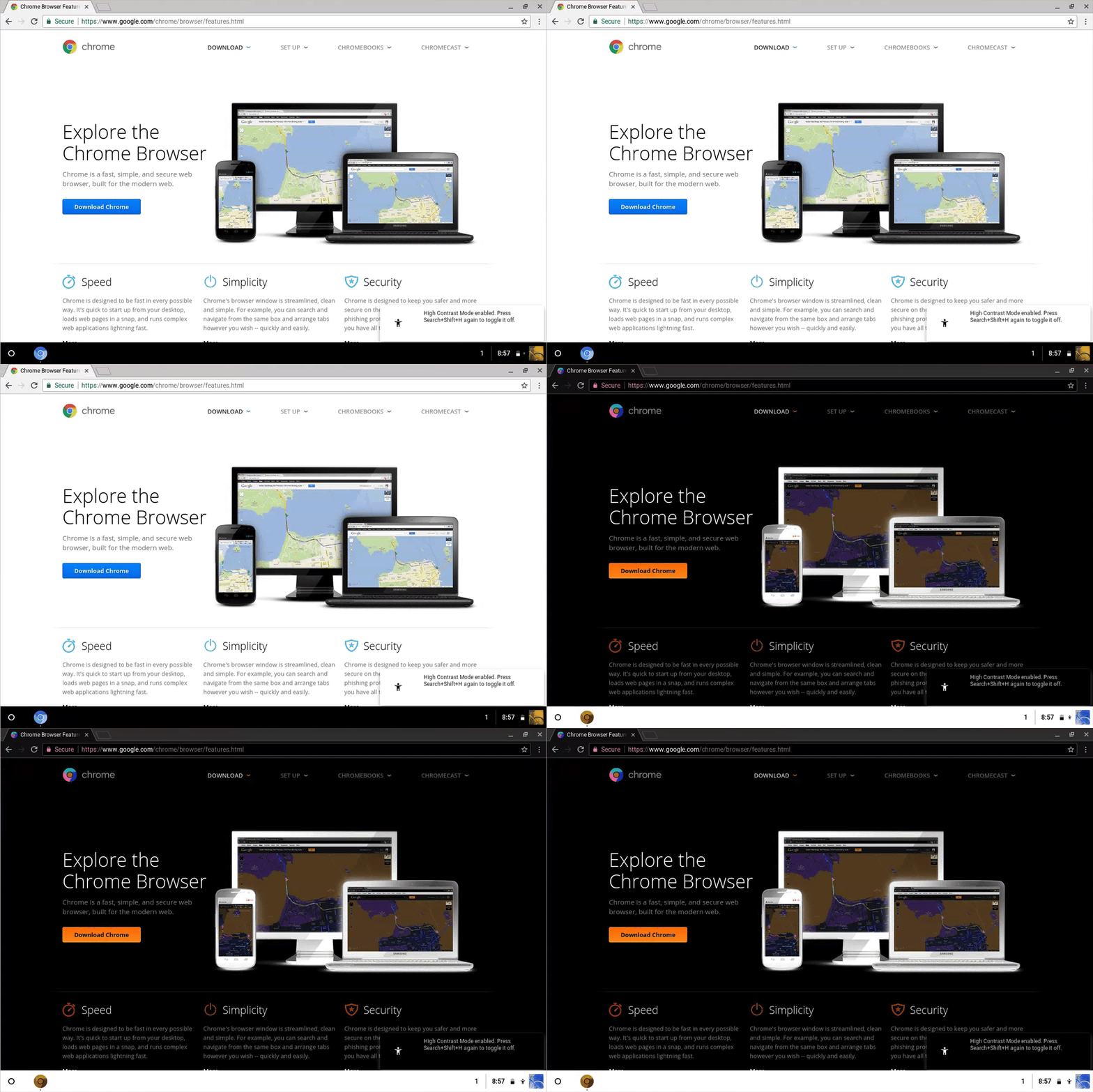
Since we are looking at our screens more than ever, it can be beneficial to change the contrast as we are working. Some students say this helps with focus, others report that it reduces eye strain. I have shown this to students with concussions and they indicated that it reduced their symptoms while on their chrome books. Control+Search+H will toggle this on and off on a chrome book. 
You can also turn this on in gmail by going to themes in your settings. Choose the plain black background and click save. 


Here is another short video showing you how it works.


5. Adjust Your Mouse Cursor

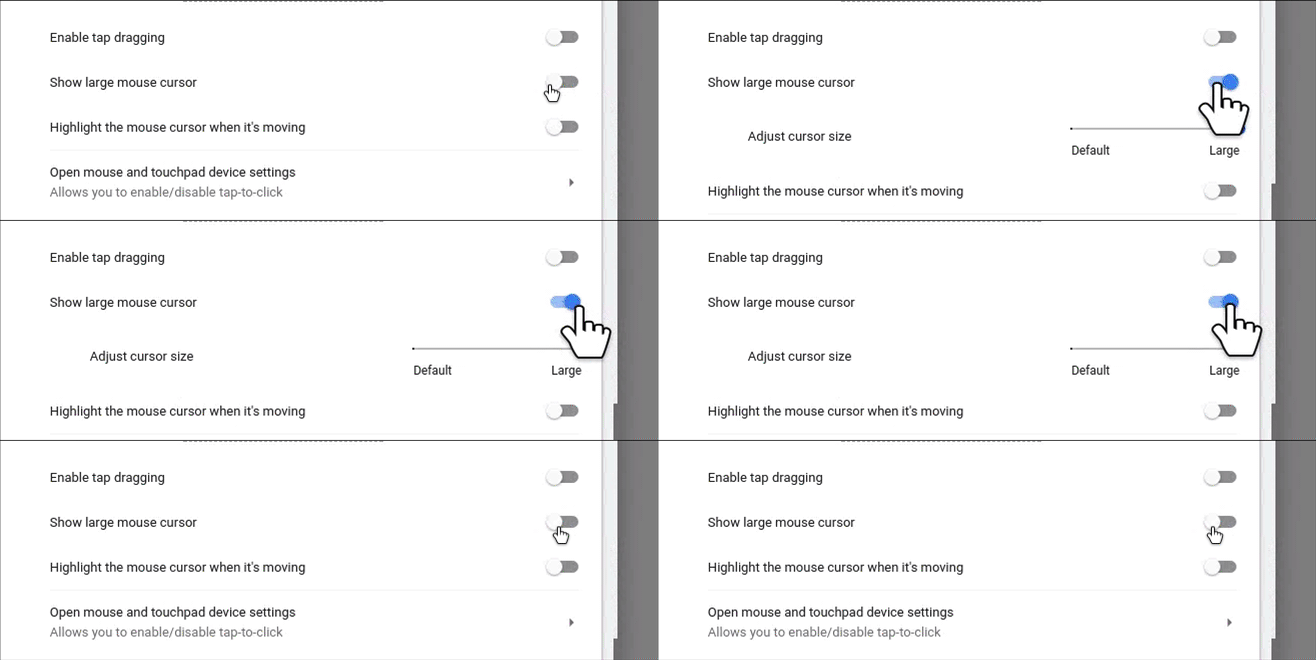
There is no reason to think that one size fits all when it comes to your mouse cursor. Students can adjust in their chrome book settings by toggling to show a large cursor. They can also set their mouse cursor to highlight. This is also possible even if you are not using a chrome book. In the chrome browser, just click on settings, advanced, accessibility and choose show a quick highlight on the focused object. 
This does wonders for focus and attention.


This is what it looks like on a chrome book:


There are so many incredible tools that we can all use. Remember, ramps are there for people with mobility issues but people pushing strollers, on bikes, skateboards, and pulling wagons benefit too. 
Show these to your students. Make sure they know that they can enable these features all on their own.
What is your favorite accessibility tool? Let us know. And don't forget that we're always here to help. 

Monday, April 12, 2021

FTT - Our World in Data

Our World in Data 

@LisaBerghoff/@MrKimDHS

The Information Age spurred on in the mid-20th century by unprecedented growth and innovations in technology has generally been seen as a resounding success for us as a species. What an incredible transition it has been going from transforming materials (metals, tools) and energy (steam, electric, etc) to finally transforming information (knowledge). But as recent blog posts on bias and information would suggest, we're currently witnessing an existential crisis unfold as channels of disinformation can be just as influential and communicable as objective truth (whatever that is). 

Hilbert 2020, Dialogues in Clinical Neuroscience

So it's always nice to find resources as well-sourced, professional, and aesthetically pleasing as Our World In Data. Our World in Data is an online publication founded by Max Roser, a social historian and developmental economist, that focuses on macro issues that impact humanity. Roser and his team from the University of Oxford shed like on issues like poverty, education, climate change and more through a lens of data, graphs, maps, and interactive charts. Scientific journals, government departments, major new outlets, academic foundations all regularly use the site as a source, considering all of their visualizations, data, and code are fully open access. 

Topics

They have a wealth of topics to choose from: everything from global environmental and health data to cultural trends and education is well documented. 


Their statistical design team also does a wonderful job taking complex ideas and concepts and presenting them in interactive, beautiful graphs and maps. A quintessential skill for effective teachers: Can you present complex ideas to people in simple, effective, and scalable formats? (Their graphs can even be embedded in any site format with HTML!) 


Every article is well organized and the information is structured and scaffolded for accessibility, and thankfully they commit to a very transparent and thorough source/citation section. 


So if you've ever geeked out about well-organized and accessible information before, this place is a dream come true. A nice reprieve from the information chaos of social media and attention-grabbing breaking news sites. Are you using Our World in Data in your classes already? Do you have other similar sites that you love? Let us know below!


Tuesday, April 6, 2021

FTT - 5 Pretty Cool Google Features You Probably Don't Know About

 Five Pretty Cool Google Features 

You Probably Don't Know About

@LisaBerghoff/@MrKimDHS


Created by typing Google Gravity into the search bar. 


1. Start A New Google Doc, Sheet, Or Slide Deck Lightning Fast

Did you know that you can bypass your google drive and skip clicking on icons to start a new Google doc? Just type docs.new into your search bar. You will see a new Google doc open right before your eyes! Need a new spreadsheet? Type in sheets.new. How about a new slide deck? Type in slides.new. As long as you are signed into your Google account this will work. Everything you create will still be saved to your Google drive automatically.


2. Want Your Students To Do Real Research? Have Them Use Google Scholar.

Google Scholar provides a simple way to broadly search for scholarly literature. From one place, you can search across many disciplines and sources: articles, theses, books, abstracts and court opinions, from academic publishers, professional societies, online repositories, universities and other web sites. Google Scholar helps you find relevant work across the world of scholarly research. To access it, just go to scholar.google.com. This site also automatically gives you the proper citations in several formats. If only I had this when I was in school!


3. Ask Your Students To Find A Book, Using Google Books.

Google Books (previously known as Google Book Search and Google Print and by its code-name Project Ocean) is a service from Google that searches the full text of books and magazines that Google has scanned, converted to text using optical character recognition (OCR), and stored in its digital database. Books are provided either by publishers and authors through the Google Books Partner Program, or by Google's library partners through the Library Project. Additionally, Google has partnered with a number of magazine publishers to digitize their archives. Just go to books.google.com and start searching. This can also be a great tool for finding audiobooks and videos.


4. Take Advantage of The Explore Tool!

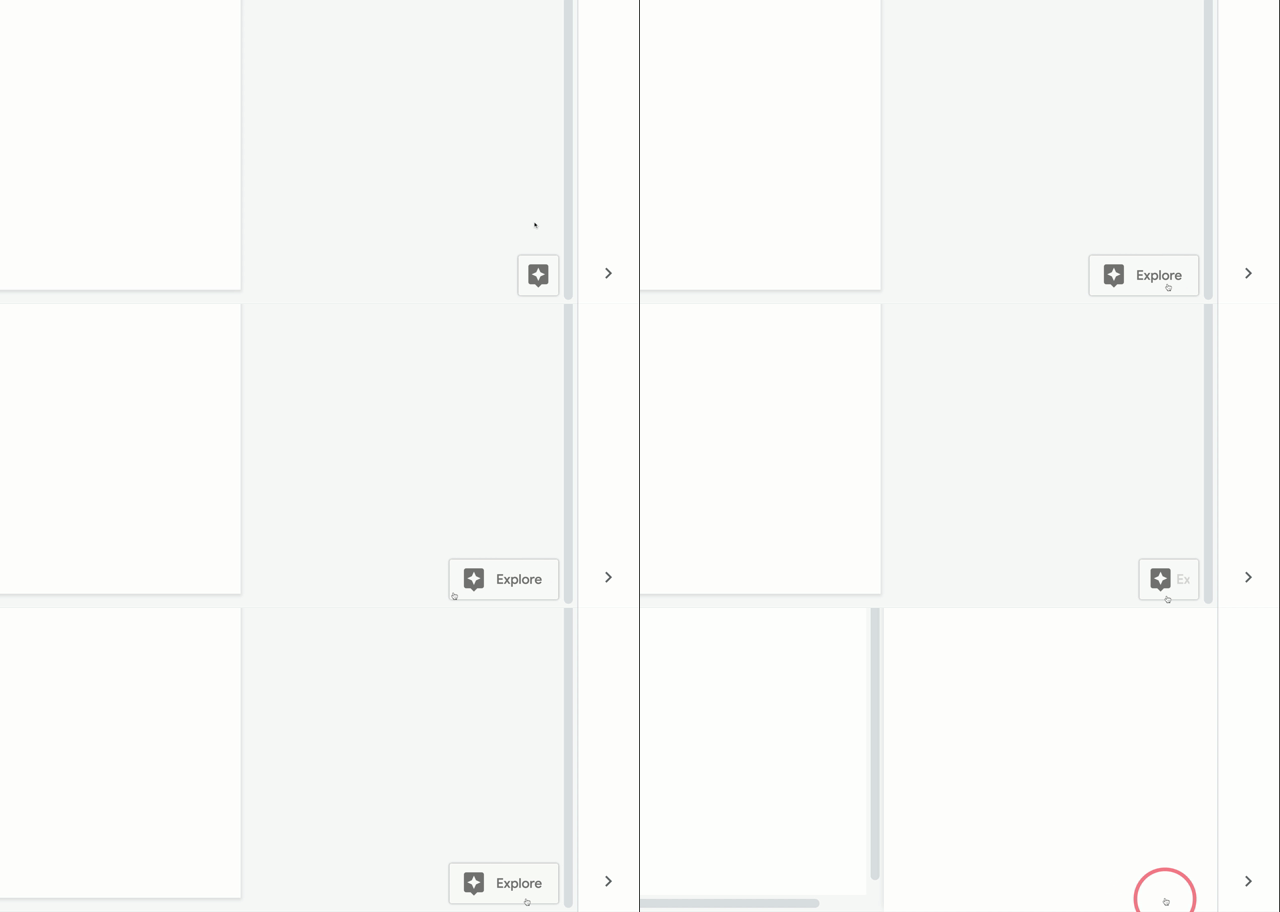
The explore tool can be found in docs, sheets, and slides and is designed to use machine learning to help you as you create. You may have seen it but didn't know what would happen if you clicked on it. It usually looks like a little plus sign. If you see this, go ahead and click! You can always undo if you don't like what comes up. 


 Explore can suggest images, topics, and files from your Google drive to assist you with whatever you are working on. In docs, you can use it to find relevant images that are available to safely use, insert research, or locate other documents in your Google drive. In sheets, it will suggest ways to display your data and in slides it will show you options for formatting your slides so they look amazing. 


5. Google Experiments

Want your students to feel inspired to try new things, think critically, and create something new? See real ways people are using innovation to solve real problems and have some fun while doing it! Check out Google Experiments. This is basically a showroom of experiments online, interactive activities and games, as well as artistic projects. Check it out and you can browse the experiments that have been submitted. Warning: there is a good chance it will send you into a black hole because so many are fascinating! 

Here is a screenshot from an experiment made through Google Arts and Culture. It is an Art Emotions Map. There is also a short video from the creator explaining why and how it was created.


Here's another example, from the "digital wellbeing experiments", it's called WeFlip and it encourages groups to take time away from technology.


These experiments are thoughtful and inspiring and there are many categories of experiments joined together in collections. It's well worth a look.


What lesser-known Google tools do you use? Let us know in the comments section below.


Monday, March 29, 2021

FTT - Kami for Google Chrome


Kami for Google Chrome

Annotations and Workflow 


@LisaBerghoff/@MrKimDHS


Let's all keep our fingers crossed that the days of languishing on Zoom or Meet are soon to be over. But even when things get back to "normal" there will always been ways to leverage our 1:1 Chromebook program and our students' rising familiarity with technology. So let's check out Kami, a digital tool that allows for user interaction with Google Drive products like Slides and Docs as well as staples like PDFs and Powerpoints.

Kami allows users to do more than just view the digital work given to them. Instead of just being able to read a PDF of a chapter reading, with Kami, students can freely annotate the PDF via highlighters, text boxes, drawings, and even. Video/Audio recordings. Now while I'm not saying digital notes should ever really fully replace hand-written notes, this can be a pretty vital and helpful tool for students who prefer to live on QWERTY.

Getting Started

First, click here to access and install Kami as an extension on Chrome. After signing up through your District 113 Google account, access your documents through their options menu:


If you live on Google Drive like me, you'll probably be accessing their Drive option most of the time. Once you open a Doc or Slides, you can use the different interactive tools to begin modifying your work. 


PDF Split and Merge

Built into the Kami UI, you can even do simple splits and merges with PDFs (other files like docs and slides can also be converted).


Sharing Your Work

True to Google fashion, you can easily share your notes and work with others and collaborate in real time:

Free to Play

While the upgraded, paid version unlocks some useful features like adding media or a Schoology LTI integration, the free version has plenty of utility as an extension for you and your students! Have you been using Kami already? Feel free to tell us how you're using it successfully below!


Tuesday, March 16, 2021

FTT - Unbiased News Does Not Exist

Unbiased News Does Not Exist

 Allsides: Balanced News And Civil Discourse 


@LisaBerghoff/@MrKimDHS


When I was in school, I can remember certain classes had a standing current events assignment. We were instructed to find a news article and summarize it.  At times, those current events would be shared with the class. At the time, there was nothing controversial or problematic with this assignment.  The news came from the newspaper. Of course, we did not have social media or the ability to comment on everything that is put out into the world in a very public way. Today, the way we get our news is very different and we often seem to exist in a bit of an echo chamber with the way news feeds are filtered to give us more of what we already agree with. 

As educators, we all understand the importance of relevance and practical application in learning. The Universal Design For Learning framework explains that there are three main learning networks in the brain. The affective network deals with the "why" of learning. This is when I always think about that student who likes to say- when will I ever need to know this? The recognition network speaks to the "what" of learning, or how students take in and make meaning out of new information. Finally, the strategic network is around the "how" of learning. The strategic is all about how students show us what they know and understand. The Universal Design for Learning guidelines explain the importance in offering options for each of these networks. The recognition and strategic networks are often pretty easy to figure out in terms of providing choices for students. If a student is struggling with decoding, perhaps they can listen to an audio version of text. A student who has difficulty giving a live presentation could be prompted to record. The affective network is sometimes trickier and arguably the most important. It is that motivation and spark of interest that often propels students from just taking in information to actually shaping their understanding and making connections that will expand their learning in the future.

In my quest for searching for ways to help us all make real world connections, I was thrilled to find Allsides.com and Allsides For Schools. 


Allsides aims to provide diverse perspectives and a balanced take on news. They do not publish any news stories of their own. Allsides takes a look at what is out there from about 600 media outlets and creates a media bias rating on the news stories. News items are rated as being left, lean left, center, lean right, or right of the political spectrum. You have the ability to do a search by topic or do what they refer to as a balanced search, which will give you results that are rated. Take a look at their Media Bias Chart below. 


The site exposes people to information and ideas from all sides of the political spectrum so we can better understand the world.  It also includes a "Red Blue Dictionary" because sometimes when we disagree it's like we're not speaking the same language. this dictionary reveals how people across the political spectrum define, think and feel differently about the same term or issue. 


Watch the 90 second video below to learn more about how Allsides works.  


The Allsides For Schools sight provides tools, resources, information, and lesson plans with the goal of teaching students how to critically evaluate news, media content, as well as other information and to participate in thoughtful conversation. This is targeted for middle school, high school, and college classrooms. Allsides for schools is a joint nonprofit initiative of Allsides, Living Room Conversations, and the Mediators Foundation. This education site was created in 2019 when it became clear that teachers were using both Allsides and Living Room Conversation guides. 


Also on the site you will find Mismatch, which is an online conversation platform built to cultivate skills and offer practice in civil dialogue between middle school, high school, and college students in different parts of the United States. This is amazing because you sign up as a class, not as individuals, and you get to decide what conversation you are going to have. The whole point is to help get students out of their bubble and have meaningful conversations.  This site has so many fantastic features designed to get teachers and students out of their filter bubbles and looking at the news through critical thinking, not social media. There are multiple tools available or you can just use the Allsides website. 


Here is a short video demonstration explaining how Mismatch works.


There are many practical uses for this in the classroom, whether or not you are teaching current events. Think about how many times we want our students to research what is currently happening in our world.
I hope you will give Allsides a look. Let's keep conversations open and help teach our students how to do it in a positive way.