Tuesday, March 3, 2020

FTT - eLearning


Snow Day? Polar Vortex? What would an eLearning day look like? 


@LisaBerghoff/@MrKimDHS


There's nothing like getting that wonderful pre-recorded phone call from the superintendent at 9:00 pm the night before school calling for a Snow Day. That's the short term me getting just as excited as the students to shovel, drink coffee, and watch the snow pile up. Long term me understands that there's a chance we'll have to make up that missed day in the summer. So, can we have our cake and eat it too? Can we be safe at home during extreme weather events, while still making meaningful connections with our students? Nothing can completely replace face-to-face learning, but we can try our best.

So first: What's considered eLearning? Besides the obvious, distance learning shouldn't be all that different from traditional classes. Good teaching is good teaching whether we're sitting in the same place or not. You'll find below many of our previous blog posts to support you as you figure out what an eLearning lesson plan might look like for you.

Synchronous Learning: 

This type of learning is where staff and students interact in real-time. All participants can virtually meet through video conferencing, live chat rooms, or streamed lectures. Synchronous learning has the obvious benefits of direct and immediate interactions between teachers and their students, thus making for an easy transition.

Google Meet (Hangouts)

With all of our students equipped with Chromebooks, we are in good shape to hold video conferences for large group discussions, lectures, and other forms of learning. We'll all just have to peel off the tape or band aids we've all placed on our cameras haha. BTW you can even integrate a Google Slides presentation to your Google Meet! Take a look at our full blog post on Google Meet for the play-by-play.

BackChannels

A BackChannel is essentially a chat room that students can access and utilize parallel to the "main" activity going on. It can be a great way for students to communicate with each other without requiring the class to pause. If you feel nostalgic for AOL chat rooms, you might be a millennial. Check out our full blog post on BackChannels.


Asynchronous Learning:

Anyone who's taken an online masters course has probably experienced asynchronous learning, and probably appreciated the flexible, do-on-your-own-pace style of assignments. While synchronous learning can be great, you really need students to be on the ball with timing, and technical difficulties can be disastrous. So what can we do besides asking students to read an article and answer questions on a Google Doc?

EdPuzzle

Turn your video into a lesson! EdPuzzle allows you to take any YouTube video and make it interactive. Through EdPuzzle you can create interactive questions that pop up during strategic points of your video. User analytics and question placement helps ensure students are actually watching your videos. This time we have TWO previous blog posts: EdPuzzle Blog and  EdPuzzle/Schoology integration Blog

FlipGrid

The current generation of kids for some reason like making videos of themselves. This is proven by their obsessions with SnapChat, Instagram, TikTok, and other video apps. FlipGrid tries to capture that drive by giving students an opportunity to express themselves via video feed. Instead of posing a question on Google Docs and having them fill out a paragraph, you can pose a question on FlipGrid and students can video-record their responses. Again check out our full blog post on FlipGrid.

We're Ready


As you can tell, we're already well set up to embrace eLearning days. There are so many awesome tech tools that we can utilize for distance learning. So while a certain strain of coronavirus seems to be weighing heavy on our minds, our staff and students can be well prepared for rain, snow, cold, or virus. Do you have any other tips for eLearning days? Let us know below!

Tuesday, February 25, 2020

FTT - PearPop!

Watch Student Engagement Happen In An Instant With PearPop!


@LisaBerghoff/@MrKimDHS


It is so exciting to see the many uses of PearDeck in our classrooms.  Thanks to a generous grant from the District 113 Education Foundation, we now have a district-wide premium license for PearDeck. Watching teachers learn about PearDeck and then report back on the success of those lessons has been so thrilling.  If you haven't given it a try yet, I highly encourage you to check it out. 

Just a few days ago, PearDeck announced a new tool called Pear Pop.  I had to give it a try! Here is how it works. If you don't want or feel the need for a whole Google Slides presentation, you can just use Pear Pop to ask an interactive question. This is also a great tool to get some formative information on the fly.
It is designed to be quick and easy. 

Just go to Peardeck.com and where it says Pear Pop just click Choose A Prompt.

When you do that you will see several pre-made question slides.
All you need to do is click on one to choose it. When you do that, it automatically goes into presentation mode. You will see the join code on the screen and once your students enter that code at joinpd.com, they will be able to respond to the question. If you don't love using the code, you can use the link. Once your students are there, you will see the dashboard and all of the fantastic features that we love about PearDeck for Google Slides. You can ask another question on the fly, give the students a time limit, lock their screens, show responses or make it student-paced. 

This basically allows you to use some interactivity without needing to create an entire presentation because sometimes you just want to toss a question to your class and using PearPop is a great way to make sure everyone is actually participating instead of you verbally asking a question and hearing from the same four kids who always answer you.

The pre-made templates are divided into categories of "before class" "during class" and "end of class" which makes them perfect to use as bell-ringers, exit tickets, or formative assessments. However, if you don't want to use one of those, you can scroll to the next screen where you will find blank options of each of the possible question types: multiple choice, text, draggable, drawing, and number. 


Go ahead and give PearPop a try and let us know how it goes! Want some help? Feel free to contact one of us, we're happy to help!


Monday, February 17, 2020

FTT - LucidChart

LucidChart: Visual models for visual students.

@LisaBerghoff/@MrKimDHS


At our most recent building administration meeting, an incredibly talented district technology staff member walked us through what digitizing schedule changes would look like. While it doesn't sound all that interesting, it is a fairly complicated and work intensive process that affects all levels of our school. Needless to say, there were dozens of different processes that would trigger events like requested digital authorization, or auto-generated emails. What impressed me the most was just how easy it was to follow the myriad steps due to the simple yet powerful flowchart our tech guru used. So step one: let's make some charts.

LucidChart.com is one of many visual model platforms out there, and while any of them will do the job, LucidChart does the best job providing free templates that can anticipate your needs. So while you can start something from scratch, it'll be beneficial to peruse through the hundreds of templates and customize from there. LucidChart is all about communicating visual data and thus you can create some of the following:
  • Flowcharts
  • Timelines
  • Schedules
  • Pyramids
  • Mind maps
  • Floor plans
  • Venn Diagrams
  • Cause and Effect charts
  • Data flows
  • Family trees
  • Sequences
  • KWL Charts
  • Supply and Demand graphs
  • Study Guides
  • Heat Maps
  • and more!


From Scratch

All of this is mostly straight forward. When you choose to create one from scratch, they give you a blank diagram with every conceivable variation of symbols, shapes, patterns, colors, and a full HTML text editor to create with. I would start here to practice using the user interface of the platform. To continue your flowcharts, just hover over your text boxes, and directional points will appear. You can also simply click and drag arrows to fit all of your needs.

Once created, you can easily present, export, or share your creations. You can present full screen to a projector, you can send a live link, embed with a customizable HTML code, or export as a PDF/Image file. You can even save directly to Google Drive!

Templates

As mentioned above, there are literally hundreds of well made templates that can fit all most of your needs. Coaches can use the goal setting templates for their athletes, or even floor plans to prepare large sporting events. Teachers can have their students utilize and most importantly customize different charts like essay planning, or cause and effects maps.


Professional looking visualizations can definitely capture your audience's attentions and convey data and information in efficient, effective ways. Go ahead and explore. You will realize there are visual models for needs you didn't even think you had.

Tuesday, February 4, 2020

FTT - How to make Google Docs, Sheets, Slides, and Drive Available Offline

How To Make

 Google Docs, Sheets, Slides, and Drive 

Available Offline In 3 Easy Steps


@LisaBerghoff/@MrKimDHS


@LisaBerghoff/@MrKimDHS


Ben Franklin said there were only two things certain in life: death and taxes. I would add a third certainty to that list. The internet will go down at some point and you will lose connectivity.

With these uncertain times, it is good to have a  plan for technology use when the wifi is not working. I have presented at technology conferences and the wifi has gone down! I typically will save my slide decks as a pdf just in case.

You may be in a situation where you are in the middle of a multi-day project with a classroom full of students and suddenly there is no internet connection. This is one of those times when your students are watching you closely. Are you going to panic? Will you declare the day a total waste?  Are you going to have extra lesson plans just in case?

Fortunately, Google docs, sheets, and slides can easily be accessed offline.  This allows both you and your students to continue working on Google docs, sheets, slides, and access your drive even without the internet. When your device does connect, all of the work that you did offline with sync and it will be like the whole ordeal never happened.

You do need to take some initial steps while you are connected in order to enable offline editing. This is well worth doing as a precautionary measure. It will only take 2 minutes. You will be glad you did!

Enable Offline Google Docs, Slides, Sheets, and Drive In 3 Easy Steps!


1. Make sure you are using Google Chrome! This will only work in Chrome. If you have students using their own computers, make sure they have Chrome loaded on their machine.


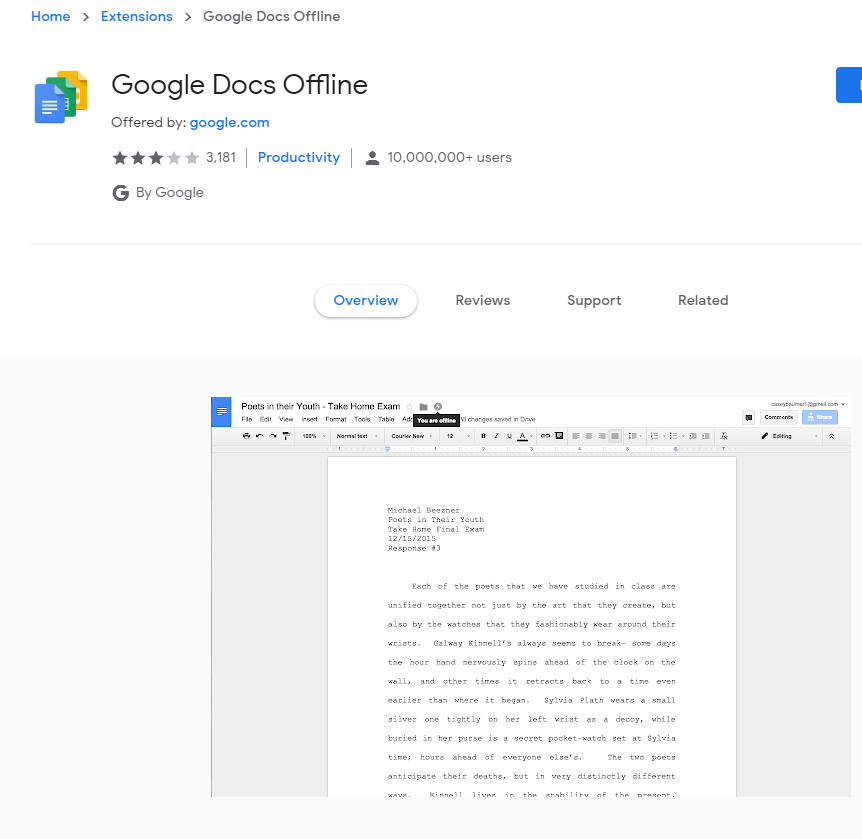
2. Install the Google docs offline extension. You can get to it by clicking here


Ok. Now you are all set! If you are offline, or want to enable for offline use, launch Chrome and go to your Google drive settings. Not sure how to get there?  Click on the gear in Google drive or go to drive.google.com/drive/settings. Check the box that says “Create, open and edit your recent Google docs, sheets, and slides files on this device while offline”. 


3. Ok. Now you are all set! If you are offline, or want to enable for offline use, launch Chrome and go to your Google drive settings. Not sure how to get there?  Click on the gear in Google drive or go to drive.google.com/drive/settings. Check the box that says “Create, open and edit your recent Google docs, sheets, and slides files on this device while offline”.


*If you have a specific file that you want to make sure is available offline, you can go to File and click Make Available Offline.

Want some help figuring this out?
Let us know!


Monday, January 13, 2020

FTT - MakerSpace


Creating in the MakerSpace

@LisaBerghoff/@MrKimDHS


As mentioned in our previous blog, we need to seize every opportunity for our students to be active producers and creators in their learning, as opposed to being passive consumers of information. You don't have to teach an art class or a creative writing class to give your students opportunities to make something. And if you are looking for some inspiration for your curriculum, our district is lucky to have a wonderful resource for staff and students to create: The MakerSpace. 

What is a MakerSpace? Is it merely a place that has a bunch of 3D printers? Not exactly - while many MakerSpaces or Fabrication labs are famous for their high-tech equipment, all you really need are some basic materials and a workspace to be in business. But if you are interested in incorporating different pieces of equipment in your lesson plans, here are some examples of projects and lessons teachers have done in our spaces:

Spanish Class and the Day of the Dead

In an effort to get her students to think outside of the box, Senora Daughton wanted her Spanish class to create artistic skulls for the Day of the Dead. This involved her students coming down to the Makerspace for a quick crash course on 3D printing, as well as our large format vinyl cutter to print and cut stickers. Students looked up graphic files for 3D printed skulls, and they also designed skulls on Illustrator and Google Drawings. Check out the pictures below!

SG-300 Large Format Print/Cutter


Biology models and 3D printing

Mike O'Malley's Biology class wanted to create accurate models of different animal species, and learn the basics of additive manufacturing aka 3D printing. They were shown this presentation on 3D printing, and over the course of a few weeks, the students came into the MakerSpace to render and create their 3D models. These models needed to connect with major biology themes for each unit.

3D model download on Thingiverse.com


Mindful Movement and their Mantras

Our last example was Krista Settles' Mindful Movement class that wanted to create daily mantras for their SEL/Mental health unit. Students came into the MakerSpace and created their mantra designs using our laptop carts and Canva - a website where you can create posters and designs for various needs. After learning how to convert their images to the correct file formats, the stickers were rendered in Illustrator and printed and cut on our large format vinyl cutter. 

Makers gonna Make!

The point is this: you don't have to be a science class or an engineering class to take advantage of the MakerSpace. Any class can participate given the right supports. Are you interested in bringing your class into the MakerSpace? The Highland Park and Deerfield MakerSpaces are ready for you! Contact us to brainstorm great ideas for your class.


Tuesday, January 7, 2020

FTT - 2019 Year In Review and Trends To Watch For 2020

2019 Year In Review and Trends To Watch For 2020


@LisaBerghoff/@MrKimDHS


Happy New Year!

Each December, Google sends out their "Year In Search" video. They look at what topics, names, news items, and events were the most searched and then they create a video montage. You can see the analytics of what was searched the most in 2019 by clicking on  Google's Year In Search.

Take a look at this year's video. It's only 2 minutes long and will definitely give you some talking points with both colleagues and students.


Reading the Year In Search had me thinking that this would be a good time to review the posts that were most looked at in 2019 and to make some predictions about what trends we will see in 2020 with technology integration.

Here are the top 5 viewed Giant EdTech posts from 2019. 

Remember, all posts are archived and searchable. If you missed these the first time around, you might want to take a look. These are the posts most viewed in 2019.

1. August: Your Back To School Checklist


2. November: Organize Your Digital Life With Google Keep


3. October: Gmail Filters And Labels


4. December: How Did You Do That? 5 Great Ways To Use Google Drawings


5. May: Have Some Fun Learning With GimKit!

Where Are We Headed In 2020?

There are lots of predictions about what will be trending with instructional technology in 2020. My predictions are based on what I am seeing here in our district and not global trends. I get to see a little bit of everything and for that I am so lucky! I really wish our staff could get to see each other teach because we have some incredible teachers. When I refer to teachers, I'm really referring to all adults who come in contact with our students. Yes, even if you are not in charge of a classroom, you are teaching every day. I am seeing a lot of energy and movement in the following five areas. These are the trends I see happening in our buildings for the coming year. It will be interesting to look back at this list in 2021 and see how I did. 

1. More Student Creation

I have more and more teachers requesting digital tools that will allow students to create as opposed to consume. We are asking our students to make videos, podcasts, infographics and websites. I see this as a continuing trend and I believe we will have students do more and more of this while we do less.

2. More Collaboration and Interactivity

Google Docs officially became Google Docs in 2012. That was not that long ago! And yet the functionality of being able to collaborate in real time and have multiple edits sync is something that we have come to expect from all of our tools, not just word processing. I believe that the tools that allow for real time and asynchronous collaboration will dominate our classrooms over those that can only be used under one account.

3. Need For Real-World Connection

If you have ever done a project with students where "experts" were brought in to consult or even judge student work, you know that the quality of work goes way up, as does the enthusiasm from the students. I see our students being less and less satisfied with simply turning in work to teachers and then getting it back with a grade on it. When our students believe that their work can make a difference, or will be viewed or judged by someone prominent in their field, they are authentically interested in learning.

4. Modification and Redefinition

For those of you unfamiliar with the SAMR model, where have you been?
You can get a 2 minute tutorial by clicking here.
I am noticing a trend away from substitution. I think we will see more and more modification and redefinition of learning tasks, which means more student-centered learning that utilizes technology to perform tasks that were previously not possible.

5. Assistive Tech For Everyone

As I continue to work with case managers and counselors to find solutions for students who are struggling, I believe more and more of the "assistive tech" tools will become mainstream. For example, the use of audiobooks was originally created for people with visual impairments. Now audiobooks are used and enjoyed by everyone for a wide variety of reasons. I see this as a trend that will not only continue but expand in the coming year as more tools become available to all of us.


What do you think? Did I miss any that you see?
Feel free to post in the comments section.
Happy New Year!


Tuesday, December 17, 2019

FTT - Gradebooks, Finals, Comments, and more

Gradebooks, Finals, Comments, and More

@LisaBerghoff/@MrKimDHS

With 1st semester winding down, there's a lot to cover: getting our gradebooks in order, final exams, comments, blackout periods and all of that fun stuff. Here's what you need to know:


1. Blackout dates and Schoology/IC Passback Information


2. How to set up/enter Final Exams?

Setting up a final exam can be tricky - here are some questions you should ask yourselves before you try:
  • Does your final exam "live" inside or outside of your semester grade?
    • for example, mine "lives" outside of my semester grade with a breakdown below
  • If so, you'll have to go to your Gradebook to create it. (Don't worry if it doesn't show up immediately. Just hit refresh)
  • Switch from S1-DHS to Final/Midterm Materials
  • Then go to Grade Setup to assign percent values. (Remember to hit save)

  • Do you have multiple parts to your final? Are they weighted as a percent, or by total points? Take a look at this Google Slides presentation for a deeper look into setting up finals.

3. Rounding choices: THSD 113 Rounded .5 vs Round Period/Final Grades

There are two methods to round grades automatically in Schoology. 
  • THSD 113 Rounded .5 - this method is what is most familiar to our staff. A student receiving an 89.5% will earn an "A" for the course, but the value will stay an 89.5%
  • Round Period/Final Grades - this is Schoology's native method. Every final value is rounded to the nearest percent. A student receiving an 89.5% will get a 90%, and a student receiving an 89.4% will get an 89%.
  • DON'T CHOOSE NUMERIC!!


4. Grade Changes and Comments:

  • If your student is on the edge of 2 grades and you'd like to manually change their grade, first you'll need to enable "Course Override Column" in the "Grade Setup" page. 
  • Notice below for Rich Grady - who was at an 89.45% B+. Because I wanted to bump him up to an A-, I wrote in 89.5% in the Overall (Override) column, which gave him the grade bump. 
  • If you want to give a student a grade bump, but do not want to change the % value, you can do that in IC through "Post Grades" (So Rich would keep the 89.45%, but still receive an A-)


  • To add optional comments, you merely need to hover over the "Overall" grade column until the blue chatbox appears. Click on it and type in your comment. 
  • Normally you'd need to click, "Display to Student" for students/parents to see your comments, but not for Semester Grade comments. 


5. Common Mistakes!

Category Calculations: Total Points vs. Percent


The Math department teachers were the ones (no surprise) who first discovered this mistake - when creating your categories, make sure you know the difference between Total Points and Percent. Many teachers, thinking this meant weighted vs. unweighted, chose "Percent" as their grading option. Here is the slight mathematical difference between the two grading styles. 

Let's say little Jimmy has two assessments, one worth 10 points, and one worth 100 points.

Percent:

  • 9/10 = 90%
  • 85/100 = 85%
  • =(90%+85%)/2 = 87.5%

Total Points:

  • 9/10 = 90%
  • 85/100 = 85%
  • =94/110 = 85.5%
The difference is subtle, but can be the difference can affect a lot of students. Be careful changing this setting deep into the semester, as it will change all of your student scores. 

Grading Scale:

This is a relatively simple fix, but important to remember: DO NOT USE NUMERIC as your gradebook scale. It will result in an error when grades are synced with Infinite Campus. You MUST use one of the provided scales. 

6. Infinite Campus - Schoology Sync?

Just to explain how grades go from one system to the other, what happens is every night at around midnight, Schoology will begin dumping their raw data to Infinite Campus. It takes about 3-4 hours for everyone's grades to sync to Infinite Campus. So what do I have to do in Infinite Campus when grades are due?
  • Enter incompletes, drops, and other grading tasks.
  • While you can manually change the final grades in both systems, in Infinite Campus you can change the letter value without changing the numeric value. 
  • You can also enter final grade comments on both IC and in Schoology. 
Happy grading. Any questions? Feel free to contact our team! Dkim@dist113.org - Lberghoff@dist113.org