Monday, March 20, 2023

FTT - Google Workspace: AI, Pageless Formats, Emojis, and More!


Google Workspace: AI, Pageless Formats, Emojis, and More!

@LisaBerghoff/@MrKimDHS

Google Docs and Beyond

Get ready for this, Google Docs is now old enough to drive! This year Docs celebrated its 16th birthday and many of you have probably noticed some subtle changes to its appearance. It's a little bit like Facebook user interface updates. You initially hate the appearance changes but eventually, you don't even remember what the old setup even looked like. Well in addition to some aesthetic changes, Google Docs has quietly added some powerful collaborative updates, some that we've highlighted before, but some that could positively impact your class, club, or activity!

Pageless Google Doc Format

It's kind of absurd how much of our educational budget is spent on printing and ink for assignments, homework, assessments, etc. Don't worry, don't worry I'm not about to go on a rant about going completely digital. Look, as an AP Econ teacher, I know full well that sometimes there isn't a substitute for traditional pen and paper. But with more and more of us pushing out digital assignments like Google Docs, it's sort of unnecessary to be bound by margins and page breaks on Docs. Now you can switch to the Pageless view of Google Docs and it's kinda awesome. Go to "file" and "page set" and you can switch over to "pageless" view. 

AI Summaries....oh no

Don't be alarmed, ChatGTP isn't taking over your Google Docs. But there is a neat AI-powered function that automatically generates what it thinks is a suitable summary of your document. By creating a document outline, the AI attempts to grasp the highlights of your document and delivers a bite-sized summary paragraph that is fully editable. Watch this GIF (soft g) of the summary AI in action:

Google Meets...meets Google Docs

Listen, I still shudder every time I even hear the word Zoom. I had a student remark that they took my class during remote summer school on Zoom and I was as shocked as anyone because I apparently blocked that part of my memory. Even so, conferencing can be an easy way to communicate and collaborate when there's some distance between us. You can now create Google Meets within a Google Doc. Let me try to explain. Think about every time we were on Zoom or Google Meets and someone shared a document. Our entire screen was filled with their shared screen and it left very little digital real estate for us to contribute or work on the document ourselves. Now, within Google Docs, you can create a video conference where everyone still has access to the document!

They quietly added a video conference button to Google Docs on the top right corner of the screen. Now no one has to "share their screen" and you can still communicate and collaborate in real-time!

Just click on the camera icon, choose "start a new meeting" and you have the option to share the file AND the video conference call all in one go!


Custom Building Blocks

We've highlighted the usage of the "@" sign on Google Docs in the past on this blog. They've expanded a bit of their menu with simple, yet powerful templates that allow students and staff to create project kickoff templates, milestones, to-do lists, code, calendar invites, and even email templates. You can write an important email on Docs enjoying the full menu of text editing customization (font, size, colors, etc), and then automatically convert the doc into a Gmail ready to be sent. Check out this fantastic 1-minute video that highlights the features of building blocks:


Calendar Draft Template

Similar to the email template, they've recently added a calendar template option. While I'm not entirely sure how much more utility you can get out of this integration versus merely using the calendar app, I'll have to test it out to see.

Emoji Voting Chips

Much like my reaction to the Emoji movie, I wasn't quite sure about emoji's clawing their way into every facet of our lives. But thumbs up and the fire emojis seem to be relatively tame. Users can quickly give non-verbal feedback on a variety of inputs.

Third-Party Smart Chips

OK so before we go any further, what the heck is a smart chip? Think about it this way: apps are to phones as smart chips are to Google Docs. If you hate that...think about it as Extensions are to Chrome as smart chips are to Google Docs.

Anyways, they are customizable tools that you can use to get more productivity or efficiency out of Google Docs. There is a ton of potential for third-party smart chips that can be more Education focused. While there aren't too many partner applications to choose from so far, I can see our usual educational integrations jumping on board soon.

Summary

OK, that seems like enough to get started. Just knowing that the changes happened is the first step. What I truly like about Google Workspace is how flawlessly it allows users to integrate every aspect of Google that we rely upon. On one document I can dynamically link a Google Slides presentation, PDFs, Calendar events, User emails, and more. That may seem overwhelming which is perfectly OK. Start with a SINGLE integration chip. Use it, get comfortable with it, see if you even like it. Then go on to another and before you know it, you'll be a Google Docs power user! As always, let me know if you have any questions or concerns!


Tuesday, March 14, 2023

FTT - What's New With EdPuzzle?

What's New With EdPuzzle?

@LisaBerghoff/@MrKimDHS


On March 11, 2020, two days before school and the world shut down, we had a representative from Edpuzzle come to District 113. She was here to teach us how to use this new tool that integrates with Schoology and will help us make videos more interactive and engaging for our students.  We already knew a little bit about Edpuzzle, but we just started paying for the premium license. At that time, I had no idea that video was going to be the primary way many of our students would get their educational content and I remember feeling excited to share the new things I learned about Edpuzzle with our staff. 

Fast forward three years and Edpuzzle is still a wonderful tool that we have available to us. While we are now back in classrooms and can see our students' faces there is no denying the power of learning through video. I have personally completed many household projects and have fixed several appliances in my home by watching YouTube videos. I know that this is different from learning concepts or understanding complex ideas but so much of our content is taken in from video and thus educators need to keep video on the table as a means for sharing ideas and information.

If you have not used EdPuzzle in a while or if you have just been using it the same way since 2020 (no judgement!) you might not know about the many new features that Edpuzzle has rolled out. Here is a summary of the new things you will want to try with your students.

1. Edpuzzle Originals

Edpuzzle is now creating its own content. They are professionally made videos that are made by a team of expert teachers. They are aligned to learning standards and they even have questions already embedded. You can copy and assign them as-is or you can edit and add your own questions. This is great because YouTube can really take you down a rabbit hole if you are searching for videos that you can use. At least with Edpuzzle originals, you know that there is a level of quality and content that will be appropriate and useful. They are adding more and more content at a furious pace and they are prioritizing middle and high school topics such as literary devices, algebra, biology, and more. Check out this Edpuzzle original lesson on Pi Day. 


2. Student Projects

While Edpuzzle is fantastic for making sure students watch and understand videos, there is nothing more powerful than having students create. Edpuzzle now has a student projects feature that allows students to create their own Edpuzzle video lesson. As the teacher, you will click Add Content and then choose Student Project. You can decide if you want students to search for videos or upload their own. Here is a 1 minute video showing 7 ways you can use Edpuzzle student projects.


3. Audio Responses

When students have open-ended questions to answer, they now have the option to respond via video. Some students are better able to show what they know verbally and this gives them the option to do so.
All they need to do is click under the answer box where it says Answer With Audio.  They can record their audio response and submit it without leaving Edpuzzle. 


4. More Languages And Closed Captions

You can now use Edpuzzle in languages besides English! And there is Edpuzzle original content available in Spanish. Click on the profile logo and go to the settings tab. From there, you can adjust the language.  They are working on adding new languages in the near future.


5. Multiple Attempts

You can now allow students multiple attempts at answering questions and viewing videos.  Want your students to have unlimited attempts so they can practice for an upcoming summative assessment? No problem! When you are on the assign page, just indicate the number of attempts you are willing to allow. 

How are you using Edpuzzle? Have you forgotten about it? I think it's time to bring it back. Want some help getting started? Feel free to reach out or book a time with me.


Monday, March 6, 2023

FTT - AI Tools to Improve Your Productivity (Or just have a bunch of fun)


AI Tools to Improve Your Productivity (Or just have a bunch of fun)


 @LisaBerghoff/@MrKimDHS

Where to begin?

While ChatGPT seems to be getting all of the attention, there are in fact a number of AI-related services on the web that can be utilized to drastically improve your work productivity. Or they can just be plain fun to mess around with as we explore and experiment in the relatively early stage of the consumer-side AI market. Something to consider: good AI is just like good CGI. You see, when CGI is well done, viewers never notice it. It blends in with reality and you would have never guessed that castle wasn't really there. Bad CGI hits you in the face with a metaphorical hammer. Believe it or not, we've been relying on good AI for years and years and things seem to be ramping up. So let's take a quick peak at some of the newest and greatest consumer AI products out there.

Rationale.jina.ai

Rationale.jina is a decision making AI that offers a number of different analysis modes that can help you make a simple, yet rational decision in under 10 seconds. The economics teacher in me immediately weighed the marginal costs and benefits of trusting a random AI to be my personal assistant. 

So imagine you are pondering a decision like: should I become a vegetarian. You can decide between a few analysis modes:
  • 3 Pros and Cons
  • Strengths, Weaknesses, Opportunities, or Threats (SWOT)
  • Multi-Option
  • Causal Chain
Now you can also create a "persona" which asks you to add details of your life for context and a backstory to get a more "personalized analysis." Using the SWOT analysis model, the program gave some decent, albeit basic, advice. It might be simple information/data, but sometimes our students just need simple.


Clipdrop.co and Letsenhance.io

The MakerSpace has been using an AI-powered image enhancer for a number of years now when we create our signage and stickers. So essentially if someone sends a low-quality image and wants it turned into a poster, I typically upload it to LetEnhance.io to beef up its resolution. Using AI, it sees where there is a lack of pixel depth and guesses to fill in the blanks. Now it's not a magic bullet like what you'd see on a corny CSI episode where they magically enhance a license plate, but it does its best.

This is a gross oversimplification

Clipdrop.co seems to take this to another level. You ever see those clickbait ads that say something like, "Doctors hate him! This one weird trick...." well this is almost true for the graphic design teachers out there because it automates some of what used to be locked up behind the skill chest of Photoshop or Adobe Illustrator. You can cleanly remove a background from an image, cleanup blemishes on a person's picture, change the lighting, upscale the resolution, and true to its namesake, clip drop multimedia from one image to another. No idea what that means? No worries because neither did I until I watched this quick demo video.

Elevenlabs.io

Elevenlabs is a brilliant, although beta speech synthesis service that can quickly turn text into truly human-like voice recordings. If you were impressed with Alexa or Siri, you'll be amazed at how quickly they can synthesize a random paragraph into an audio clip that seems to nail every type of punctuation you can throw at it. I took a random part of a David Foster Wallace speech, and it actually sounded like a breathing human was reciting the piece. As mentioned it's currently in the beta stage and they are looking to add Spanish, Polish, and German by the end of the month. You can choose between about a dozen different voices between premade "Arnold" and "Bella" or even the cheerful "Sam." Check out their FAQ page here.


So play around with these options. They're all free with options to upgrade for premium features. Remember, these are all mostly in beta stages. We're really living in some extraordinary times and most foresee an exponential explosion of power and usage from AI programs. Might as well get used to it! 

Tuesday, February 28, 2023

FTT - Create Unique Experiences with Interactive Images with ThingLink

 Create Unique Experiences

With Interactive Images

ThingLink


 @LisaBerghoff/@MrKimDHS

Brain science tells us that being able to experience something helps with working memory, thereby creating a stronger connection in the brain which can lead to improved comprehension and a greater chance of transference of skills.*  But sometimes the thought of creating lessons that involve students getting to be hands-on or experiential feels daunting on a day-to-day basis. Not every day can be full of experiences, right? 

In my opinion, there are lots of ways to provide experiences for our students. Some experiences will be long and involved, while others can be small and not really require tons of prep on the back end. 

The digital tool ThingLink can be one of those small but mighty ways our students get to explore in an experiential way. You can make it as small or as involved as is needed for the lesson. How you use it is up to you, but it will allow your students to be in the driver's seat for at least part of their learning and they will need to do some interacting with the material, which is often the goal.

ThingLink allows you to make an image interactive. Think about a display you might see in a museum. There is an image of something that would otherwise be very difficult or cost-prohibitive to see close up.  Let's say the image is Reykjavik, Iceland, and its iconic sculpture located on the waterfront. The image presented in front of you has icons indicating that if you press on them, there will be more information. The information can be in the form of another image, a video, some text information, or a link to a website. It might look something like this.


Click here to view the accessible version of this interactive content

This was created by me using the 360 library housed within ThingLink.
You can also use images that you have, OR you can create your own using Canva. Imagine that you create an amazing infographic for your students. Then what? They just look at it while you talk about it? How about if you share it with them and they explore it themselves by clicking on the tags you have created in Thinglink. You can even record your voice to give instructions.
Here is one I created about using Universal Design For Learning In The Classroom. I plan to use this with my class. Go ahead and give it a try. 


Click here to view the accessible version of this interactive content


This can be a new way to mix things up in terms of how your students get information. You can also offer ThingLink as an option for students to show you what they know. Instead of having them create Google slides presentations, again, why not have them create an infographic in Canva and then use ThingLink to highlight and extend their knowledge.

Here is one that I did not create but that I especially like. It's 110 women composers and ThingLink is used to connect each one to a YouTube video of their music.


Five other quick ideas for using ThingLink to make dry content more interactive and interesting:

1. Have vocabulary students need to learn? Make an infographic with the terms and use ThingLink tags for the definitions and examples.
2. Want students to understand a timeline? Make it using Google Drawings, download as a jpeg or png and then add ThingLink tags to the relevant dates and events. 
3. Have a map students need to learn? Add ThingLink tags to the various locations and incorporate videos so students can experience different places in context to the map. 
4. Have a complicated multi-step problem that you just can't explain one more time? Put it on a Google Drawing and download as a jpeg or png and add it to Thinglink. You can create tags for each step and explain what is going on and why. You can even upload audio of you talking through the steps. 
5. Want students to notice a specific piece of artwork? Upload an image of it to ThingLink and then add tags for the information you want them to know. Let them click and explore on their own rather than listening to a lecture about it. 

Getting started with ThingLink is simple and quick. 

  • Just go to ThingLink.com and sign in to get started. In order for your students to interact with your ThingLinks they do not need to log in which makes it totally SOPPA compliant. Also, the steps to begin are clear and easy to follow. Check it out here.
  • You will upload your image and then add "tags" which will be those interactive elements for students to click on. You can even customize the icons used which can help your students quickly identify when there is more information to view. 
  • Once you're done, click the share button. You can add the link to your Schoology page or use the embed code and add to a Schoology page so students can see it right there without leaving Schoology. 

Want some help getting started with ThingLink or not sure how you could utilize this tool for your class? Reach out via email or book a time with me. I'm always happy to help. 

Wednesday, February 22, 2023

ChatGPT for Teachers?

 ChatGPT For Teachers?

Guest written by Joe Taylor, DHS AP for C & I


I'm not the only educator in my house. My wife teaches English and Special Education and my daughter is getting close to entering the teaching market with Special Education and Dance credentials. Over the last couple of months, I've heard a lot of fear and frustration over the disruption that AI technologies, like ChatGPT, will likely have across the teaching field. Yes, this technology has the potential to change things a lot in ways that we can't fully comprehend at the moment. However, and hear me out, if we become the early adopters of this kind of technology we could use it to our advantage and set the parameters for acceptable use in education.

OK, hear me out. I've always been an early adopter for transformative instructional technology, and I understand that my colleagues aren't always there with me at the beginning of that process. But, think about some of the real time-consuming things you have to do in any given week. If you are an English teacher, say, and you want to create a lesson plan based on a passage from last night's reading that has kids up working on skills at different stations in your classroom? Now let's say you'd like to make sure that there is some differentiation built into those stations to accommodate learners at different levels? An hour? Two? More?

Ted Pickett, a teacher for an American High School in Abu Dhabi used ChatGPT to create that lesson in 6 minutes. Here's his video:

Thanks to Ken Williams for finding and sharing this video!

I think we are just scratching the surface? What if we need to generate 10 or 15 word problems based on a single problem structure? How about automatically creating different versions of a test?

Here's what ChatGPT thinks it can do to help teachers write lesson plans efficiently:

"As a language model trained by OpenAI, ChatGPT has the potential to assist high school teachers in creating differentiated lesson plans that cater to the diverse needs of their students. Differentiated instruction involves designing lessons that accommodate different learning styles, abilities, and interests of students. However, creating such plans can be time-consuming and challenging for teachers, especially when they have a large class size.

ChatGPT can help alleviate this burden by providing high school teachers with personalized and differentiated lesson plans. By inputting information about the students' learning styles, abilities, and interests, ChatGPT can generate tailored lesson plans that meet the needs of each student in the classroom.

ChatGPT can also assist teachers in identifying gaps in students' understanding of the subject matter. Through its natural language processing capabilities, ChatGPT can analyze students' responses to quizzes, assignments, and tests to identify areas where students may need additional support. This information can then be used to design targeted lessons that address the specific needs of each student.

Moreover, ChatGPT can provide teachers with access to a wealth of educational resources, including articles, videos, and interactive simulations. These resources can be integrated into lesson plans to enhance students' engagement and understanding of the subject matter.

In addition to assisting with lesson planning, ChatGPT can also facilitate communication between teachers and students. By using natural language processing, ChatGPT can understand and respond to students' questions in real time, providing instant feedback and support. This feature can help students who may be hesitant to ask questions in class, providing them with a safe and comfortable space to ask for help.

Overall, the potential for using ChatGPT to create differentiated lesson plans for high school teachers is immense. By providing personalized, targeted, and engaging lesson plans, ChatGPT can enhance students' learning experiences and support teachers in their efforts to meet the diverse needs of their students."

But that is really just from a casual conversation I was having with ChatGPT over a cup of coffee. I didn't even take time to dive into specifics. 

I think we fear what we don't know, and we haven't really taken the time to see how this fascinating new technology can reduce our workload as teachers. (I haven't even brought up letters of recommendation yet...and I'm just going to let that one sit for a while.

Richard Byrne runs a resource site called Free Technology for Teachers. It has been one of my favorites for a long time. Currently, if you explore his website, you can demystify ChatGPT by getting general overviews of the tool and learning some quick tips on how to detect whether or not an essay was created by ChatGPT. Additionally, though, he is advertising a course created by another of my favorites, Rushton Hurley. The course is called ChatGPT: Boom or Our Doom? and it "is a free, self-paced course in which Rushton leads you through five lessons about ChatGPT and its implications for classrooms. Each lesson features a five-minute video and a suggested practice or reflection activity. The lessons cover what ChatGPT is and how it works, how to handle concerns about cheating, and using ChatGPT to create materials and activities for your classes" (Free Technology for Teachers, February 18).

What do you need to start your exploration? And how can you use ChatGPT to reduce your workload?

Wednesday, February 15, 2023

FTT - The Internet Archive - Cultural Artifacts in Digital Form

The Internet Archive

Cultural Artifacts In Digital Form


@LisaBerghoff/@MrKimDHS


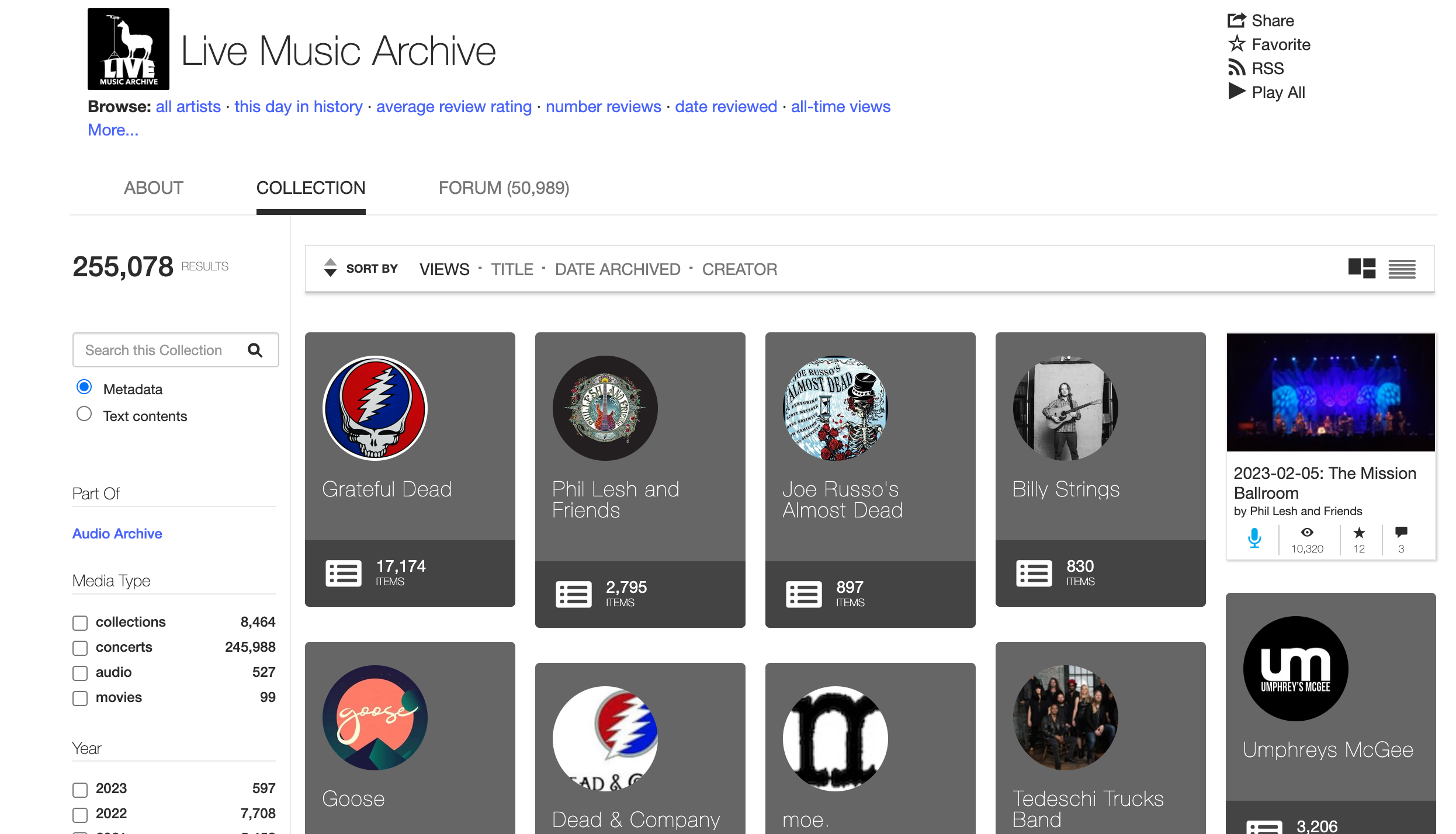
Just as we have done for years and years, humans accumulate a lot of stuff. Lately, much of our stuff is digtital. The Internet Archive is building a digital library of internet sites and other cultural artifacts in digital form. It's a non-profit 501(c)(3) organization that began back in 1996. Just like an analog library, it provides free access to researchers, historians, scholars, people with print disabilities, and the general public. Their mission is to provide "Universal Access to All Knowledge". The Internet Archive has millions of free books, movies, software, music, websites, and more. They are also committed to providing digital versions of published works through OpenLibrary.org, which is a California state accredited library. 


The Internet Archive is probably most well known for its WayBack Machine. This tool allows you to explore over 790 billion web pages that have been saved over time. Want to see what Google looked like in 1998? You can! 


Think about how many times you want students to be able to experience an original source. Using the WayBack Machine students can experience the early days of the internet. They can also see the progression of our digital world over time. Instead of telling our students about historical events, why not have them look at the websites from various news outlets on specific dates. Take a look at CNN.com on September 11, 2001 over the course of the day. Have students compare it to different websites from the same day. 

In addition to the WayBack Machine, The Internet Archive's Open Library offers millions of free books to check out and read online. You can brows the Open Library the same way you would browse any library. It also includes textbooks. The loans are very short but you can click renew as many times as you want.

There is also an archive of movies and television. Looking for a television episode from the 1960's ? I bet you're find it here. Want to find a commercial from the 1980's? You can search by topic or keyword and filter by year. You can have students view presidential campaign commercials from specific years. There is also a smaller collection of feature films and movies.


Besides websites, books, and video, the Internet Archive also has audio, software, and images. 
There is a live music archive that I think many of our students would find fascinating and relevant to what they are learning in many of our classes. There is also an archive of audiobooks and poetry, as well as podcasts and old time radio shows.  The image archive has a collection of images from the galleries of the Metropolitan Museum of Art. 

Think about how much time we spend trying to help our students understand another time, another perspective, or an event that they have only heard or read about. The Internet Archive and the WayBack Machine can be an outstanding resource to add another layer of understanding as they try to make sense of what they are learning. 


Take a look at the Internet Archive. Poke around and see what is there and how it can be utilized in your classes. I think you'll be surprised at how many connections are made there.

Want some help getting started? Feel free to reach out via email or book a time with me. As always, I'm happy to help.


Tuesday, February 7, 2023

FTT - Canva Pro: Features/Projects to Use in Class Today!


Canva Pro

Features/Projects to Use in Class Today!


Last year Canva proved their bid to be one of the fastest-growing software companies in the world with a valuation of over $40 billion dollars! And it makes sense - we are increasingly hungry for visually appealing communications. If your commercial or sign or presentation isn't sharp and colorful, people's eyes will immediately glaze over, in search of something more engaging. I don't suppose there is anything inherently wrong with this yet. Visual communication is one of the three types of communication (others being verbal and non-verbal) and they've been essential to our experiences since the cave paintings in Lascaux and pictograms in Ancient Egypt. So what can you and your students create in class today?

If you need a refresher course on how to access and utilize Canva, here is our original blog on accessing Canva Pro.

Graphic Designs

Canva has all the funding in the world to support continual tool updates and improvements to its already impressive list of features. The Classwork toolbox allows you to create beautiful graphic organizers, posters, worksheets, infographics, comic strips, and more. Individuals can also collaborate in real-time within your organization. You can start from scratch, or use and adapt any of the premium templates.

Brainstorms, Mind Maps, and WhiteBoards

Sometimes you just need a blank canvas to begin organizing your thoughts. Mind Maps and WhiteBoards are fun ways to gather and organize ideas and plans in a visually appealing way that begs to be shared. 


Video Presentations

Let's say that you were able to create a great infographic or presentation on Canva. You can easily turn it into a video presentation by overlaying your voice and face to explain or describe your work. We've done this before during remote and hybrid learning using products like Screencastify. 

AI Text to Image Generators

Canva has its own proprietary AI image generator. Just by typing in some descriptive features, students can add distinctly unique imagery to their presentation.


QR Codes

You can easily add customizable QR codes to your projects. Simple QR codes to link to URLs, and even dynamic ones that can give you analytic data on QR code usage!


Background Removers and Auto-Enhancing Photos

While there will never truly be a replacement for hard-nosed graphic design work, Canva does have a few simple apps that allow the average layman to work some graphic design magic. Would you like to remove the background from a picture of a student or athlete for your poster? Does your image quality need a little touch-up? Upload your pictures to Canva for simple photo editing options.


The list can go on and on. What do you want to create on Canva? Need any help creating something new? Reach out or invite us into your classrooms for some project ideas!