Showing posts with label SAMR. Show all posts

Monday, November 5, 2018

FTT - Improving Student Communications with Google Products

Improving Student Communications with Google Products

@LisaBerghoff/@MrKimDHS


As mentioned earlier this year in a blog post about the SAMR model, its creator, Dr. Ruben Puentedura, is the real deal when it comes to innovation and wisdom in instructional technology and education. He's identified some complex challenges impeding the adoption of educational technology, and one such challenge is the ability to scale teaching innovations. Here's what I mean by scaling innovation:

Amazon has these wonderfully active factory floors where giant, roomba-like robots zip and zoom in perfect robotic harmony to move about hundreds of thousands of our impulse Amazon Prime purchases. While some jobs were unfortunately made obsolete, the efficiency of this system is crucial to support both the staggering growth of the Amazon empire, and our obsessive need to have [insert random household item here] delivered to our doors in two days for free! 

These efficient little machines are innovations that can be easily scaled. What works for one Amazon factory works for ALL Amazon factories. Unfortunately our classroom innovations do not always scale. Beneficial apps or digital resources that work for one class may not work for another class for various reasons like student age, course content, ability, instructor, and unfortunately financial support. 

This is what creates such value in tools like Gmail, Docs, Sheets, Slides, and other G Suite applications. These (relatively) free tech tools offer so much diverse utility to help establish digital equity and scale teaching innovations. (Disclaimer: I do not work for Google, nor do I get paid to advertise their products...but I am willing to. Call me Sundar!)

So on to the stuff! Heavily inspired by Vernon Hills High School's tech coaches, here are some simple ways to develop student communication with Google:

Student to Parents - Weekly E-mails

Encourage students to keep parents in the loop with a simple weekly/bi-weekly message. "Feedback Fridays" can be a quick 5 minute routine built into your curriculum. 


Student to Student - Class Backchannel

Create a Google Doc where students can communicate with each other during an activity in a non-intrusive or disruptive way.

Student to Teacher - FAQ Page

Ask students to contribute to a Frequently Asked Question doc or form. For individual projects or papers, create a Google Doc where students can add important questions. Students can initial questions they would like to be answered. 


Have other ideas for developing student communication skills? Post below!

Tuesday, November 17, 2015

FTT - Wizer.Me

Wizer.me
Make Something That Might Be Boring Exciting With Wizer.Me 


@LisaBerghoff / @joe_edtech


As kids, we all did lots and lots of worksheets in school.  I can remember all of the purple carbon paper residue coating my teacher's fingers as she handed stacks of papers to the first student in each row.  I can also remember a voice screaming in my head saying "these worksheets are SO boring!"  The worksheets of the past seemed a necessary yet extremely dull way for us students to practice our basic skills and turn in piles of pages to be graded.  As educators of the technology age, we really should set the bar higher for both our students and ourselves.

I'm happy to say that those old boring worksheets are a thing of the past.  If you find yourself in a situation where you feel that worksheets are still the best tool for the job, I'm happy to introduce you to Wizer.Me.  Wizer.Me is a free, simple and quick tool for teachers to create their own interactive online worksheets, use easy to find relevant materials, and customize them to their needs.

That's right, Wizer.Me helps you create interactive worksheets.  These allow you to give your students a blended learning experience without a lot of legwork in advance.

You can quickly create an account by signing in with Google.  The website is incredibly simple to use and offers you so many fantastic options.  There are several backgrounds to choose from or you can always upload your own image.   You can create your "worksheet" by choosing from  the basic options such as multiple choice, open question, or matching.  However, you can also add an image for your students to label, include a video for them to watch, a chart to fill in, a link to an article to read, fill in the blanks, embed a vimeo, thinglink, Google maps, and much more!

Of course, there are lots of Wizer.Me assignments already created by your fellow connected educators and they are happy to share. If you click on the "featured worksheets" button, you will be taken to a webpage filled with assignments ready to be used.  At first glance, I noticed several interesting looking assignments for math, science, and social studies.  Some of the titles that I saw were: "parallel lines and angles", "atomic numbers and mass numbers",  "world religions" "solving special systems of linear equations," and "common life processes of living organisms." In addition, there were several pre-made assignments in Spanish.  These are there for you to use as inspiration or you can copy and edit them to suit your needs.

Once you have created your assignment, you can get the link, automatically assign it in Google Classroom, or give the students a special pin code to access the worksheet.  You can choose which method you want to use to send it to your students.  After students complete the worksheet, you can assess their work and opt to have feedback sent directly to them.

I know I say this about many new tech tools but Wizer.Me is an outstanding tool and I highly encourage you to check it out.  I couldn't resist creating a worksheet for you all to complete:
Click This Link

What are your favorite tools for blended learning?  Go ahead and post in the comments section below.


Tuesday, September 1, 2015

FTT - Kami PDF Annotation Tool

Kami - Formerly NotablePDF
Kami Annotation Tool for Google Drive

@joe_edtech


Is this cheating? Last year the first Free Tech Tool I published was a tool for annotating PDFs online. The tool was decent, but the company totally reworked the product, improved it, and gave it a new name. So, I'm going to post an all new Free Tech Tool Tuesday on the new revamped PDF Annotation tool.
---------------------------------------------------------------------------------------------------------------------
One of the hurdles teachers face as they start to integrate Google Apps into their classrooms (the substitution step on the SAMR ladder) is how to make their printed materials usable once they've been scanned. It is easy to read PDFs in Google Drive, but it isn't so easy to make PDFs interactive. Kami, formerly Notable PDF, available from the Chrome Web Store, solves some of the problem.

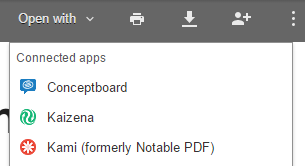
The first step is to go the the Chrome Web Store and add the Kami app to your browser. Once you've done that, you'll notice that you will have options when you want to open a PDF in Drive.
This image is from the PDF Preview in Google Chrome

The first time you open a file with Kami, you'll have the option to watch a brief tutorial on the functions of the product. When the document opens, it will open with a black border and a few "menu buttons" on the right hand side. They are pretty standard annotation functions (highlight, strikethrough, underline, comment, add text, and select text), but if you hover over any of the buttons, you'll get a mini pop up with a description of the functionality.

Screen Shot is actually from the Chrome Webstore
In the example to the left, I added text in the white space of the PDF using the "add text" tool (capital A). 

I also added a text comment. Similar to working in Drive, comments are linked to some portion of the text. So after clicking the "dialogue bubble" icon, click on the pertinent text and type your comment in the pop up box that appears on the right hand side of the screen.

UPDATE: Last year, one of the problems with this product was that it couldn't necessarily read text on documents that were scanned. With the introduction of the new Kami software, there is OCR Text recognition. So you should be able to use all of these tools with any PDF.

If you look at the top menu bar, you'll notice there are a few more tools. Most of them are pretty standard, but perhaps the most useful for your classroom is the "share" icon:
The share icon allows your students to add you to their Kami documents. Once you've been added, you can see their annotations, add your own, and reply to their comments. The good news is that annotations you make and comments you make are automatically saved in Kami. 
-------------------------------------------------------------------
Kami is just one of the many options for working with PDFs online. If you have one that you've used and have had success with, please share it in the comments box below.