Wednesday, February 22, 2023

ChatGPT for Teachers?

 ChatGPT For Teachers?

Guest written by Joe Taylor, DHS AP for C & I


I'm not the only educator in my house. My wife teaches English and Special Education and my daughter is getting close to entering the teaching market with Special Education and Dance credentials. Over the last couple of months, I've heard a lot of fear and frustration over the disruption that AI technologies, like ChatGPT, will likely have across the teaching field. Yes, this technology has the potential to change things a lot in ways that we can't fully comprehend at the moment. However, and hear me out, if we become the early adopters of this kind of technology we could use it to our advantage and set the parameters for acceptable use in education.

OK, hear me out. I've always been an early adopter for transformative instructional technology, and I understand that my colleagues aren't always there with me at the beginning of that process. But, think about some of the real time-consuming things you have to do in any given week. If you are an English teacher, say, and you want to create a lesson plan based on a passage from last night's reading that has kids up working on skills at different stations in your classroom? Now let's say you'd like to make sure that there is some differentiation built into those stations to accommodate learners at different levels? An hour? Two? More?

Ted Pickett, a teacher for an American High School in Abu Dhabi used ChatGPT to create that lesson in 6 minutes. Here's his video:

Thanks to Ken Williams for finding and sharing this video!

I think we are just scratching the surface? What if we need to generate 10 or 15 word problems based on a single problem structure? How about automatically creating different versions of a test?

Here's what ChatGPT thinks it can do to help teachers write lesson plans efficiently:

"As a language model trained by OpenAI, ChatGPT has the potential to assist high school teachers in creating differentiated lesson plans that cater to the diverse needs of their students. Differentiated instruction involves designing lessons that accommodate different learning styles, abilities, and interests of students. However, creating such plans can be time-consuming and challenging for teachers, especially when they have a large class size.

ChatGPT can help alleviate this burden by providing high school teachers with personalized and differentiated lesson plans. By inputting information about the students' learning styles, abilities, and interests, ChatGPT can generate tailored lesson plans that meet the needs of each student in the classroom.

ChatGPT can also assist teachers in identifying gaps in students' understanding of the subject matter. Through its natural language processing capabilities, ChatGPT can analyze students' responses to quizzes, assignments, and tests to identify areas where students may need additional support. This information can then be used to design targeted lessons that address the specific needs of each student.

Moreover, ChatGPT can provide teachers with access to a wealth of educational resources, including articles, videos, and interactive simulations. These resources can be integrated into lesson plans to enhance students' engagement and understanding of the subject matter.

In addition to assisting with lesson planning, ChatGPT can also facilitate communication between teachers and students. By using natural language processing, ChatGPT can understand and respond to students' questions in real time, providing instant feedback and support. This feature can help students who may be hesitant to ask questions in class, providing them with a safe and comfortable space to ask for help.

Overall, the potential for using ChatGPT to create differentiated lesson plans for high school teachers is immense. By providing personalized, targeted, and engaging lesson plans, ChatGPT can enhance students' learning experiences and support teachers in their efforts to meet the diverse needs of their students."

But that is really just from a casual conversation I was having with ChatGPT over a cup of coffee. I didn't even take time to dive into specifics. 

I think we fear what we don't know, and we haven't really taken the time to see how this fascinating new technology can reduce our workload as teachers. (I haven't even brought up letters of recommendation yet...and I'm just going to let that one sit for a while.

Richard Byrne runs a resource site called Free Technology for Teachers. It has been one of my favorites for a long time. Currently, if you explore his website, you can demystify ChatGPT by getting general overviews of the tool and learning some quick tips on how to detect whether or not an essay was created by ChatGPT. Additionally, though, he is advertising a course created by another of my favorites, Rushton Hurley. The course is called ChatGPT: Boom or Our Doom? and it "is a free, self-paced course in which Rushton leads you through five lessons about ChatGPT and its implications for classrooms. Each lesson features a five-minute video and a suggested practice or reflection activity. The lessons cover what ChatGPT is and how it works, how to handle concerns about cheating, and using ChatGPT to create materials and activities for your classes" (Free Technology for Teachers, February 18).

What do you need to start your exploration? And how can you use ChatGPT to reduce your workload?

Wednesday, February 15, 2023

FTT - The Internet Archive - Cultural Artifacts in Digital Form

The Internet Archive

Cultural Artifacts In Digital Form


@LisaBerghoff/@MrKimDHS


Just as we have done for years and years, humans accumulate a lot of stuff. Lately, much of our stuff is digtital. The Internet Archive is building a digital library of internet sites and other cultural artifacts in digital form. It's a non-profit 501(c)(3) organization that began back in 1996. Just like an analog library, it provides free access to researchers, historians, scholars, people with print disabilities, and the general public. Their mission is to provide "Universal Access to All Knowledge". The Internet Archive has millions of free books, movies, software, music, websites, and more. They are also committed to providing digital versions of published works through OpenLibrary.org, which is a California state accredited library. 


The Internet Archive is probably most well known for its WayBack Machine. This tool allows you to explore over 790 billion web pages that have been saved over time. Want to see what Google looked like in 1998? You can! 


Think about how many times you want students to be able to experience an original source. Using the WayBack Machine students can experience the early days of the internet. They can also see the progression of our digital world over time. Instead of telling our students about historical events, why not have them look at the websites from various news outlets on specific dates. Take a look at CNN.com on September 11, 2001 over the course of the day. Have students compare it to different websites from the same day. 

In addition to the WayBack Machine, The Internet Archive's Open Library offers millions of free books to check out and read online. You can brows the Open Library the same way you would browse any library. It also includes textbooks. The loans are very short but you can click renew as many times as you want.

There is also an archive of movies and television. Looking for a television episode from the 1960's ? I bet you're find it here. Want to find a commercial from the 1980's? You can search by topic or keyword and filter by year. You can have students view presidential campaign commercials from specific years. There is also a smaller collection of feature films and movies.


Besides websites, books, and video, the Internet Archive also has audio, software, and images. 
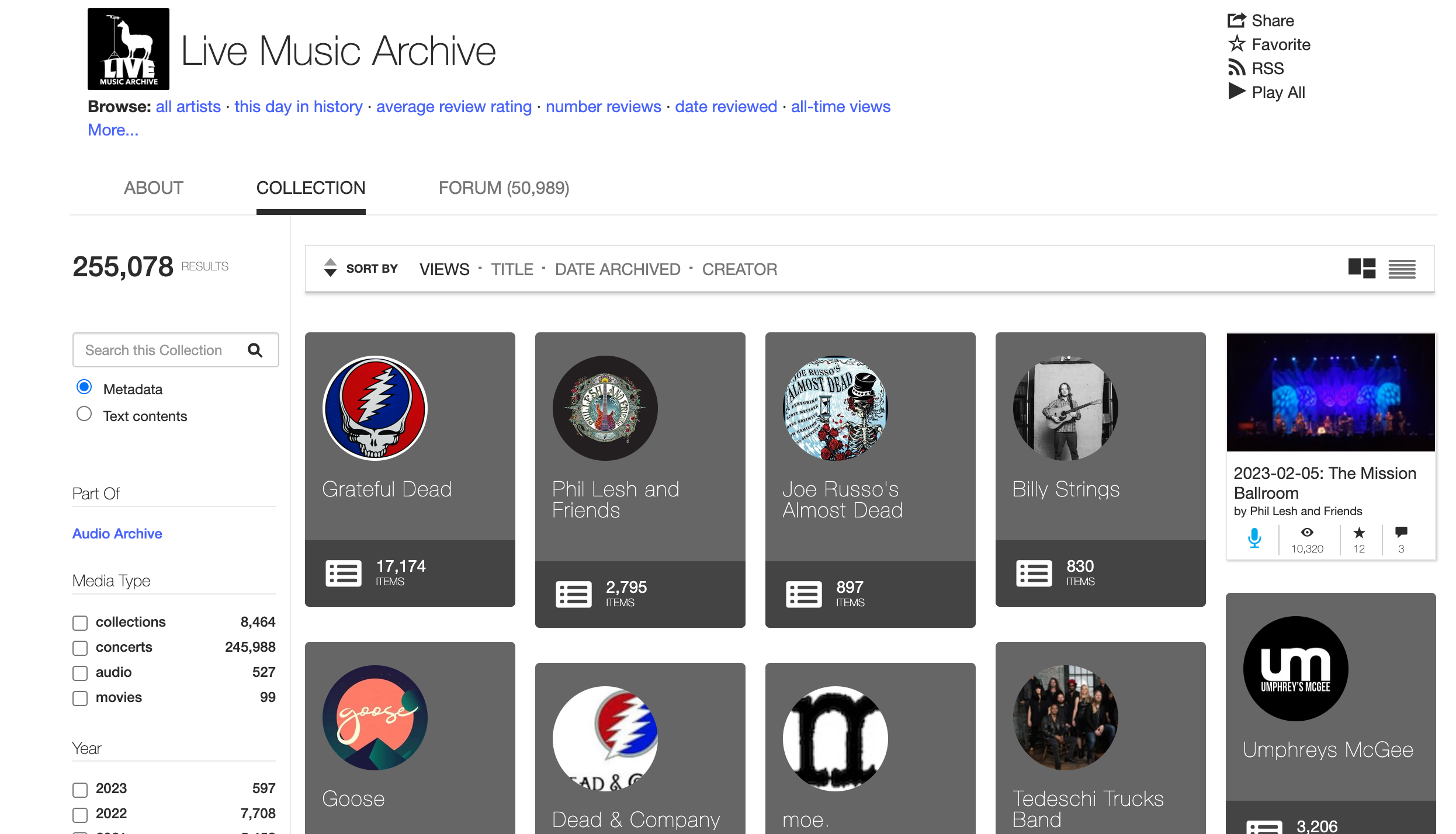
There is a live music archive that I think many of our students would find fascinating and relevant to what they are learning in many of our classes. There is also an archive of audiobooks and poetry, as well as podcasts and old time radio shows.  The image archive has a collection of images from the galleries of the Metropolitan Museum of Art. 

Think about how much time we spend trying to help our students understand another time, another perspective, or an event that they have only heard or read about. The Internet Archive and the WayBack Machine can be an outstanding resource to add another layer of understanding as they try to make sense of what they are learning. 


Take a look at the Internet Archive. Poke around and see what is there and how it can be utilized in your classes. I think you'll be surprised at how many connections are made there.

Want some help getting started? Feel free to reach out via email or book a time with me. As always, I'm happy to help.


Tuesday, February 7, 2023

FTT - Canva Pro: Features/Projects to Use in Class Today!


Canva Pro

Features/Projects to Use in Class Today!


Last year Canva proved their bid to be one of the fastest-growing software companies in the world with a valuation of over $40 billion dollars! And it makes sense - we are increasingly hungry for visually appealing communications. If your commercial or sign or presentation isn't sharp and colorful, people's eyes will immediately glaze over, in search of something more engaging. I don't suppose there is anything inherently wrong with this yet. Visual communication is one of the three types of communication (others being verbal and non-verbal) and they've been essential to our experiences since the cave paintings in Lascaux and pictograms in Ancient Egypt. So what can you and your students create in class today?

If you need a refresher course on how to access and utilize Canva, here is our original blog on accessing Canva Pro.

Graphic Designs

Canva has all the funding in the world to support continual tool updates and improvements to its already impressive list of features. The Classwork toolbox allows you to create beautiful graphic organizers, posters, worksheets, infographics, comic strips, and more. Individuals can also collaborate in real-time within your organization. You can start from scratch, or use and adapt any of the premium templates.

Brainstorms, Mind Maps, and WhiteBoards

Sometimes you just need a blank canvas to begin organizing your thoughts. Mind Maps and WhiteBoards are fun ways to gather and organize ideas and plans in a visually appealing way that begs to be shared. 


Video Presentations

Let's say that you were able to create a great infographic or presentation on Canva. You can easily turn it into a video presentation by overlaying your voice and face to explain or describe your work. We've done this before during remote and hybrid learning using products like Screencastify. 

AI Text to Image Generators

Canva has its own proprietary AI image generator. Just by typing in some descriptive features, students can add distinctly unique imagery to their presentation.


QR Codes

You can easily add customizable QR codes to your projects. Simple QR codes to link to URLs, and even dynamic ones that can give you analytic data on QR code usage!


Background Removers and Auto-Enhancing Photos

While there will never truly be a replacement for hard-nosed graphic design work, Canva does have a few simple apps that allow the average layman to work some graphic design magic. Would you like to remove the background from a picture of a student or athlete for your poster? Does your image quality need a little touch-up? Upload your pictures to Canva for simple photo editing options.


The list can go on and on. What do you want to create on Canva? Need any help creating something new? Reach out or invite us into your classrooms for some project ideas!


Tuesday, January 31, 2023

FTT - Quizizz, Where Motivation Meets Mastery

Quizizz

Where Motivation Meets Mastery

@LisaBerghoff@MrKimDHS

Sometimes in the excitement of looking for the next new tool, it can be easy to overlook tools that already exist. Sometimes it can be helpful to simply be reminded of these tools that have been around a while but most often there have been updates that are worth looking into. Remember that technology moves much faster than education does so just because you used it three years ago does not mean it looks or acts the same now. I also love thinking about using these tools in new ways. Today's post is one of those tools that is not new but has been updated and also there are lots of ways to use it.

I took a look at the Tech Tool Tuesday archive and the last time Quizizz got it's own post was back in 2015 when it first launched. It has been mentioned in several other posts, including one on formative tools, one on tech tools to know, and another on bringing games into the classroom. While Quizizz is not new, it does have several new features including one that could make it a viable alternative to Quizlet since Quizizz is on our SOPPA approved list and Quizlet is not.

In case you have not heard of Quizizz, here's the elevator speech. According to the website,  "Quizizz is a Learning platform that offers multiple tools to make a classroom fun, interactive and engaging." It is in the same category as Kahoot and Gimkit in that it's a great tool for review games.  


I made a game just for D113 staff so you could try it from a participant perspective. The questions are a little silly, but you will get the idea. 

You can also go to joinmyquiz.com and enter the code 31790907

As a teacher, you can create lessons, conduct formative assessments, assign homework, and have other interactions with your students in a captivating way. 

Quizizz is fun and engaging. Ask your students and they will confirm. As the teacher you have lots of options but I also really like that it also gives students options. When they start a game they can toggle on to have questions read to them. They can also choose whether or not music plays or memes come up after they answer questions. For students who are easily distracted, this can really help as we teach them to work on self awareness and attending to a task. Allowing the students to make these adjustments gives them an opportunity to tailor the experience to their needs.


Quizizz is most commonly used as a tool for review of information.  Students can play the game asynchronously or you can play in class. You can decide how many attempts they get. Students can also use flashcard mode (Quizlet replacement) to review. 

You can also use Quizizz to take a poll in class and there is now a new feature where you can create interactive slides in Quizizz. 

Quizizz features: 

  1. Instructor paced Lessons/Quizzes: Teachers control the pace; the whole class goes through each question together.

  2. Student paced Lessons/Quizzes: Students progress at their own pace and you see a leaderboard and live results for each question or lesson. The free version allows for 100 players for a given game. 
  3. Sync across devices: Students always see the content on their own devices, be it  PCs, laptops, tablets, and smartphones.
  4. Access to millions of Quizzes: Import any public quiz as-is, edit and customize them.
  5. Quiz+Lesson editor: Several question types to choose from. Add images to your questions. 
  6. Reports: Get detailed class-level and student-level insights for every quiz. Share with parents/guardians to monitor student progress.
  7. Sharing & Collaboration: Share your quiz with other instructors and/or ask them to be collaborators.
What's New In Quizizz?

Pre-Game Features-
Question Types:
There are some new question types. Many of them are part of the premium subscription but not all. For those of use using the free version, we have the original multiple choice but we now also have fill in the blank, drawing, and open-ended questions. 

New quiz editor:
Now you can search and add Google images and YouTube videos directly from the editor.

Create from a spreadsheet or an existing Google form:
You can easily import your existing questions or vocabulary lists from a spreadsheet. Or, if you already created a quiz in Google forms Quizizz will create a Quizizz game for you from your multiple choice, open ended, or poll questions. Click here to see more information about importing from Google Forms.


Asynchronous Settings:
Assigning for homework? You can decide how many attempts students will get. Decide whether or not they see the correct answer after each question. Allow students to review questions and the answers when they are done. A new feature is the "redemption quiz" where you can allow students to answer the questions that they got wrong at the end in order to improve accuracy. There is also the option for an "extra life". Turn off redemption quiz mode to give your students another chance to get some types of questions right. 


During Play Options:
There are now power-ups. This is a nod to Gimkit, another online game tool. 
Scores and grades are not affected by power-ups so you won't get an inaccurate measure of their learning if you choose.
You still have the activity settings that you have always enjoyed. Choose to shuffle the questions or the answer options (for multiple choice questions), show the leaderboard, play music, show memes. You have lots of controls to adjust for your particular group of students.


After Play Options:
Print the quiz for students who may benefit from a hard copy. Just click where it says Worksheet. 


Click Reports to take a look at the stats for all of your Quizizz activities. Based on the level of accuracy you many want to assign more practice. 

Flashcards: When students have completed the game. They can review the questions and answers and are given a button to click for Study Flashcards.  When they click on the button, the questions are given in flashcard form, with the question on the front and answer on the back. If they click "view options" they can also see all of the answer choices from the game. They can just press the space bar or click to flip it over and see the correct answer. 

Pushing games out to students is simple and you have several options.
You can share the link, just add it to your Schoology materials page or updates.
You can also have students go to joinmyquiz.com and enter the game code.
Finally, there is also an option to embed. When you are on the editing screen, click "embed" and you can grab the embed code. Switch to html mode on a Schoology assignment and copy the code there. That way your students don't even need to click to access your game.

Try it now!

Want to give Quizizz a try from a participant perspective?
You can also go to joinmyquiz.com and enter the code 31790907


Tuesday, January 24, 2023

FTT - 8 Digital Skills Every Teacher Should Know

8 Digital Skills Every Teacher Should Have

@LisaBerghoff/@MrKimDHS

Coming straight from The Learning Technology Center for Illinois is a short list of 8 practical digital skills every teacher should be comfortable with in today's classroom. Luckily for us, remote and hybrid learning was probably the most effective (albeit forced) EdTech professional development educators around the world ever engaged in. So without further ado, here are 8 digital skills with some examples of supportive programs.

Blending Learning:
The pandemic signaled a major paradigm shift regarding society's professional and educational workspaces, as well as how individuals interacted there. While no one is eager to return to asynchronous eLearning, remote or hybrid work has been embraced by myriad firms worldwide and is having a lasting impact on the labor market, as well as the commercial real estate markets. Luckily for our district, we were already embracing blended learning by adopting the learning management system, Schoology, by the time our doors were shut. Teachers should no longer be limited by the physical space and contact time of their classrooms. Schoology, and other programs like it, allow instruction to manifest itself digitally which aligns expectations for future work.

Examples: Schoology, Canvas, Google Classroom, PowerSchool.

Content Creation:
Now no one is threatening to take away posters and tri-folds, but students now have the ability to express their creativity through digital mediums. Visual arts and design skills are exceptionally important, and there are accessible ways for every teacher to experiment and design content to support their instruction. Canva and Google apps like Youtube, Draw, and Sites, are increasingly popular ways for teachers to infuse their instruction with visually appealing content.

Examples: Canva,  Adobe Spark, Google Apps

Video Creation:
Important enough of a distinction with other forms of content creation - instructional videos are becoming increasingly relevant in a digital world. With mini televisions/video recorders in every pocket, this type of accessibility can be educationally helpful if done correctly. Movies or music videos can be a fresh alternative to traditional presentations or written assignments. Utilize students' mastery of iMovie and social media for fun, and interactive assignments.

Examples: WeVideo, Flip (formerly Flipgrid), YouTube, Animoto.

Screencasting and Recording:
We've all probably benefited immensely from the expertly crafted videos from Khan Academy. While our production value may not be on par with Sal Khan, your students may get more from your personally created videos than those made for a general audience through Khan Academy. I hope this does not bring out too many bad memories from Remote/Hybrid learning. Screencasts and recordings can be powerful tools for students who may need to revisit a topic/concept without having to meet individually with a teacher.

Examples: Screencastify, Google Meet, Zoom, Screecast-O-Matic

Presentations:
While most of us are comfortable with Microsoft Powerpoint and Google Slides by now, you can augment your presentations with programs like NearPod or Pear Deck. While undoubtedly your expertly-timed jokes and anecdotes are doing wonders in tethering students to reality during your lessons, we can all use a little help. Check out district-funded programs like Pear Deck to take your presentations to the next level.

Examples: Pear Deck, NearPod, Google Slides, Prezi

Data Collection:
How do you know if your students are learning in your classroom? Thumbs up and head nods? Staff should feel comfortable aggregating (or disaggregating) student data, qualitative or quantitative. You can take traditional modes of data collection through Google Forms and Sheets, or you can work with programs like GimKit, Survey Monkey, or Kahoot! to feel the "pulse" of your class. You can also take advantage of Panorama Education's ability to collect, organize, and categorize student data pulled directly from Infinite Campus.

Examples: Panorama, Google Forms/Sheets, Gimkit

Digital Assessments:
Now I know that this is somewhat of a sore subject, what with our digital assessment security program, Lockdown Browser, failing somewhat miserably for us the last few years. But let's face it, when it works well, digital assessments have too many perks to ignore. Instant grading, data storage, and easy access/dissemination are all benefits of digital assessments. If only we can work out test security, retakes, extended time, etc....

Examples: Schoology Assessments, Google Form, EdPuzzle

Resource Collection/Sharing/Organization
Let's face it, we should just call this one Google Drive. As an educator and colleague, do you have the skills to create, organize, and share content on Google Drive? Do you know where your most important documents are? Are they organized in a coherent manner? Can you easily share and access documents in a timely manner? Google Drive is quietly one of the most impactful programs in education today, and it's worth taking the time to learn.

Examples: Google Drive, Microsoft OneNote

OK, that was a lot. We're not saying you need to be able to effectively use everything listed in this blog. But you should strive to be more and more comfortable with these digital skills. Perhaps make it a point to touch upon these skills throughout your semester. The more you are comfortable with these skills, the better model you can be for your 21st century learners. Need more help with these digital skills? Please reach out!


Tuesday, January 17, 2023

FTT - ChatGPT - Fascinating or Frightening? Maybe Both

Chat GPT

Fascinating Or Frightening? 

Maybe Both

@LisaBerghoff/@MrKimDHS

I'm always interested in the buzz but I am also skeptical. I don't jump on the newest shiniest thing in my personal life and I certainly don't jump on the bandwagon when it comes to education. I do however believe in being well-informed and staying curious about what could help our students be best positioned for whatever the future holds for them. 

In case you have been living under a rock, Chat GTP is an artificial intelligence chatbot that was launched by Open AI in November of 2022. It uses enormous language models to predict and generate the next word in a series of related words. The world of academia was understandably wary of its capacity to answer questions and write papers. I saw a demonstration where a teacher asked it to write an essay about the thirteen colonies in the style of a third grader and cite two sources. In a matter of seconds, the essay was written. There is also a fair amount of buzz from the education world in the positive column in terms of utilizing AI in the classroom. Teachers can generate models of writing for students to analyze and edit. It's far from perfect, and according to several news sources, it will soon be behind a big paywall. 

Regardless of what you think, the notion of AI in schools is not a new one and is most likely heading in our direction. It opens up many good topics for conversation. Should students do most of their writing in class? Does this help with equity since we know that students already work with tutors, some of whom are writing papers for students? 

At any rate, I thought I would ask the chatbot to help me out by writing a post for educators on the benefits of AI in classrooms along with addressing the issue of cheating. Here's what it came up with.

The integration of artificial intelligence (AI) in the high school classroom has the potential to revolutionize the way students learn and teachers teach. Here are just a few benefits of incorporating AI into the classroom:

1. Personalized learning: AI can analyze data on each student's learning style and abilities, and adapt the curriculum to best suit their needs. This can lead to increased engagement and motivation for students, as well as improved academic performance.
2. Improved efficiency: AI can assist teachers with tasks such as grading assignments and providing feedback, freeing up more time for instruction and interaction with students.
3. Enhanced assessment: AI can provide immediate and accurate assessment of student work, allowing teachers to quickly identify areas where students need additional support.
4. Increased access to information: AI can provide students with instant access to vast amounts of information, expanding their knowledge and understanding of subjects.

While these benefits are significant, the use of AI in the classroom also raises concerns about cheating. To mitigate this risk, teachers can take the following steps:

1. Clearly communicate expectations: Clearly communicate expectations to students regarding the use of AI, and the consequences of cheating.
2. Monitor student work: Keep an eye on student work to ensure that they are completing it independently.
3. Use multiple forms of assessment: Use a variety of assessment methods, such as open-book exams, oral presentations, group projects, to ensure that students are demonstrating their knowledge in multiple ways.
4. Use plagiarism detection software: Utilize plagiarism detection software to check student work for plagiarism.
5. Be aware of the latest cheating techniques: Stay informed about the latest cheating techniques and be aware of how they might be used in the classroom. 

Overall, the incorporation of AI into the high school classroom has the potential to significantly enhance the learning experience for students and teachers. By taking steps to mitigate the risk of cheating, educators can ensure that the benefits of AI are realized while maintaining academic integrity. 

(end of ChatGPT)

Additionally, if you'd like to try out an AI text detector, here are a few options you can utilize to check for plagiarism. Note, they are not 100% accurate, but probably better than you:


Monday, January 9, 2023

FTT - Most Common Errors - IC-Schoology Sync Edition

Most Common IC-Schoology Sync Mistakes    

(and how to avoid them)

@LisaBerghoff/@MrKimDHS

Our first go-around with the new IC-Schoology gradebook sync was full of fun and exciting challenges for mostly everyone involved. But as one of my favorite characters in one of my favorite books would say, "What do people want? Only that things go on as normal and tomorrow is pretty much like today." I think what he meant was that regarding some things, we crave consistency and reliability and the good kind of boring that we can depend on. We can certainly get there with the IC-Schoology sync if we avoid some simple errors:

Infinite Campus Setup

  • Make sure that your IC grade-calc setup is done correctly. If you want to weigh your categories, make sure "weight categories" is checked (and vice versa). Double-check that your category percentages are set the way that you want them to be and that they match with Schoology's grade setup. Click here for updated instructions.


Syncing Courses that have been Section-Linked:
  • If you have multiple sections of the same course and you section-link them on Schoology, you MUST set up the actual sync in each section. By clicking on the "Infinite Campus" tab on the left-hand side of Schoology, you can access each section by toggling the names on the top left.


  • Setting up the sync really just means creating categories in IC and matching them in Schoology:


Schoology Gradebook 
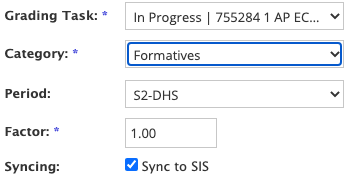
  • Make sure when you create assignments in Schoology, that the grading task reads "In Progress" and the Sync to SIS button is checked. These are defaults so you shouldn't have to mess with them too often.

  • Factor 0 does not sync over to IC. If you wish to continue using "Factor" for your gradebook entries, you can either directly add them to IC and utilize the "Multiplier" or create a separate category with a default multiplier.
    You can find the multiplier in IC when you create an assignment

  • Find issues using "Bulk Edit." If you click on the 3 dots in the top right corner of your Schoology Gradebook, you can find the "Bulk Edit" option which gives you an aggregate overview of all of your assignments. You can quickly identify and fix issues here all at once.
The bottom line is, staff are being asked to keep two separate gradebooks that operate in two separate systems with two different sets of rules. On top of that, you only set them up once or twice a year. That's a ton to remember. So take a careful look at the resources provided, and don't be afraid to ask for help! Good luck and happy New Year!